
Client Requests
1.11.0·
Version 1.11 brings Client Requests. Send a client one secure link and they fill in their own Snapshot details, from their family and income to their savings, debts, spending and goals, and upload the documents you need on the same page. Their answers come back to you in Snapshots, where you review them and publish in a click, so your Snapshots stay current without retyping a thing.
Client Requests: Clients Fill In Their Own Snapshot and Send Their Documents
Keeping a client's Snapshot current used to mean a meeting, a questionnaire, and retyping every answer. Client Requests hands that part to the client, on one secure page, while you decide what reaches their Snapshot.
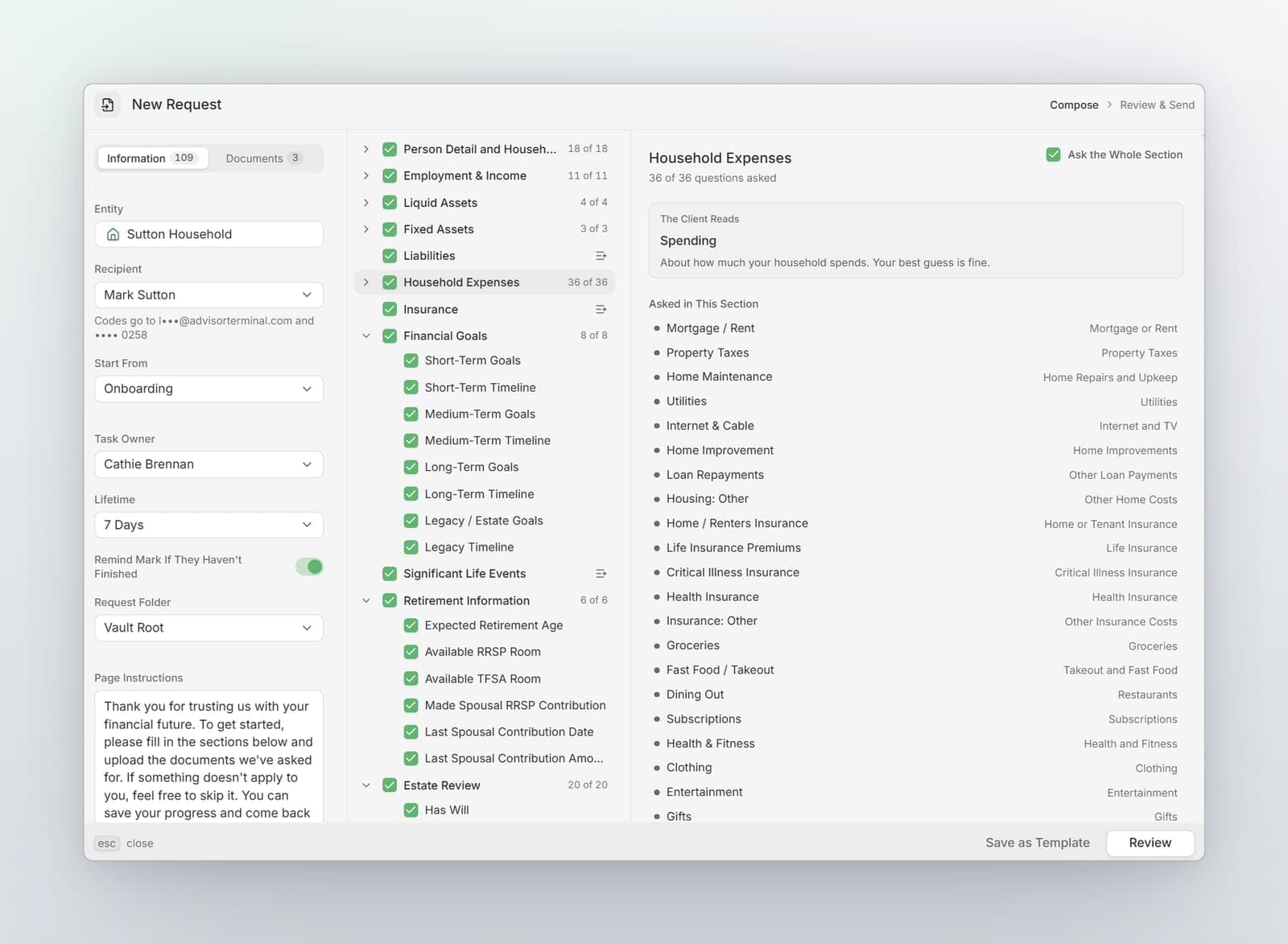
Start a request from the new Client Requests module in the Advisor Toolkit, from Create → Client Request on a client's record, or with Gather Info from a Snapshot. Choose the parts of their Snapshot you want them to fill in, from their family and income to their savings, debts, spending and goals, then add the documents you need. Pick how long the link stays open, and send.
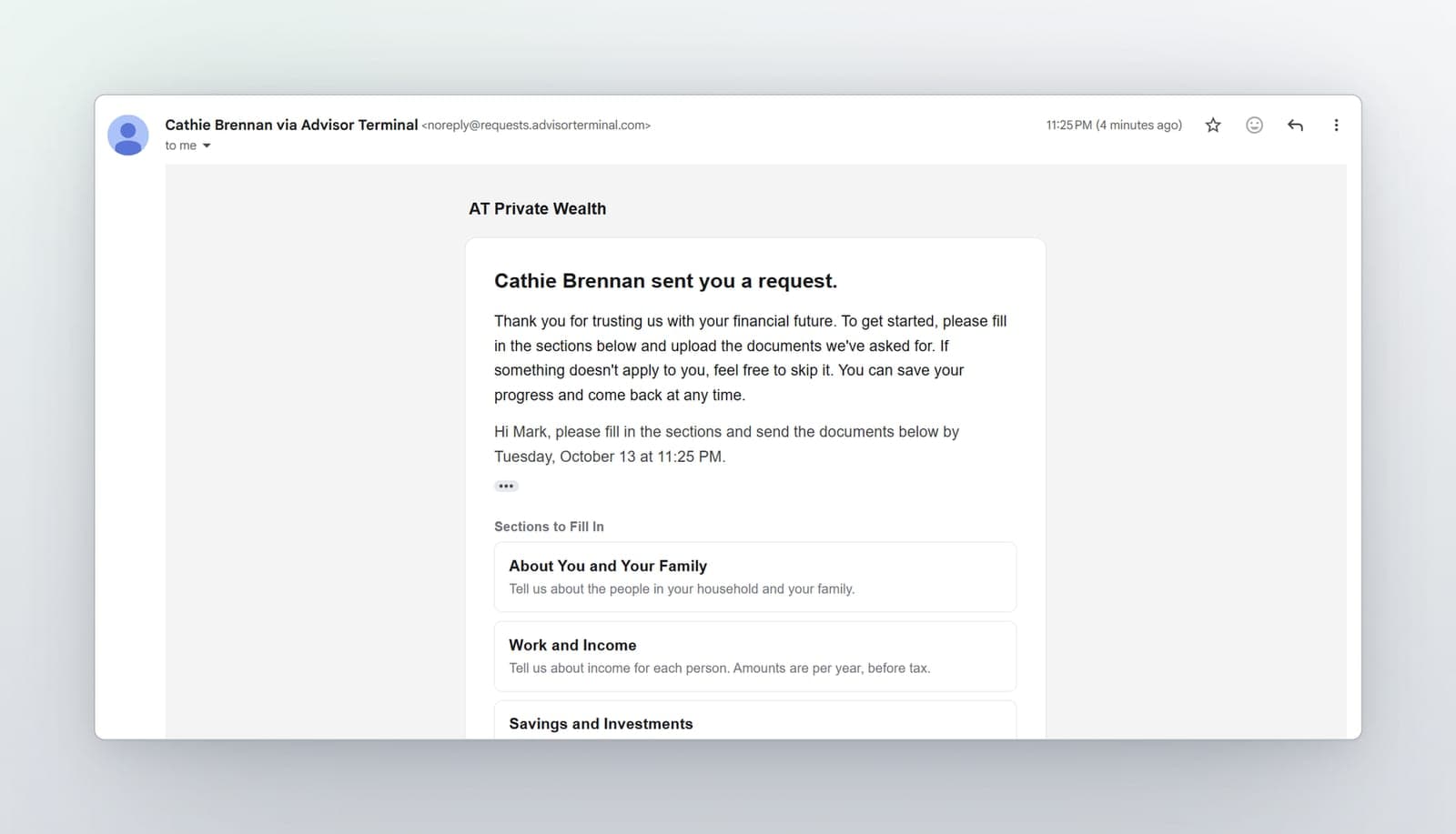
Your client gets an email from you with one link. To open it, they enter a code sent to their email and then a code texted to their mobile, so even your clients are two-factor authenticated. That means the person you send to needs both an email address and a mobile number in their contact details before you can send. While the request is open, they can sign back in whenever they like and pick up right where they left off.
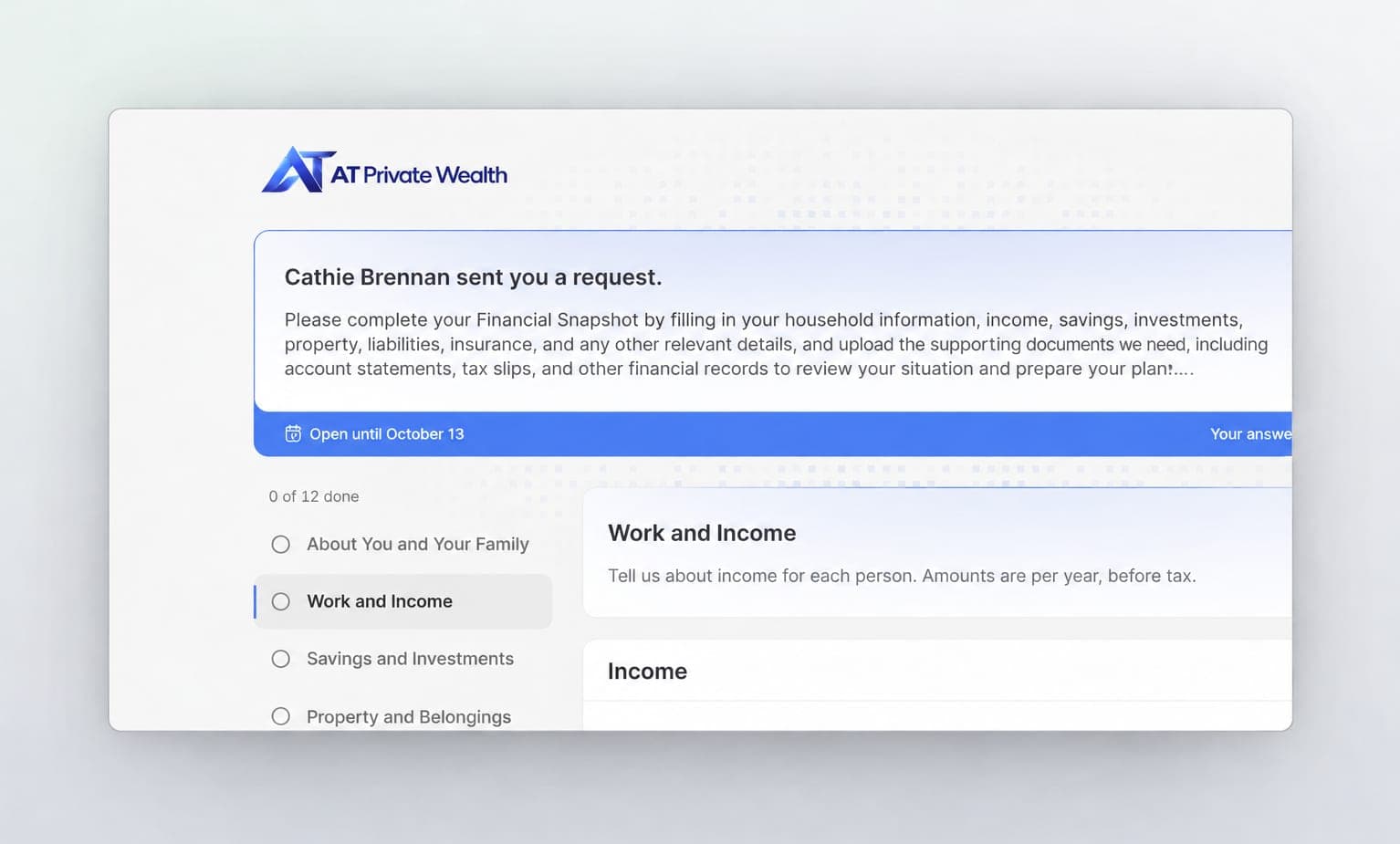
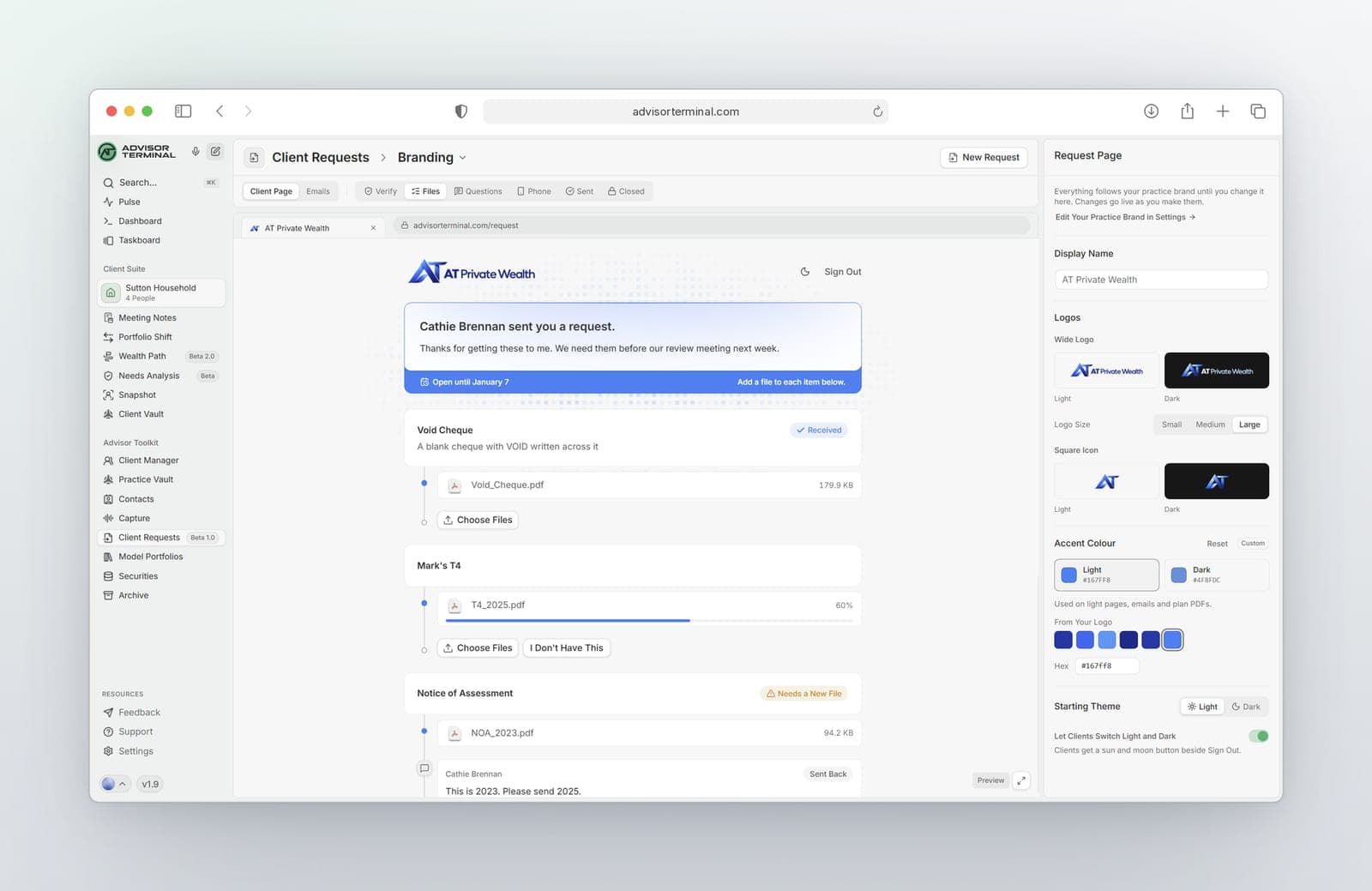
Once they're in, they work through their Snapshot one section at a time, in plain language, and everything saves as they go. On the same page they upload the documents you asked for and mark anything they don't have with a note. The page carries your practice's logo and colours, and they can switch between light and dark as they like.
When they finish, you get an email. Their answers wait in Snapshots under Client Answers, beside what the Snapshot holds today. Bring them into a session in a click, adjust anything you need, and publish with the date they apply to. If the client changes an answer after you publish, that section tells you.
Set your brand once in Settings → Brand, or adjust the request page on its own in Client Requests → Branding and see every screen your client will see before you send.
- Reminders go out on their own before the link closes. You can also send one yourself or extend the deadline.
- Every request shows on the client's record, under the new Requests tab.
Fixes
- Notes list loads for large practices. The notes and documents list now loads for practices with thousands of documents instead of showing nothing.
- Dates show the right day when reviewing changes. Dates you enter, like a birthday, now show the same day on the review screen before you publish a Snapshot, instead of the day before.