One-Click Meeting Notes, AI Refinement, Voice Dictation & more...
1.4.0·
This one matters. v1.4 turns your conversations into finished documentation. You get one-click meeting notes, plain-English refinements with Qira, voice dictation that actually understands financial terminology, transcript linking for richer context, and a brand new way to compose notes from scratch.
Every section below walks you through one capability with screenshots. Read it through. We think you'll find something that changes how you work this morning.
One Click. Done.
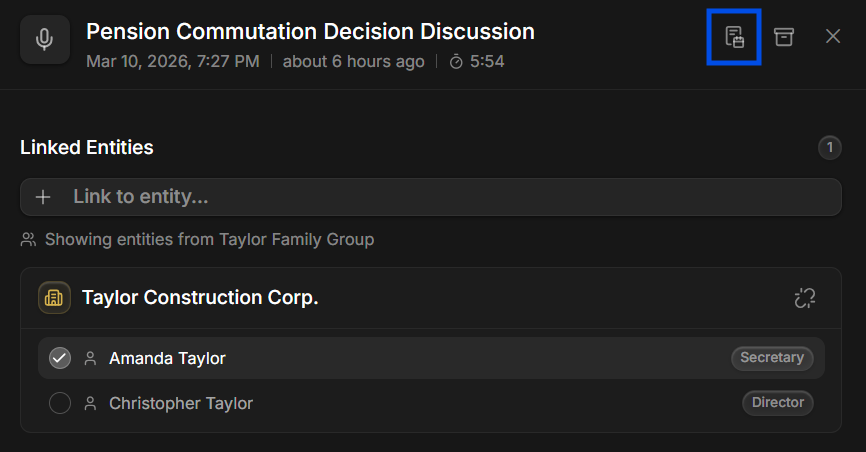
Open any recording on the Capture page and click into the side panel. Once you've linked your entity and confirmed your speakers, look for the Meeting Notes icon at the top right of the panel. That's your Generate button. Click it, and go make yourself a quick coffee. Qira analyzes the full conversation and writes a structured meeting note for you. A "Generating..." badge appears on the recording row so you can track progress at a glance. When it's done, a notification pops up with a direct link to your finished note, no matter where you are in the app.
- Open a recording: Click any recording in the Capture list to open the side panel. Link your entity and confirm your speakers
- Click the Meeting Notes icon: At the top right of the side panel, click the Generate meeting note icon. That's it. One click
- Keep working while it runs: Generation happens in the background. Close the panel, switch pages, start your next meeting. It doesn't matter
- Get notified when it's ready: A notification appears with a "View Meeting Note" link that takes you straight to your finished note
- Retry if needed: If something goes wrong during generation, a retry button appears on the recording row. One click re-runs everything without losing any of your meeting details
Your Note Arrives Fully Structured
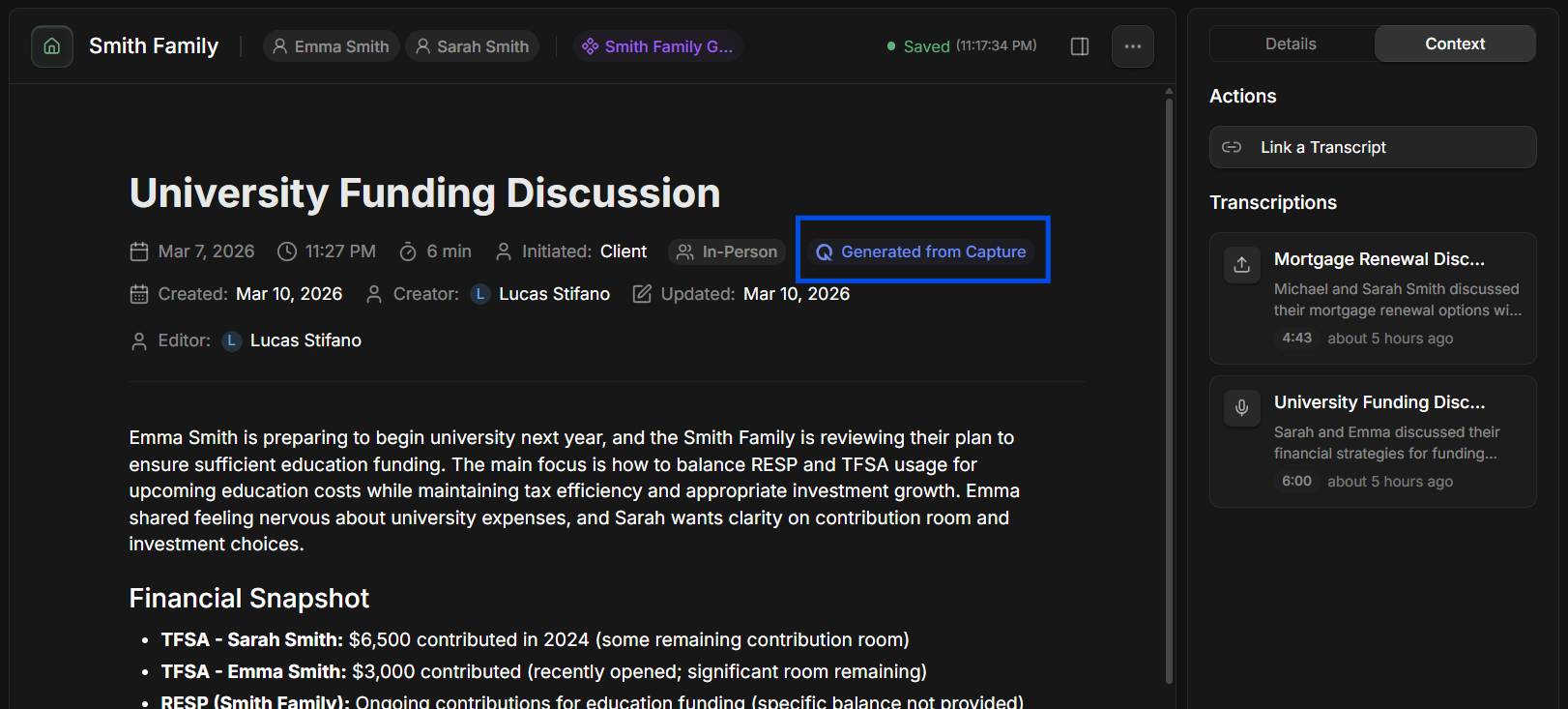
When you open your generated meeting note, you'll find a fully structured document, not a raw transcript dump. At the top, a "Generated from Capture" badge confirms this note was created from a recording. The note is organized into clear sections that Qira builds based on what was actually discussed. She includes only what's relevant to your meeting. If estate planning didn't come up, there won't be an estate planning section. You'll find the note content in the center of the screen, a Details and Context panel on the right, and the refine bar at the bottom.
- Summary: A concise overview of the meeting. Who was there, what was discussed, and the overall tone of the conversation
- Financial Snapshot: Key financial details mentioned during the meeting, including accounts, assets, allocations, and balances
- Planning Areas: Topics like investment strategy, tax planning, retirement, insurance, and estate planning. Only the ones that were actually discussed
- Client Concerns & Drivers: What the client expressed about their goals, worries, or motivations in their own words
- Action Items: Follow-up tasks separated by who's responsible: Advisor, Client, or Shared
- Questions to Clarify: Items that came up but need further discussion or verification before acting on them
Your Meeting Details, Automatically Filled In
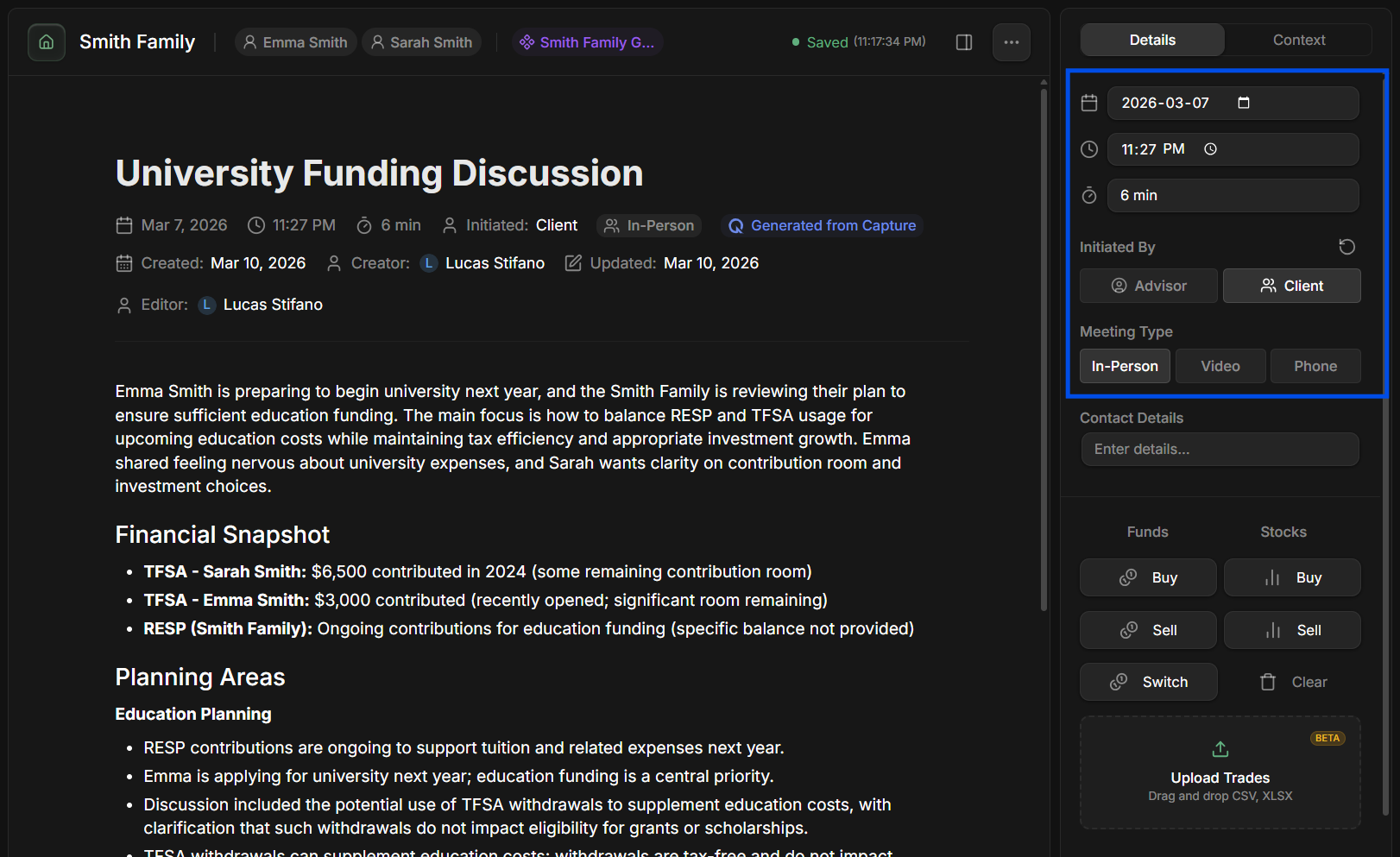
Qira doesn't just write the note. She also fills in your meeting details automatically. Open your generated note and click the Details tab in the right panel. You'll see that meeting type, who initiated, discussion topics, and relevant disclosures have already been filled in based on what actually happened in the conversation. These map directly to the same checkboxes and fields you already use. Review them, adjust if needed, and finalize. They're a smart starting point, and you always have the final say.
- Meeting type: Whether the meeting was in-person, video, or phone, detected from conversational cues
- Initiated by: Whether you or the client initiated the meeting
- Discussion items: The checklist of topics covered. Only checked when a topic was substantively discussed, not just briefly mentioned
- Required disclosures: Compliance disclosures that were made during the conversation. Detection is intentionally conservative. We'd rather leave a box unchecked for you to verify
Refine Your Notes in Plain English
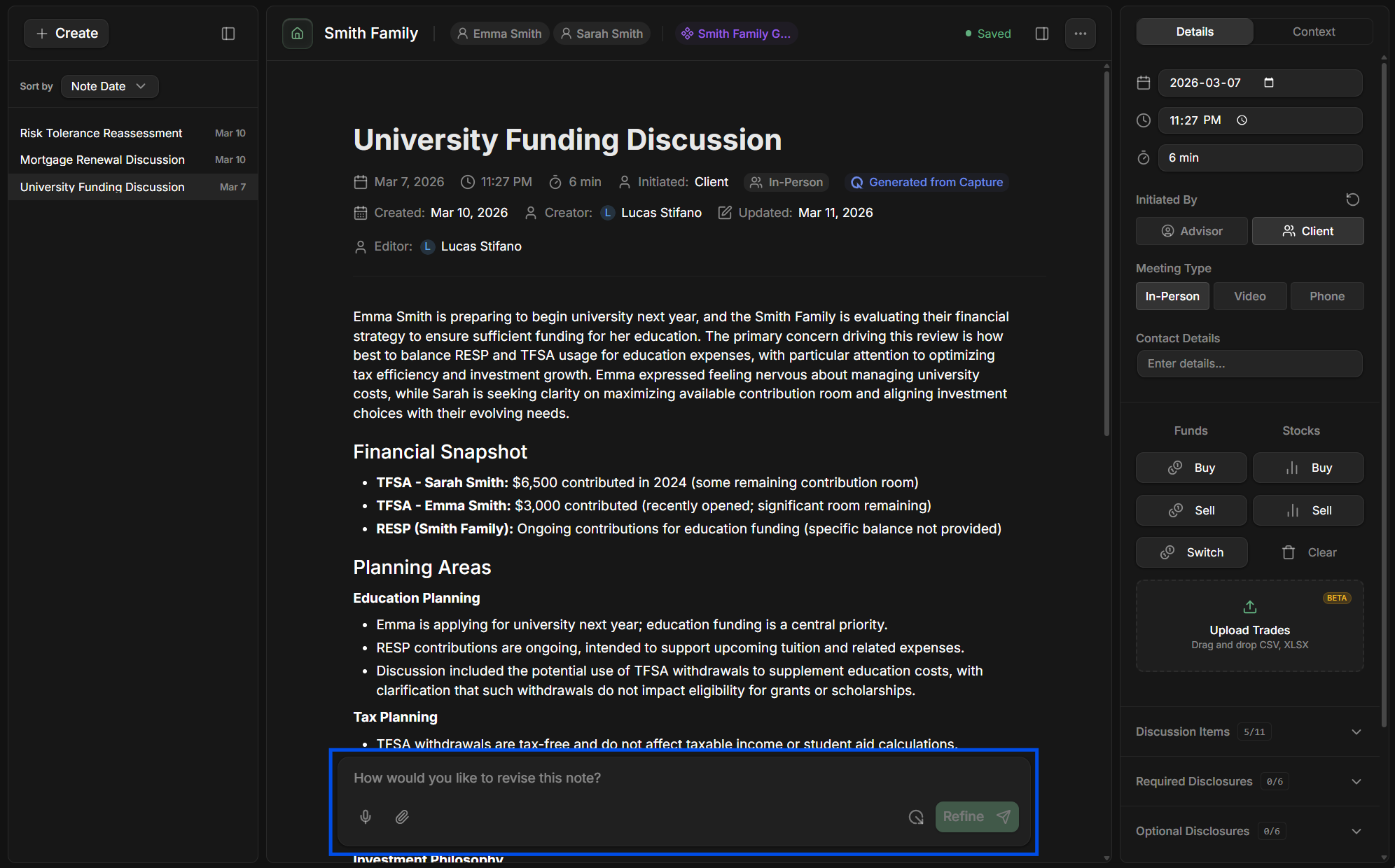
This is the other half of the release, and it changes how you edit. A refine bar now sits at the bottom of every meeting note. Instead of hunting through your note to find and manually edit sections, just type what you'd like changed, or tap the microphone and speak it. Qira does the rest. Type your instruction in the refine bar (for example, "Expand the retirement discussion section"), then click the green Refine button. Qira processes your request and shows you a clear view of exactly what changed, so you can review every edit before anything is saved.
- "Anytime we mention Carol, spell it C-A-R-O-L-E."
- "Shorten this meeting note to half the current length but maintain all the key details."
- "Expand the retirement discussion section with more details from the conversation."
- "Add specific action items with dollar amounts for the RRSP and TFSA contributions we agreed on."
- "Add more detail about the bond ETFs we discussed, including the fund names and why we recommended them."
Reviewing Changes: You're Always in Control
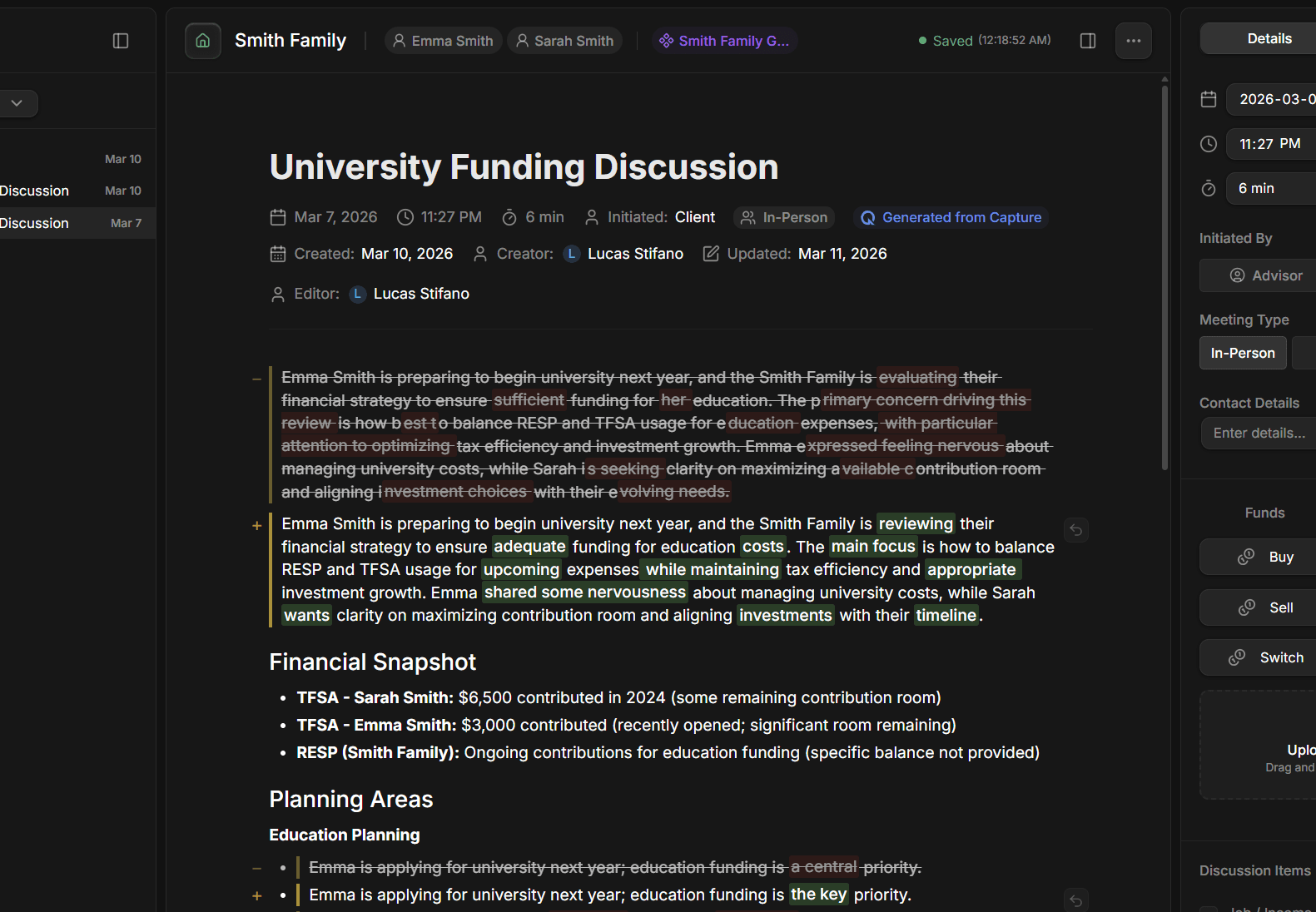
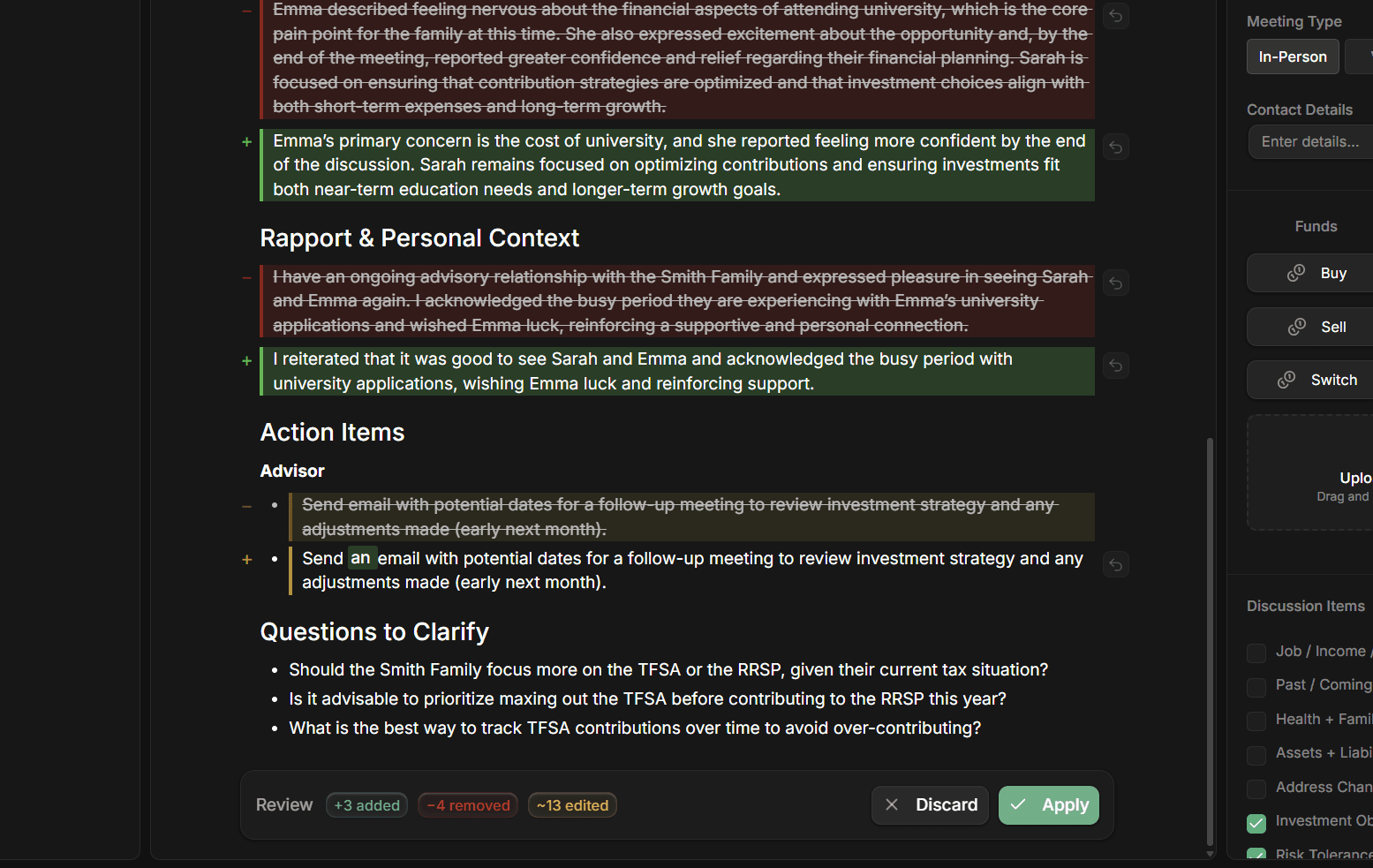
After you click Refine, Qira doesn't just overwrite your note. She shows you exactly what she's proposing to change, and nothing is saved until you say so. Your note temporarily highlights every edit using a simple color system so you can scan the full document and see exactly where changes were made. At the bottom of the note, a review bar summarizes the scope of the revision, including how many sections were added, removed, or edited, along with two buttons: Apply and Discard.
The refine bar stays accessible with your linked transcripts ready, so you can attach context for your next instruction without ever leaving the review view.
- Green highlights: Entirely new content that Qira is suggesting to add, like new sentences, new sections, and new action items
- Red highlights with strikethrough: Content that Qira is suggesting to remove. You'll see the original text crossed out so you know exactly what's being taken away
- Yellow highlights: Content that has been reworded or edited. The meaning stays similar but the wording has changed
- Click Apply: Accept all proposed changes and update your note
- Click Discard: Reject everything and return your note to its original state. Your instruction stays in the refine bar so you can rephrase and try again
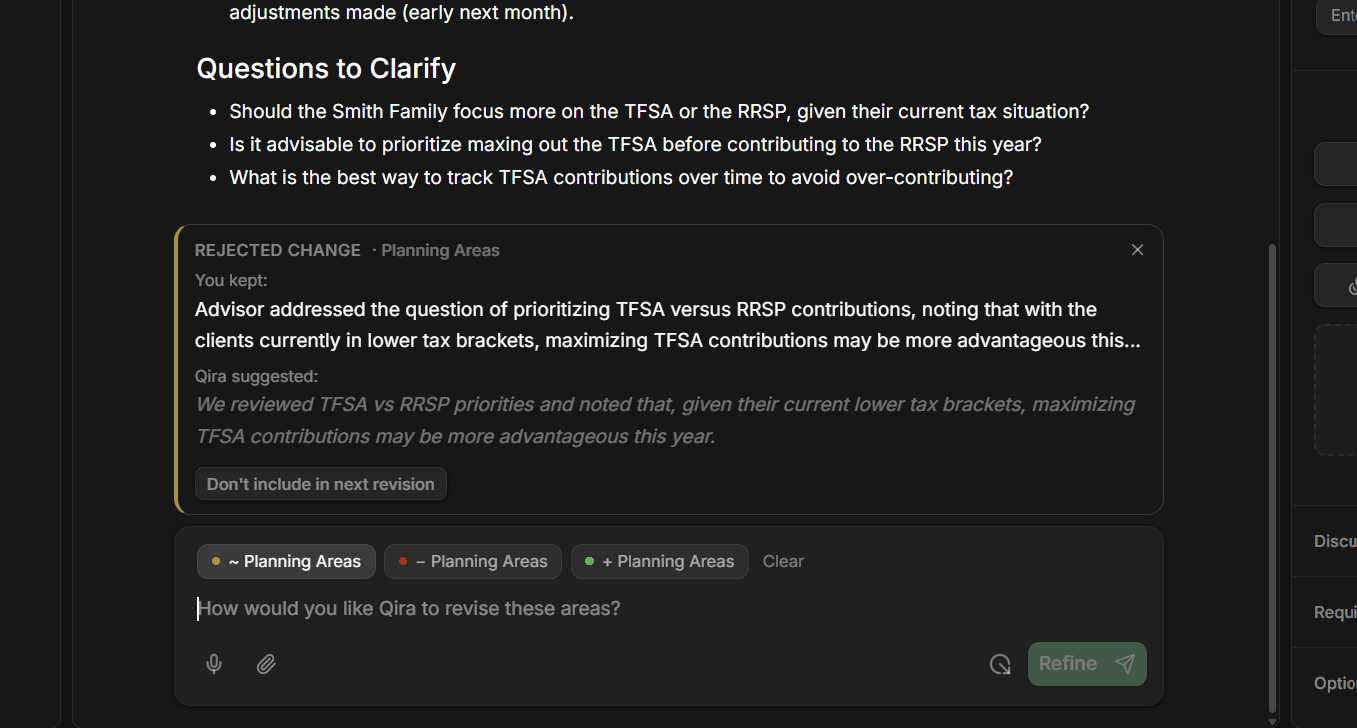
Don't like a specific change? You don't have to accept or reject everything at once. Click on any modified section to see exactly what you kept versus what Qira suggested, side by side. If you'd rather keep your original wording, click "Don't include in next revision" and Qira won't suggest that change again. The refine bar then shows the affected sections as chips so you can type a follow-up instruction to revise just those areas differently.
Speak to Qira. It's the Fastest Way
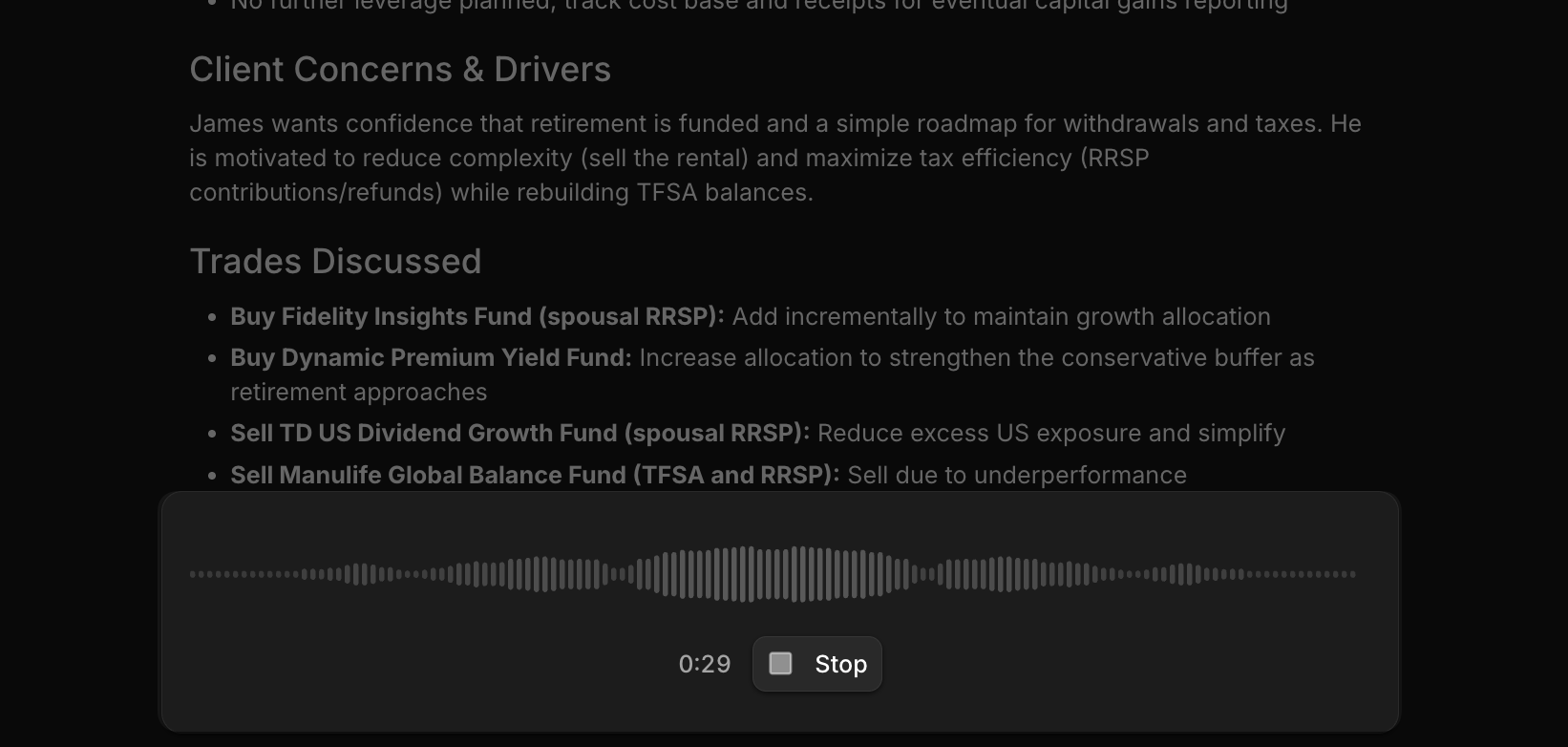
Look for the microphone icon at the bottom left of the refine bar. Tap it to start recording. You'll see a live waveform so you know it's listening. Speak your instruction, tap the mic again to stop, and your words are transcribed into the text field in seconds. Review the transcription, then click Refine to send it. The transcription is tuned for the language you actually use. RRSP, TFSA, ETF, RESP, GIC, RRIF, and dozens of other terms are recognized accurately. Speaking your refinements is the fastest way to work. You're already thinking about what needs to change, so now you just say it.
- Tap to speak: Click the microphone icon in the refine bar. Qira starts listening immediately with a live waveform so you know it's working
- Tap to stop: Click the mic again. Your audio is transcribed in seconds and the text appears in the input field, ready to send
- Safe by default: Recording stops automatically after 10 minutes or if you switch browser tabs for more than 30 seconds, so your microphone is never left on accidentally
Attach Context for Smarter Refinements
When refining a note, you can give Qira extra context to work with. Open the Transcriptions tab in the right panel to see every recording linked to this note. Each one shows a brief description and audio waveform so you can quickly identify the right conversation. Link additional transcripts beyond the one the note was originally generated from, giving Qira more material to draw from.
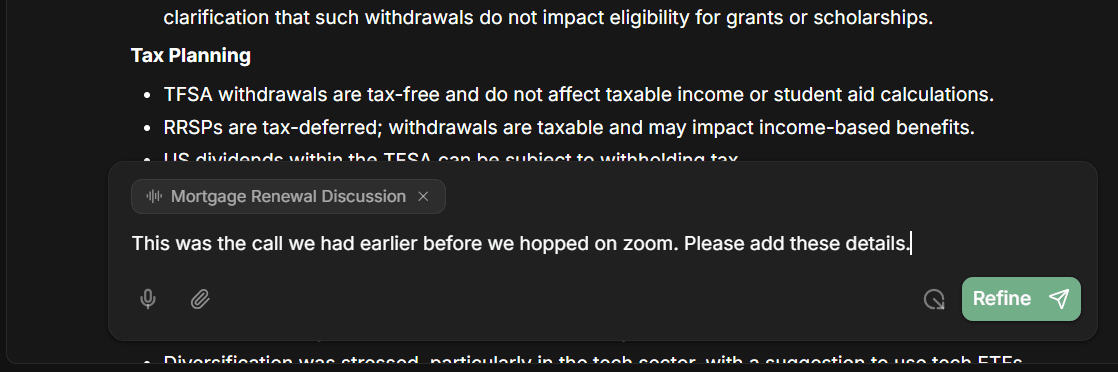
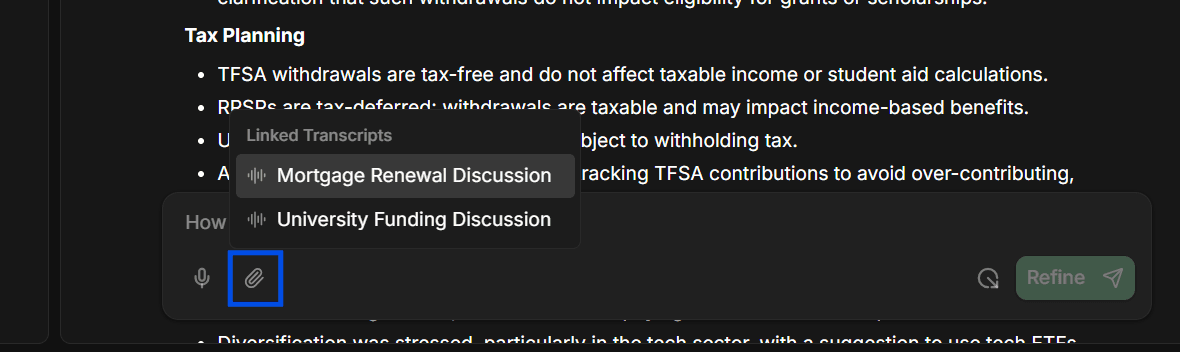
When you're ready to refine, click the paperclip icon in the refine bar to attach a transcript directly to your instruction. The transcript appears as a chip so you always know what context Qira will reference. Type your instruction, click Refine, and Qira reads through the linked recording alongside your current note to make accurate, informed changes.
- See all linked recordings: Open the Transcriptions tab in the right panel to see every transcript associated with this note, with descriptions and timestamps
- Link additional transcripts: Click "Link a Transcript" to browse all available recordings for this entity and attach the ones you want
- Click the paperclip: In the refine bar, tap the attachment icon to attach a transcript directly to your next refinement
- "This was the call we had earlier before we hopped on Zoom. Please add these details." Qira reads the linked transcript and weaves relevant information into your note
- "Cross-reference the portfolio discussion from last week's meeting." With multiple transcripts linked, Qira can compare and consolidate across conversations
- Attach trade actions too: If you've entered trades in the Details tab, Qira can reference specific securities, allocations, and dollar amounts to ensure they're properly reflected in your note
The New Way to Compose Notes
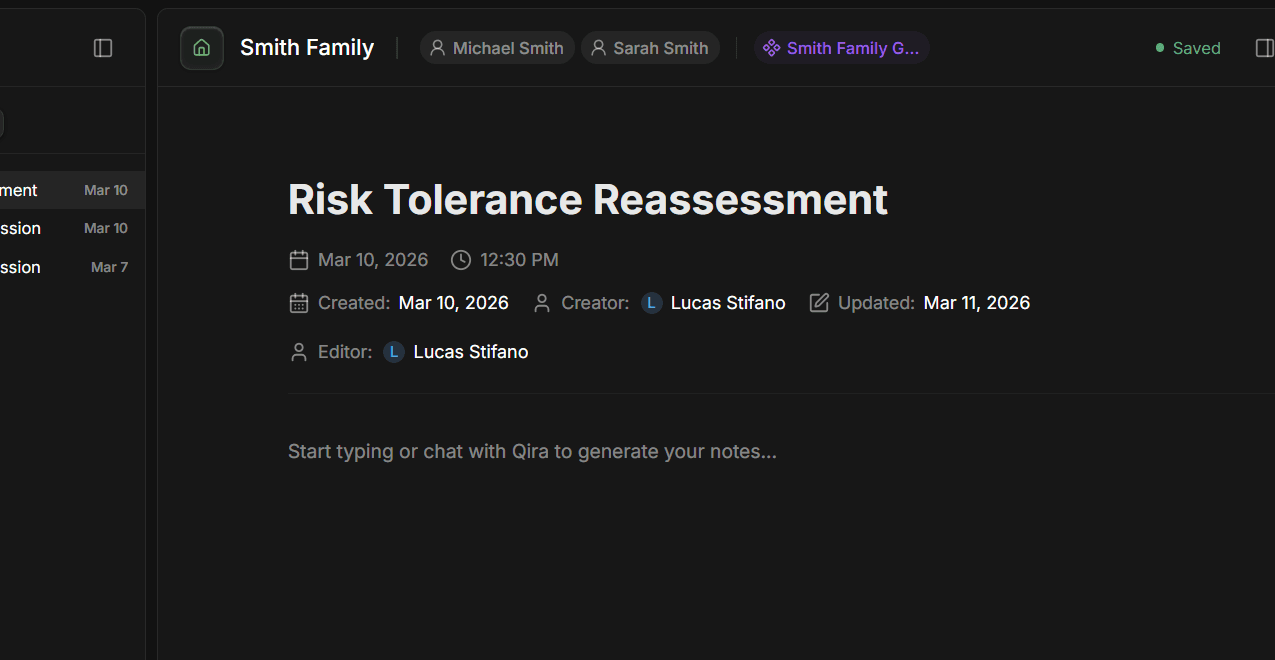
The old dictate-into-the-editor workflow has been replaced with something better. Go to Meeting Notes, click + Create, fill in the title, date, time, and participants, then click Create. Your new note opens with a clean canvas. The header shows your entity and its members, the metadata is pre-filled from the creation form, and the editor displays a placeholder inviting you to start typing or chat with Qira.
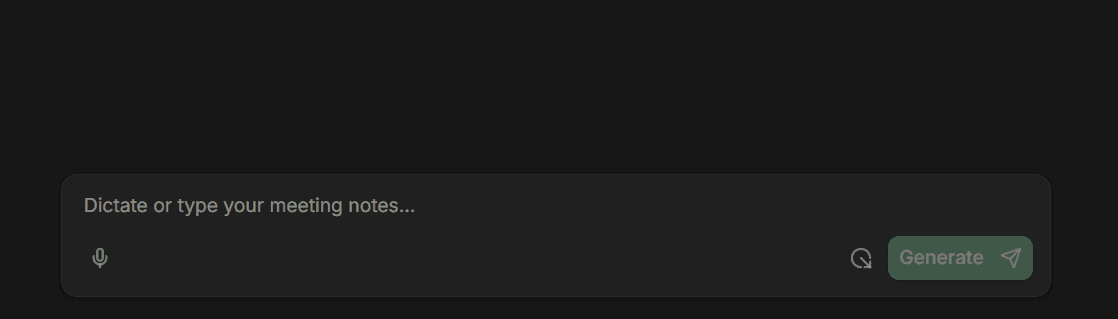
At the bottom, the compose bar reads "Dictate or type your meeting notes..." and the button says Generate instead of Refine. Click the microphone to speak your raw thoughts. Bullet points, fragments, stream of consciousness, whatever comes to mind. Or type directly. Click the green Generate button and Qira transforms your unstructured input into a professional meeting note with organized sections, appropriate headings, and clear prose. From there, the bar switches to refine mode and you can polish the result the same way you would any generated note.
- Create a new note: Go to Meeting Notes, click + Create, fill in the meeting details, and your empty note opens instantly
- Dictate or type: Click the microphone to speak your raw thoughts, or type them into the compose bar at the bottom
- Click Generate: Qira structures your input into a professional meeting note with proper sections, headings, and prose
- Then refine: Once generated, the bar switches to refine mode. Polish the result with the same tools as any other note
Improvements
- Accurate durations for uploaded recordings. Uploaded recordings now show their correct length instead of zero.
- Your Capture date filter stays put. The date filter on the Capture page now sticks after a refresh.
- Meeting note links land in the right place. Meeting note links from the Capture page now open the correct client and document.
- A smoother refine bar. The refine bar animations are cleaner and easier on the eyes.
- Refine is easier to find. The editor now hints at Qira, so refining your notes is easier to discover.