Light mode, Qira Tasks, and a Files Vault Upgrade
1.6.0·
This release is packed with some of the most meaningful day-to-day upgrades we have shipped yet, and almost every piece of it came straight from your requests.
Light mode is finally here. After a meeting, Qira reads your notes and turns the follow-ups into tasks, ready for your board. And every client now has their own encrypted Vault, right where you already work. There is a lot to get through, so let us walk you through it.
Light mode is here
The most-requested feature on the platform, and it is now live. The entire application can run in light mode, not just dark.
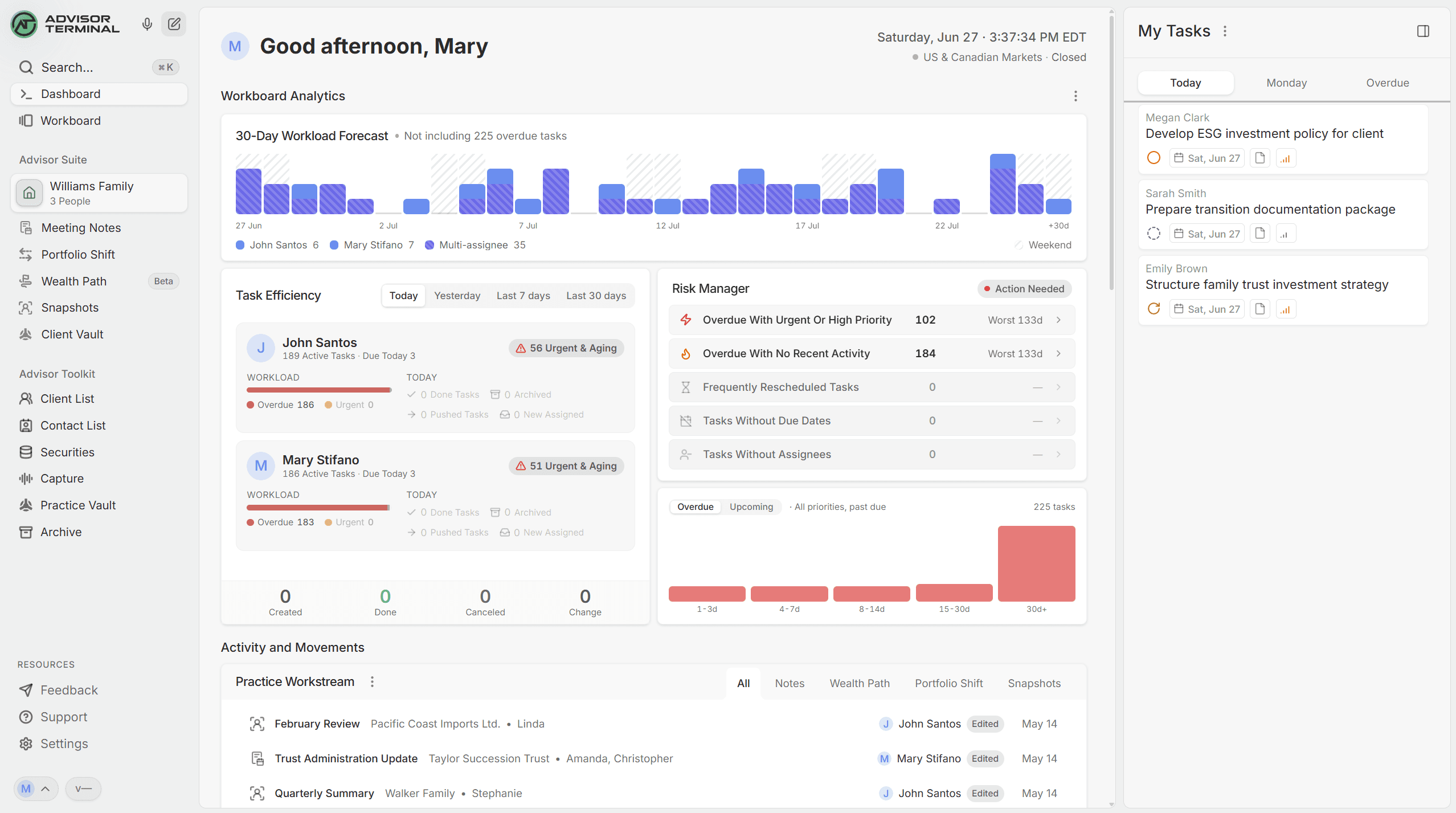
This was not a one-click inversion of dark mode. We rebuilt it module by module, screen by screen, so every corner of Advisor Terminal feels clean and easy on the eyes through a long day at the desk. It is its own look, crafted from the ground up.
Turn it on in two seconds: click your profile picture in the bottom-left corner, then switch from dark to light. Use whichever feels right, whenever it feels right.
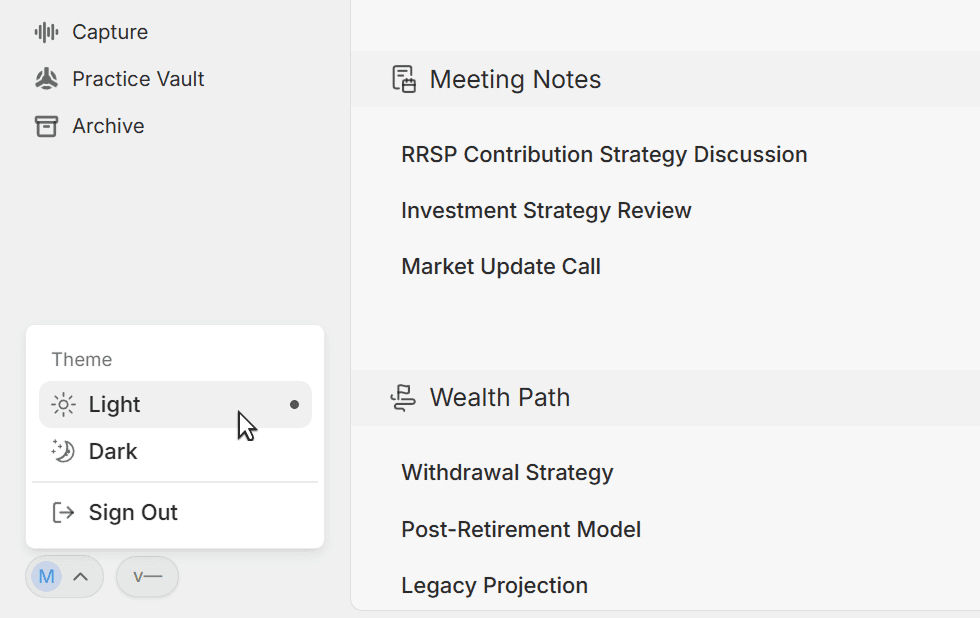
Meet Qira: your meetings, turned into tasks
You just finished a client meeting. Somewhere in those notes are five things you promised to do. Until now, the meeting note could surface suggested tasks as a simple list at the end, but that was as far as it went. You still had to read them over and recreate each one on your board yourself.
We have upgraded that.
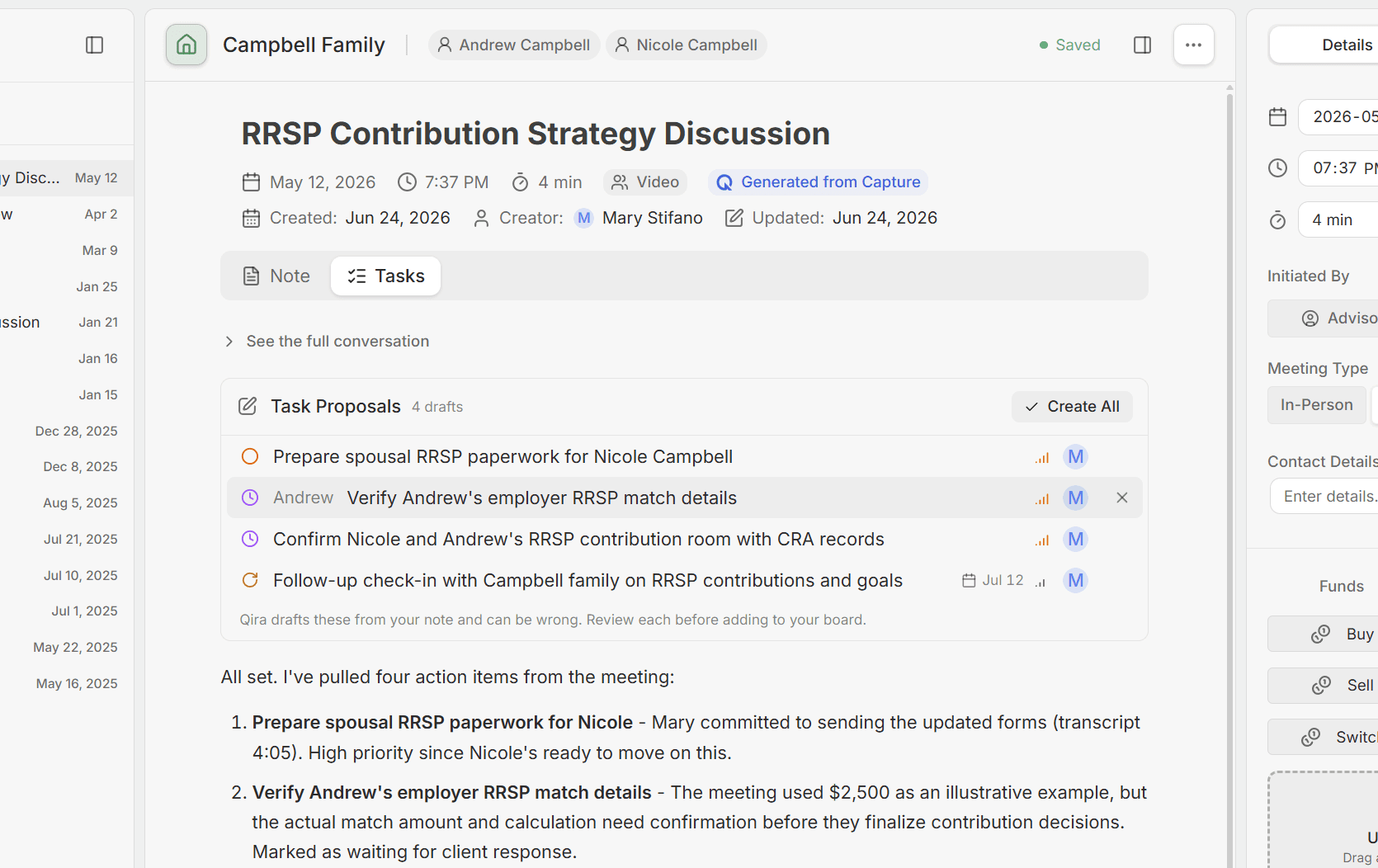
Open any meeting note, click the new Tasks tab, and say hello to Qira, the AI operator built into Advisor Terminal. Qira reads the meeting and finds the follow-ups hiding inside it. You quickly review what she found, make any adjustments you want, and with one click create them as real task cards on your board, straight from the conversation.
And it is a conversation, not just a one-shot. Once Qira drafts your tasks, you can talk them through with her, refine them, or rethink them together before anything lands on your board.
This is the first of a larger wave coming to Meeting Notes. Next up: a post-meeting recap email to your client in one click, short and tight or full and detailed, shaped to how you write. More on that soon.
The Client Vault: now right where you work
Every client has always had their own files Vault, a place to store their documents so you can easily get to them. What is new is how easily you get to it. Select a specific client in the Advisor Suite to jump straight into their Vault from the navigation panel. Their files now live exactly where you do your work.
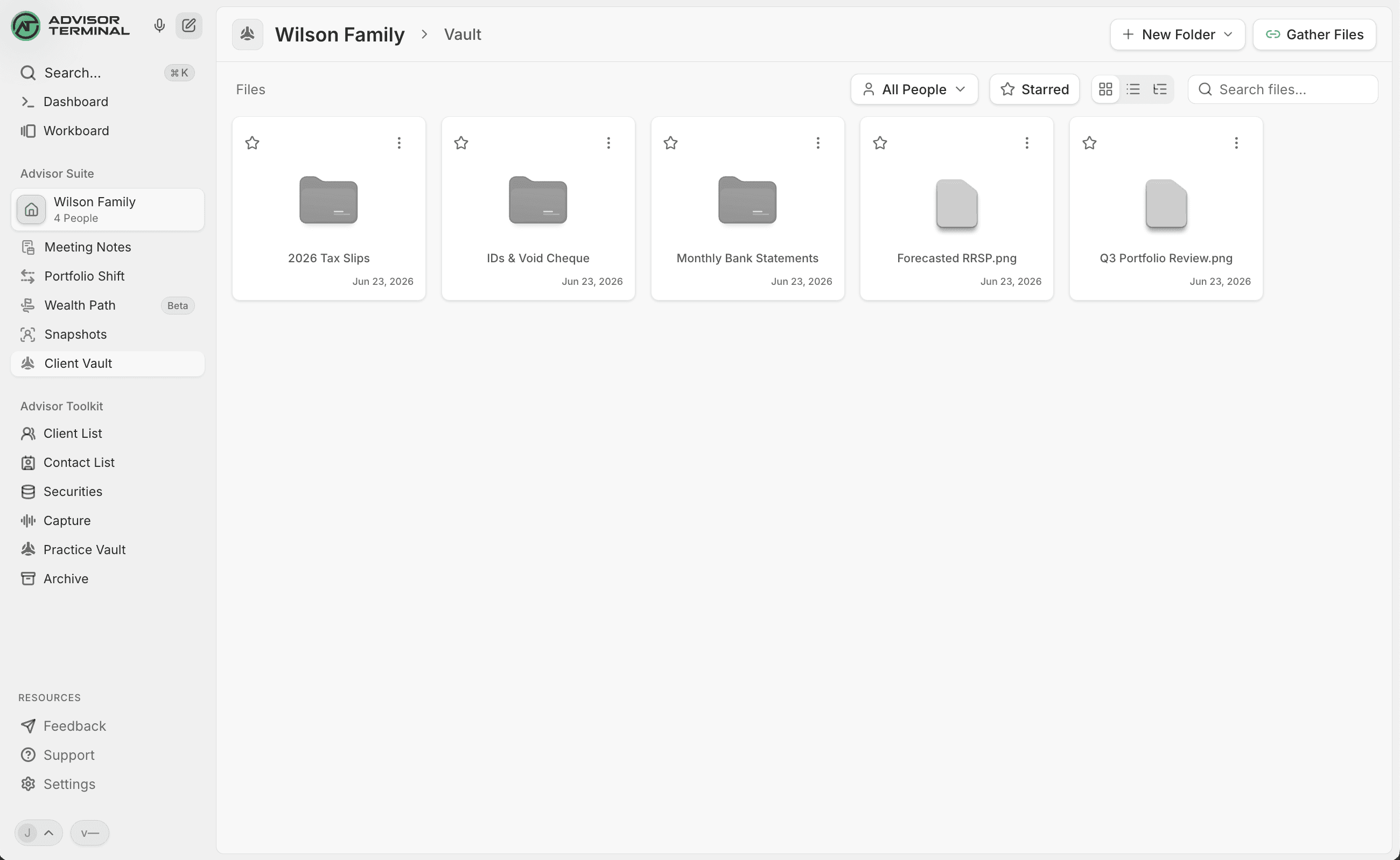
The Vault is still fully encrypted, Canadian-compliant, bank-grade storage designed for the financial services industry, with a unique Vault for every client. So you and your clients' most sensitive documents have a real home inside Advisor Terminal instead of scattered across three other apps. This release makes it faster to reach and adds a handful of upgrades on top.
Best of all, there is nothing new to learn. It works like OneDrive, Google Drive, or the folders on your own computer.
A few things to now try:
- Gather files in one click. The industry's most secure way to gather files from clients. From any client's Vault, click Gather Files to generate a secure link to send to your client. They open it, drop their files in, and everything lands straight in their Vault inside your Advisor Terminal.
- Download whole folders. Pull down an entire folder at once instead of saving one file at a time.
- Double-click to preview. Open and preview any file with a double-click, just like on your desktop.
Plus a handful of smaller touches:
- A browsable trash that keeps your folder structure, so you can restore deleted files and folders or clear them for good.
- A revamped Practice Vault for your firm-wide files.
- Permission-aware throughout: a teammate who cannot see a client cannot see their Vault either.
We are looking for more ideas here, so if there is something cool you would love us to build into the Vault, let us know.
Open a client, and what matters is already there
We rebuilt the client workspace around one simple idea: the moment you open a client, the things that matter most should already be in front of you. No hunting.
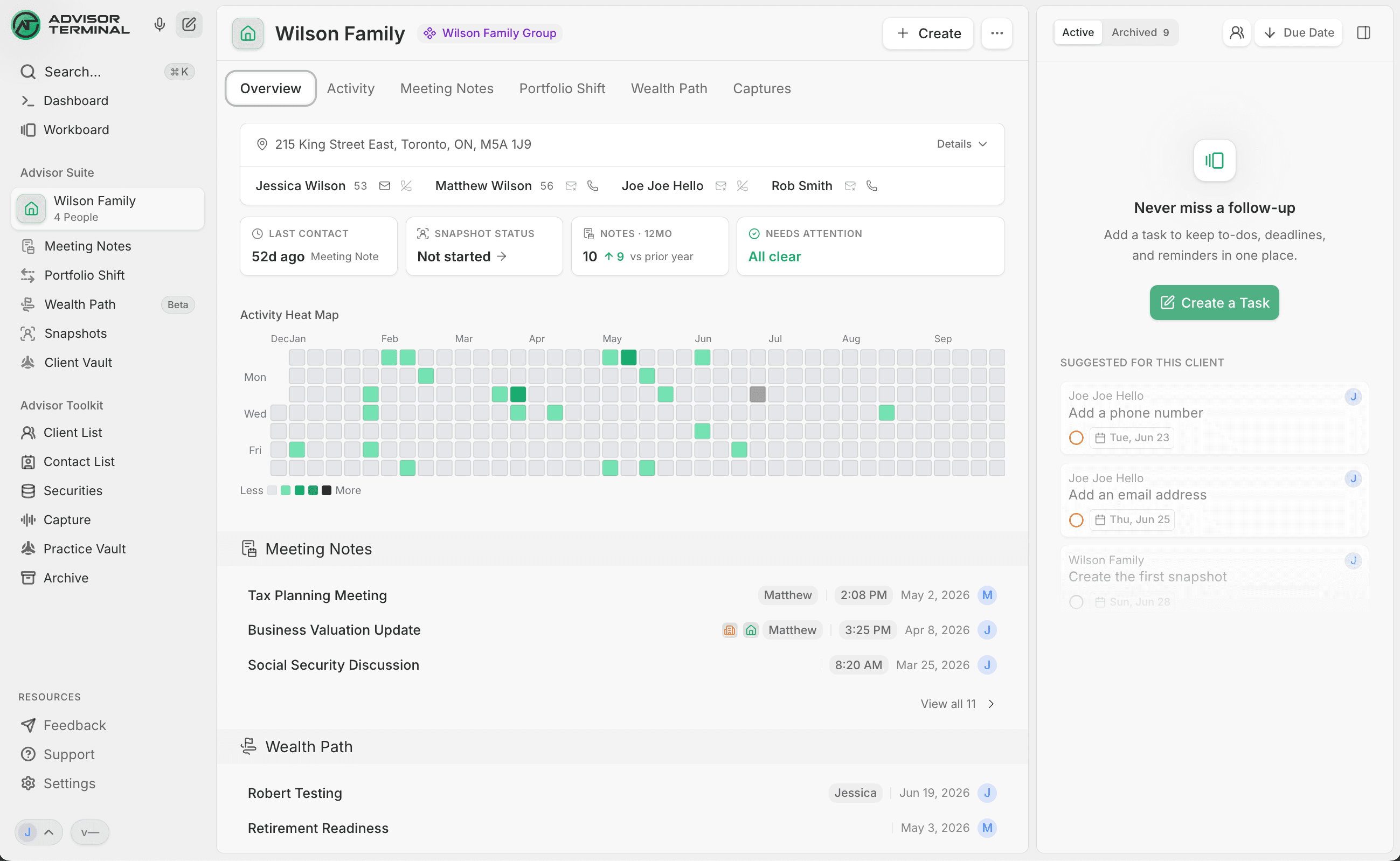
- Client signals at a glance. The old information cards on the Overview are now client signals. In one look you can see when you last spoke, whether their financials are current, and anything urgent that needs your attention.
- A dedicated task section. Active and archived tasks for the client now live in their own lane, so nothing gets lost.
- Suggested tasks. The system reads the client's information and suggests tasks worth creating, so you always know the next move.
- Clearer client details. The detail section has been reworked, making it far easier to read and surface what you need on your clients and client groups.
And a few smaller upgrades along the way:
- The Transcriptions tab is now called Captures.
- Cleaner headers, cleaner spacing, and one unified workspace across clients, groups, and clients within a group.
There is more coming to the client workspace soon. Stay tuned.
A clearer picture of who's who in a household
We have upgraded how people and their roles work inside Snapshots, so it is now much clearer who is who in a household.
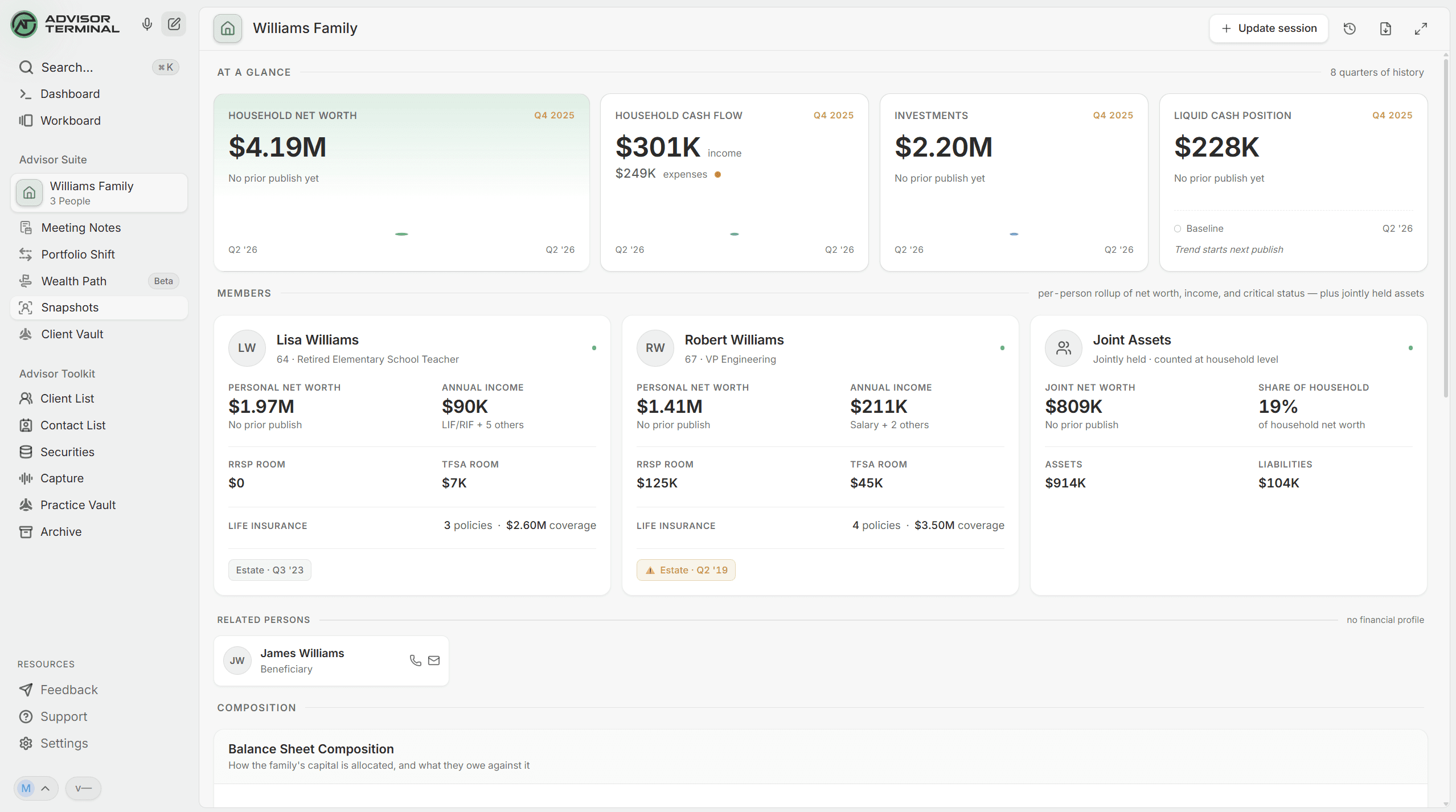
The key members you mark are recognized as the account holders and sit front and center, cleanly separated from everyone else connected to the household. To hold that everyone else, we added a new section, Other Members and Related Persons: trusted contact persons, powers of attorney, trading-authorized people, executors, and more. Critical people and supporting people, each in their right place and easy to tell apart at a glance.
When you add an executor in your CRM, they are now added to the Estate Review section of Snapshots automatically.
New Features
- A redesigned client workspace. Open a client and lead with at-a-glance signals, a unified overview, and a dedicated tasks lane.
- A dedicated file Vault for every client. Every client gets their own file Vault, with a revamped Practice Vault and a browsable trash you can restore from.
- Light mode and Qira tasks in Meeting Notes. Use the app in light mode, and let Qira turn your meeting notes into ready-to-go tasks.
- Buy more Qira capacity in-app, plus automatic task drafting. Add more Qira capacity right inside the app, and let Qira draft tasks automatically from your finalized notes.
Improvements
- A cleaner client list. Each client and group row stays clean and reveals its actions when you hover.
Fixes
- Clearer due dates and event times in your activity feed. Due-date changes and event times now read clearly in your activity feed, using your practice timezone.