Introducing Capture v2, Multi-Client Linking, Audio Upload & more...
1.3.0·
Hello, and welcome to one of the biggest updates we've shipped to date. We've rebuilt your recording experience from the ground up, and what we're releasing today is the foundation for something much bigger.
Here's everything that's new.
Capture, your new home for every recording
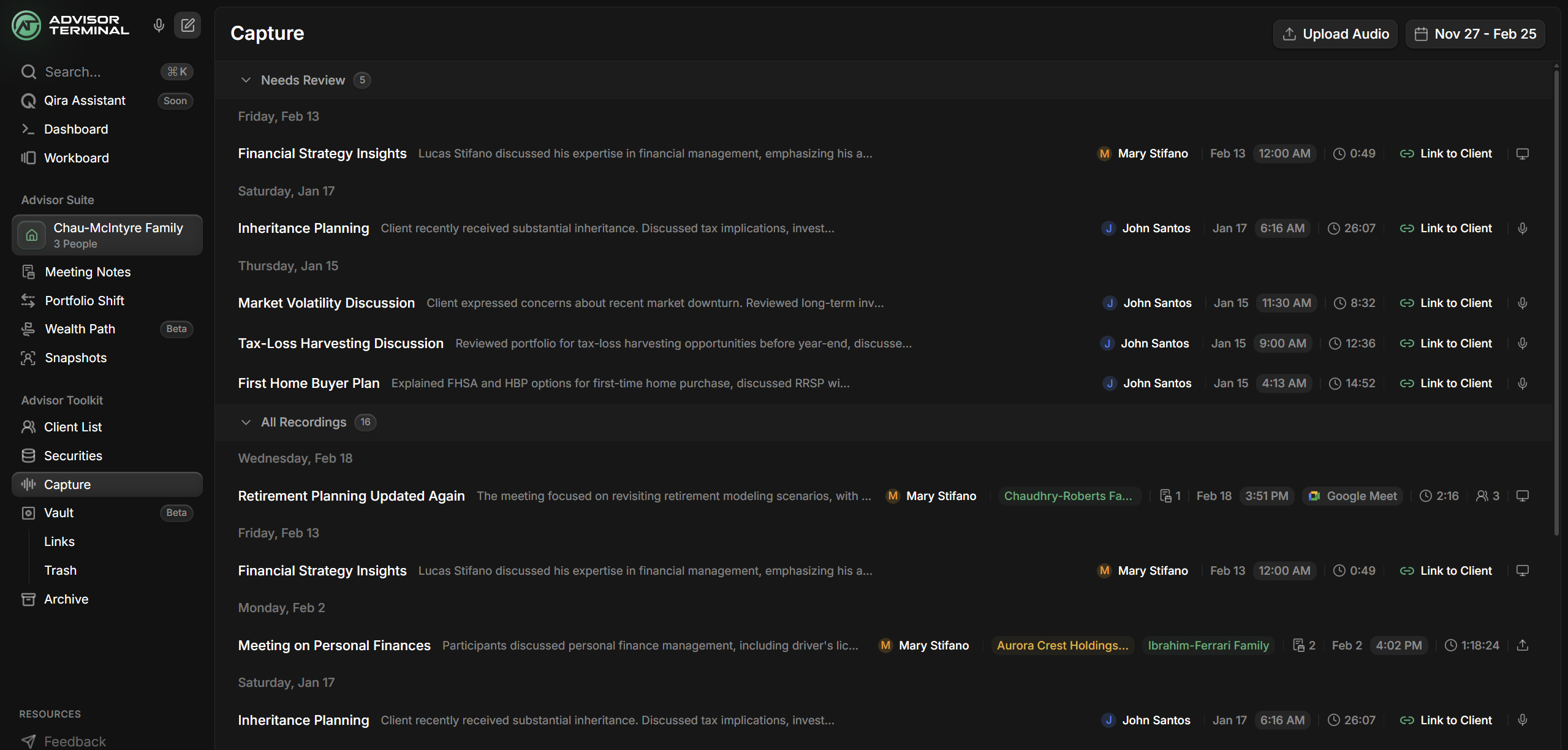
We renamed Conversations to Capture and rebuilt it into one home for every recording you create. The new experience centers on a detail panel where you manage everything about a recording in one place. Read the transcript, link clients, choose who was involved, and identify speakers, all without leaving the page. Recordings that still need your attention surface automatically in a Needs Review section at the top, so you always know what is left to process. Once you link a recording to its clients, it moves into your full timeline. Nothing disappears, and nothing gets lost.
- New detail panel: View transcripts, link clients, select people, and assign speakers, all from one side panel instead of jumping between separate screens.
- Needs Review: Recordings that haven't been linked to a client yet appear in a dedicated section at the top. Once linked, they move into your timeline.
- One consistent process: Every recording, whether captured live or uploaded, flows through the same transcription and summary steps automatically.
Link Recordings to Multiple Clients
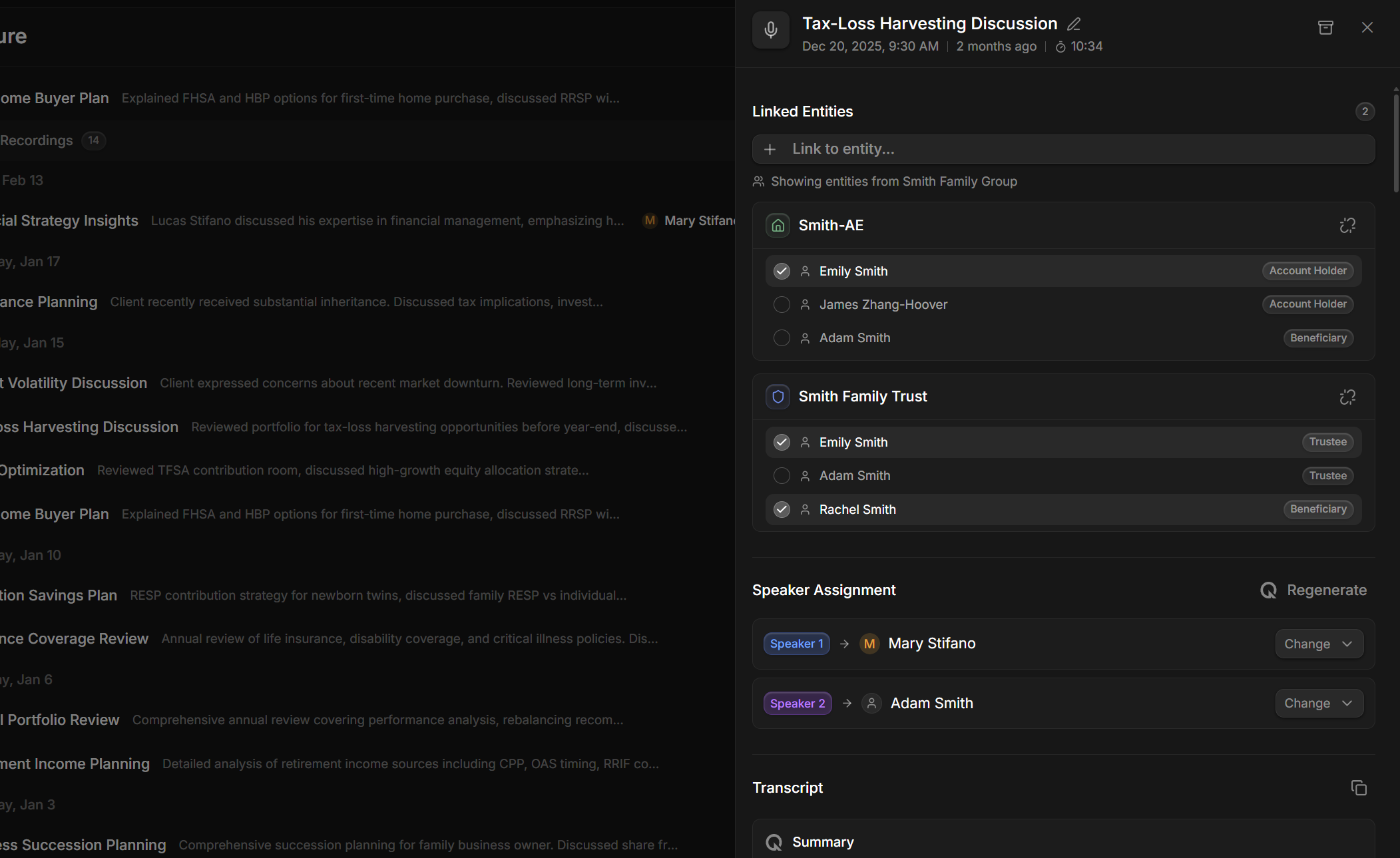
A call with the Smith Household can easily pivot to their Corporation or Family Trust, and now Capture reflects that reality. You can link a single recording to as many clients as were involved, then select the specific people from each. This isn't just an organizational upgrade. It's the foundation for what's coming next. When you select clients and people on a recording, you're building the context our AI will use to draft meeting notes for you. The more precise your selections, the better the result. We're setting the stage for a dramatically faster meeting note workflow, and it starts right here.
- Multi-client linking: Link one recording to the Smith Household, Smith Corporation, and Smith Family Trust, all at once. Because that's how real conversations work.
- People selection: Choose exactly who was involved from each client. This context is what will power the AI meeting notes we're building.
- Individual unlinking: Made a mistake? Remove a single client without affecting the others.
Drag, drop, done: upload audio and let AI assign the speakers
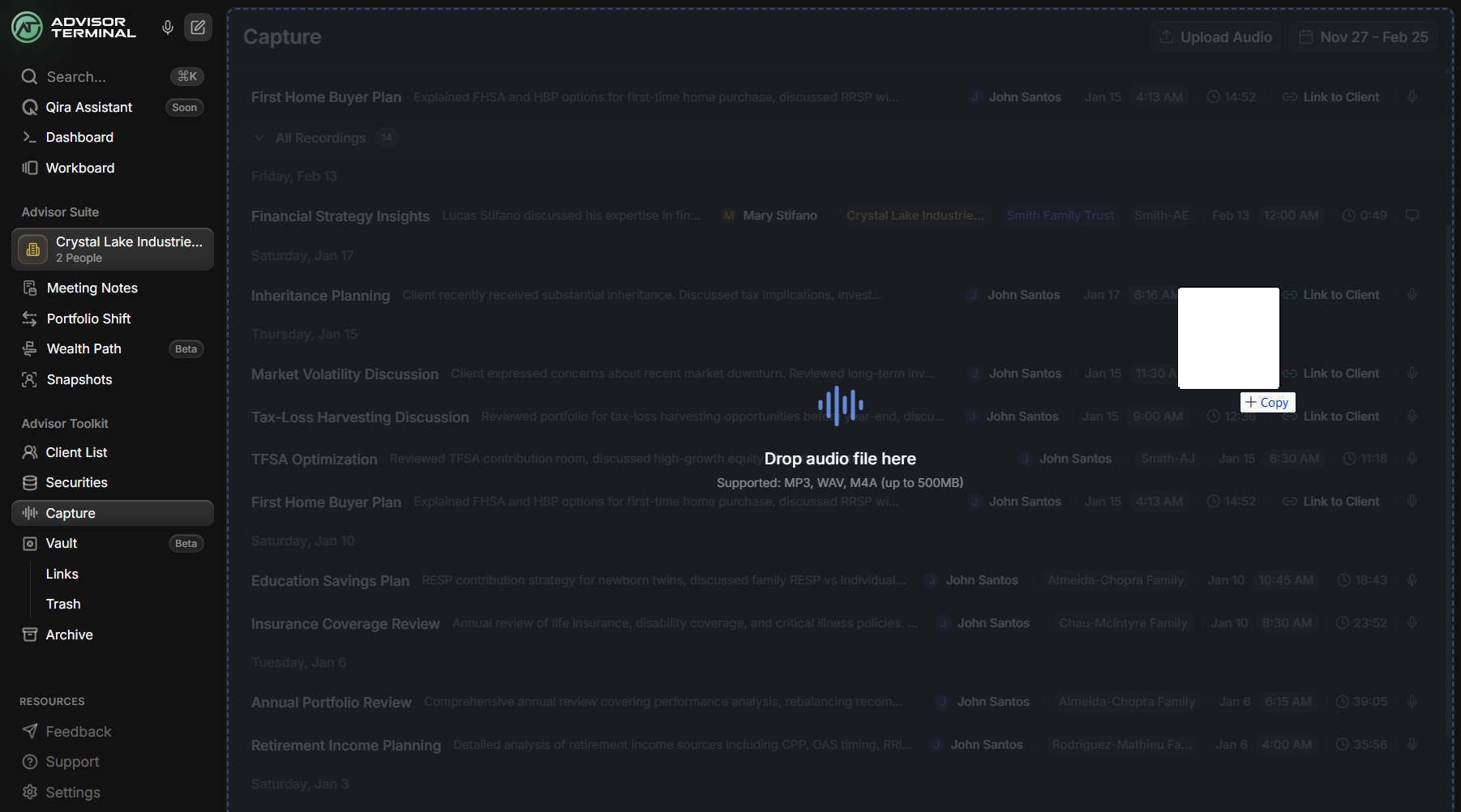
Got a voice memo from a phone call? An external recording from a client lunch? Just drag it onto the Capture page. MP3, WAV, and M4A files are all supported. Drop the file, and the rest happens automatically: transcription, summary, and title generation. Once you've linked clients and selected people, a new AI speaker assignment step kicks in. Instead of manually figuring out who said what, our AI reads the conversation and suggests name-to-speaker matches based on the people you selected. You review the suggestions, confirm or adjust, and the transcript updates with real names.
- Drag-and-drop upload: Drop audio files directly onto the Capture page. No forms, no extra steps.
- AI speaker suggestions: After you link clients and select people, our AI suggests who each speaker is. You review and confirm, with no manual matching required.
- Progress tracking: A live progress notice shows file size, upload speed, time remaining, and the option to cancel.
What's Coming Next
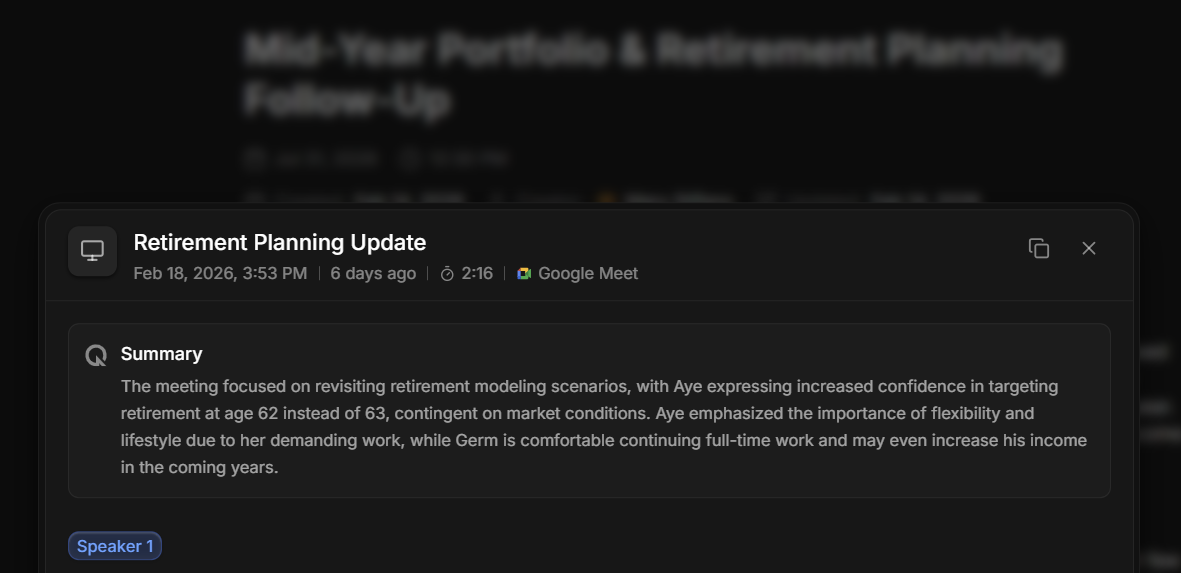
Everything we just shipped is the foundation for two future releases coming very soon that are going to change how you work with Advisor Terminal. First up: a desktop application, a hidden note taker that runs in the background during your Zoom, Google Meet, and Microsoft Teams calls. It captures two-way audio automatically, without ever joining the call as a bot. Your clients will never know it's there. Recordings appear directly in Capture, ready for you to link clients and select people. And then, very shortly after: a completely reimagined meeting note creation process powered by AI. Today, creating a meeting note from a transcript means manually selecting clients, adding titles, picking dates, pulling in transcripts, and running the refine process. The new workflow? Link your clients, select your people, and click one button. Our AI drafts the entire meeting note for you, complete with proper speaker names, structured content, and all the details pulled from the recording. You just review and edit.
- Desktop app: Auto-records your Zoom, Teams, and Meet calls in the background. Two-way audio, no meeting bots, no disruption to your clients.
- AI meeting notes: One click turns a linked transcript into a complete meeting note draft, with titles, dates, speaker names, and structured content all generated automatically.
- The new workflow: Record → Capture → Link clients → Select people → Generate meeting note. What used to take seven manual steps becomes two.
New Features
- Group clients stay linked together. When you link a client that belongs to a group, the related clients come along automatically so everything stays consistent.
- Rename recordings in place. You can now rename a recording directly from its detail panel, with no extra steps.
- Linking a transcript in Meeting Notes is now one step. Attaching a transcript to a meeting note is now a single, simple action.
Improvements
- Cleaner unlinking on recordings. Unlinking a client from a recording now removes the related people too, with nothing left behind.
- No more duplicate recordings in your client transcripts. Recordings now appear only once in a client's transcription list.
- Transcripts open reliably in Meeting Notes. The transcript viewer in Meeting Notes now displays every transcript correctly.
- Clearer progress when you upload audio. Uploading audio now shows live progress with file size, upload speed, and time remaining.
- See more about each recording at a glance. Recording lists now show color-coded client badges, document counts, and source icons so you can tell recordings apart quickly.
- Each speaker stands out in the transcript. Speakers are now clearly color-coded throughout the transcript, so it's easy to follow who said what.