
Pulse, Meeting Recaps, Linked Files, Checklists, and Calculators
1.9.0·
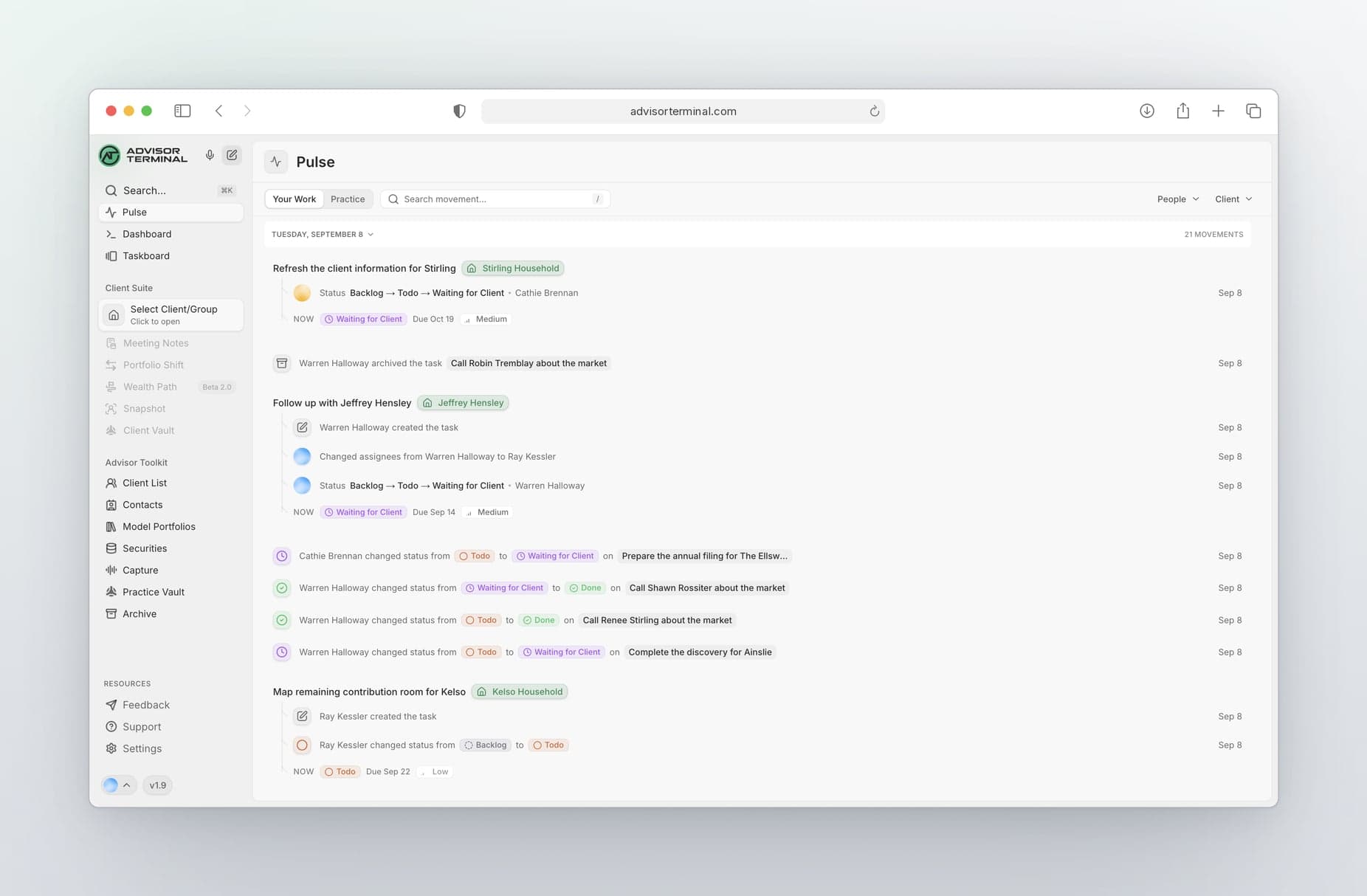
Version 1.9 brings Pulse, a new way to see how your practice moves and operates.
It also covers the work around every client meeting. Qira now drafts the recap email from your meeting note, and files link straight to the meeting they belong to, or to a specific task within it. Checklists inside tasks show who completed each item and when, and follow the way you work. Snapshots now have planning calculators, the first of more planning tools to come.
Planning calculators in Snapshots
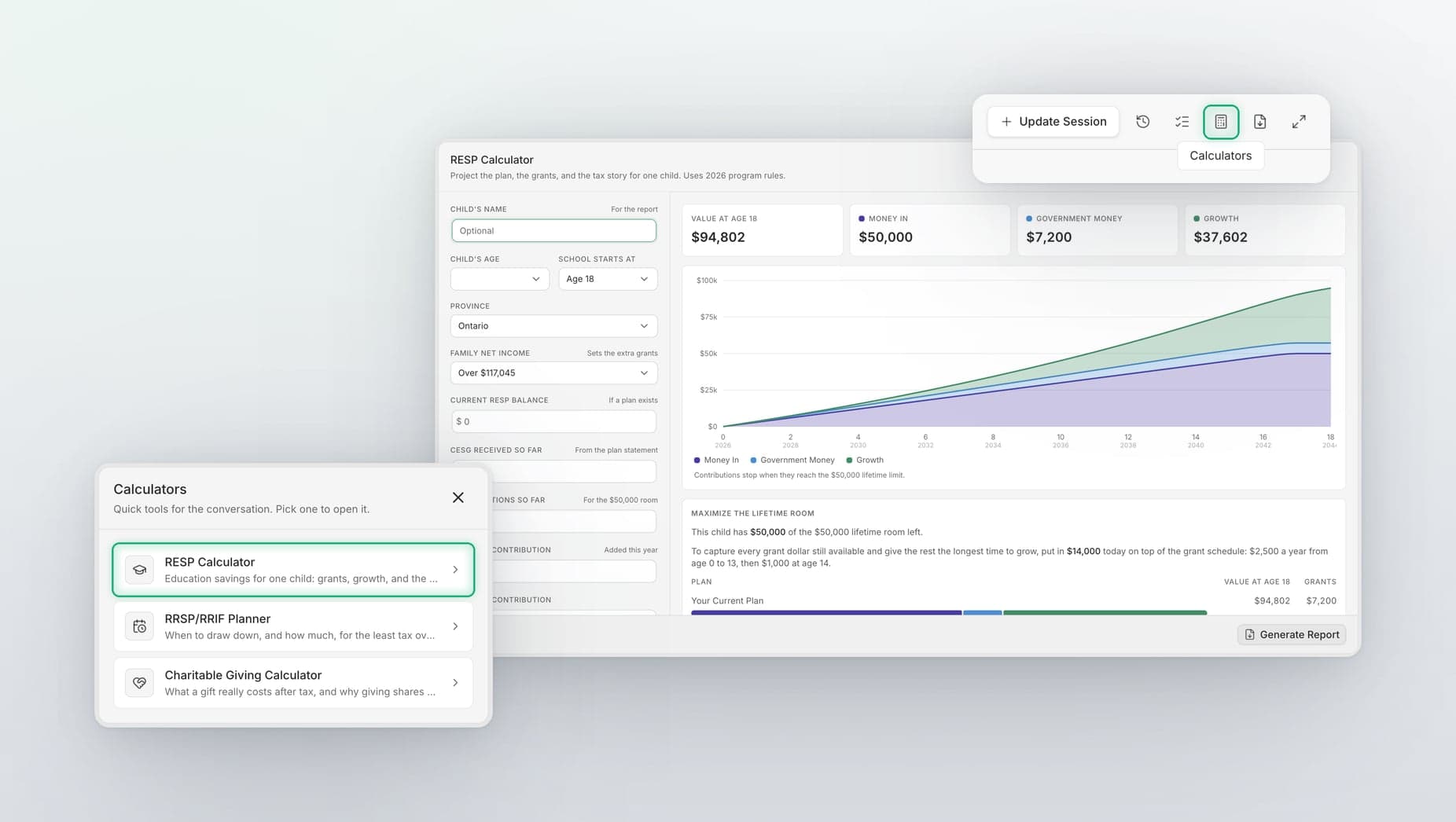
Snapshots are becoming the starting point for your planning tools. We are rolling out new calculators and tools built on Snapshots over the coming months, and three are live today. Each one reads the household you already entered and ends in a report you can hand to your client. Open them from the Calculators button in the top right corner of any Snapshot.
- Retirement drawdown. Simple forecasting of RRSP and RRIF withdrawals, with scenario planning to compare the options.
- Charitable giving. See the tax benefits of a gift across different scenarios and find the most effective way to give.
- Education savings. Build an RESP contribution strategy that maximizes government benefits based on the child's age.
Tax is modelled for every province and territory except Quebec. Explore what is there now. There is a lot more tooling coming in the near future.
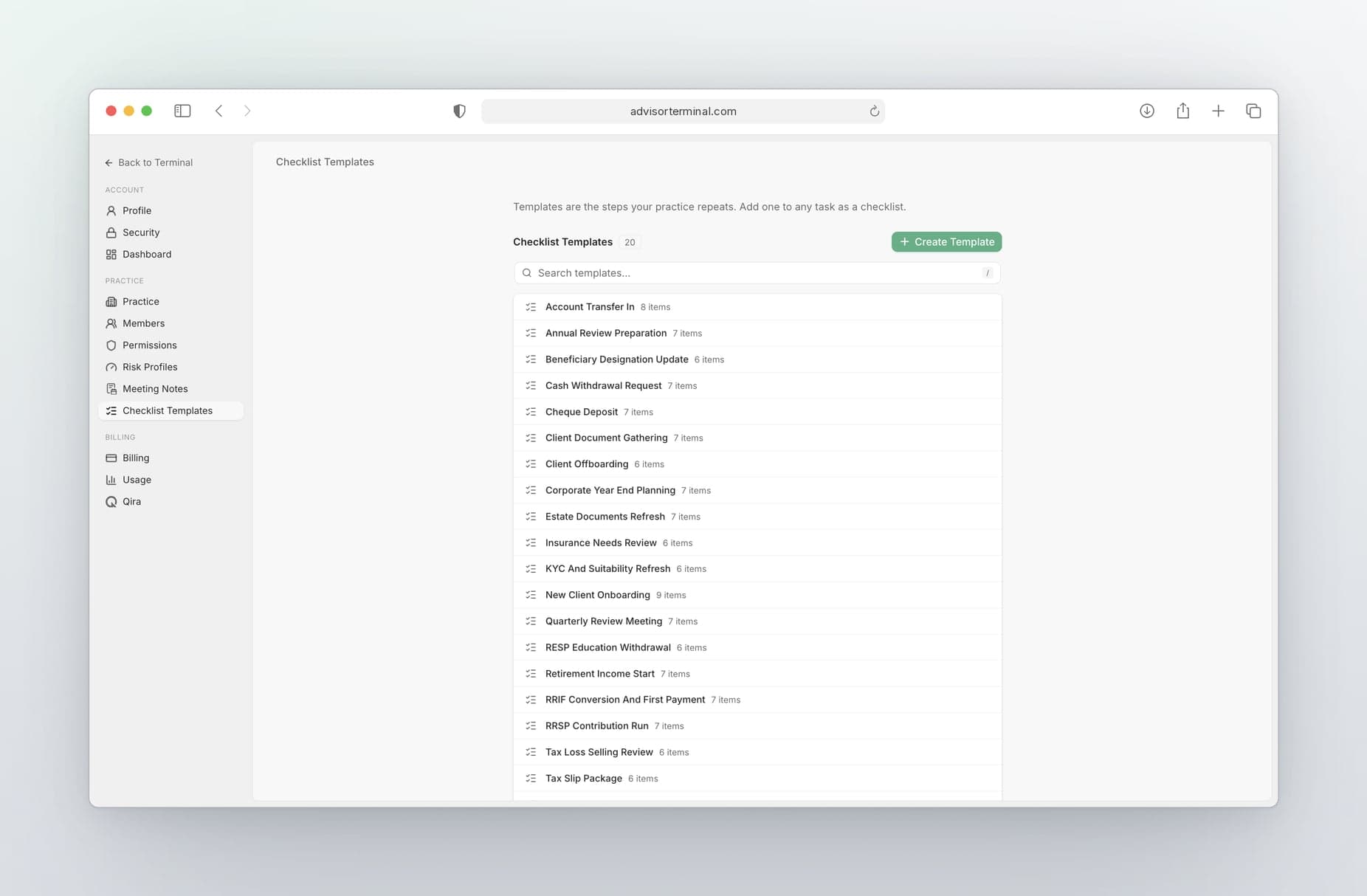
Reorder checklists, manage templates, and track every completed item
Checklists now keep a clear record of the work and follow the way you actually work through a file.
- A clear record of completed work. Every item shows who checked it off and when, so the whole team can see exactly where a file stands. Checklist progress also appears in the task's activity and in Pulse.
- Reorder in seconds. Drag any item, or a whole checklist, into place. Enter starts the next item, and Backspace on an empty item removes it.
- Templates in Settings. Create, edit and delete your practice's templates under Settings, then Practice, then Checklist Templates, or open the same editor from the menu on any checklist without leaving the task.
- Know when a checklist has drifted. Each checklist shows whether it still matches its template or was changed for this client.
Link files to specific meeting notes
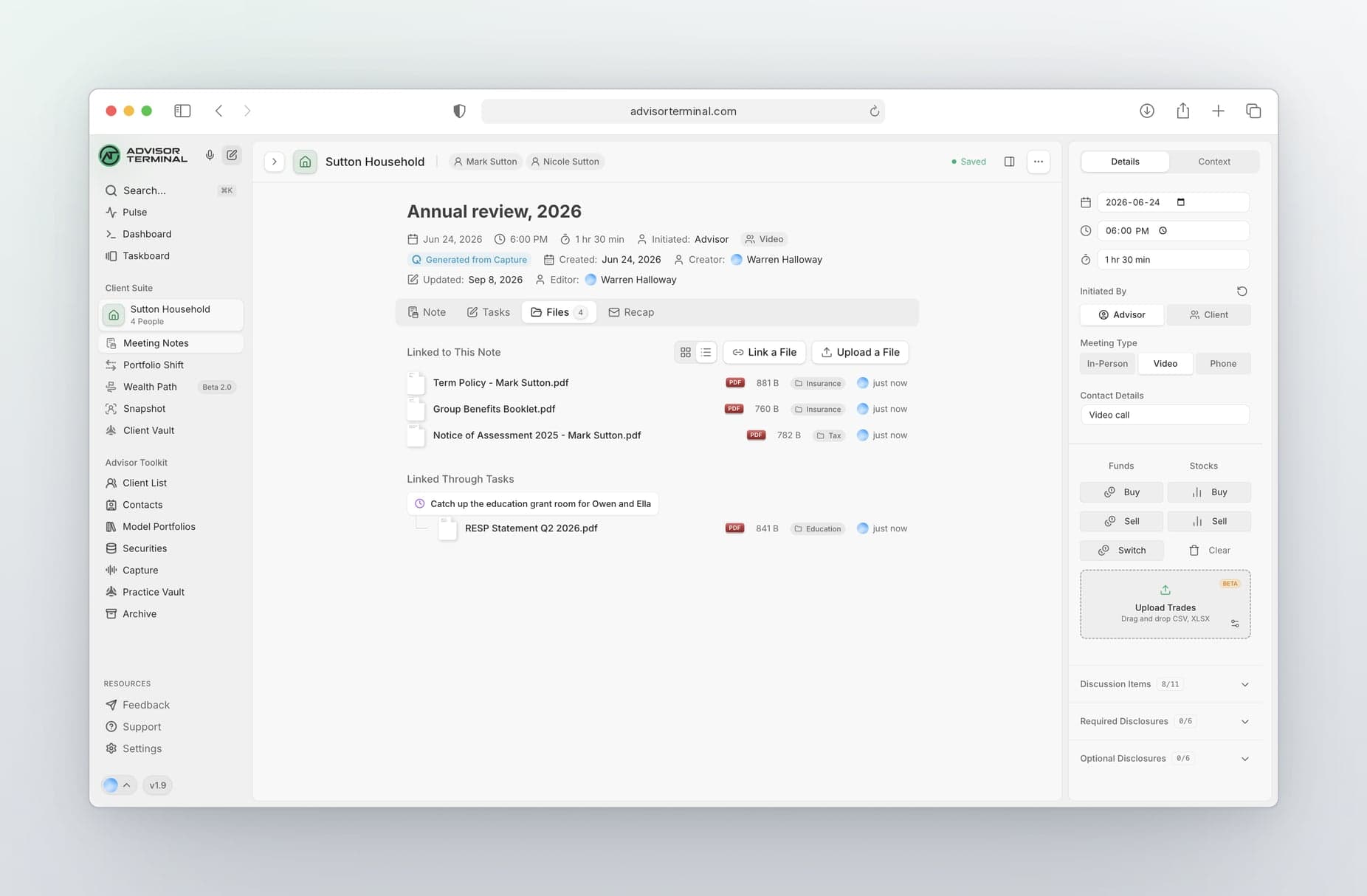
The statements, forms and signed documents from a meeting now sit one click from the notes you took, in the note's Files tab.
- Upload straight in. Drag and drop files onto the Files tab, or use Upload a File.
- Link what you already have. Pick existing documents from the client's vault instead of uploading them twice.
- Get as specific as you need. Link files to the meeting itself, and the files attached to any task that came out of the meeting show under that task, so you can see which file belongs to which follow-up.
- Saved to the vault too. Any file on a meeting note is also kept in the vault.
Recap emails drafted from your meeting note
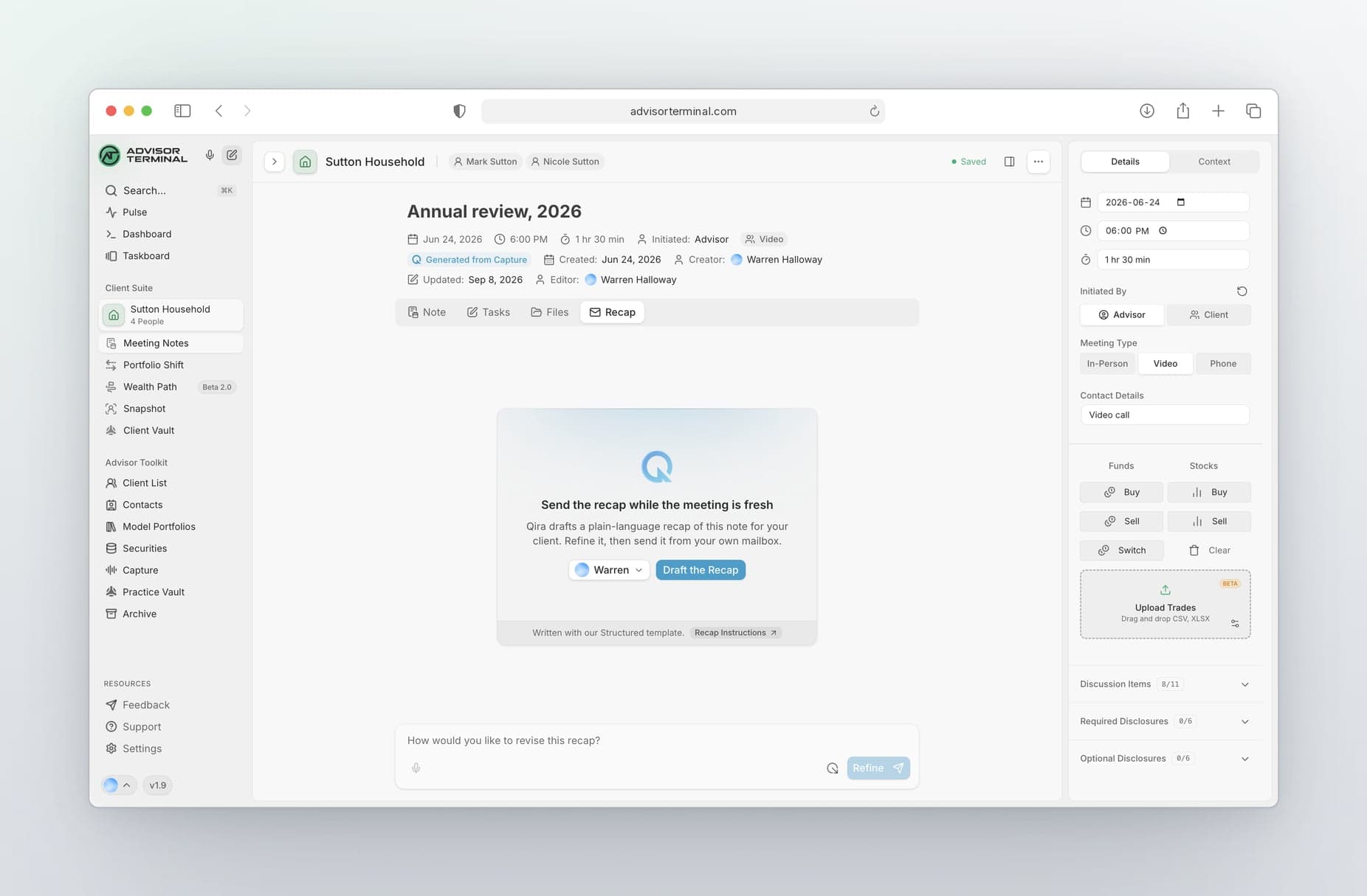
The follow-up email after a meeting is the one everyone procrastinates on. Now Qira writes the first draft.
Open the Recap tab on any meeting note and Qira drafts the follow-up to your client from what you wrote.
- Refine it in plain language. Ask for changes and the draft updates. Earlier versions are kept.
- Your practice's voice. Owners and admins can create your practice's own email style and tone templates in Settings, or you can use the default, and Qira follows it for every email.
- Send it your way. Open it in your own mail client, mark it as sent, or turn it into a task for someone else.
Get a real pulse on your practice
Pulse shows you how your practice moves and operates. Open it from the sidebar to see every change across your practice over the last three months, who made it and when, laid out day by day.
It is the easiest way to understand how things came to be inside your practice. A task that moved through several steps reads as one story instead of a string of separate lines.
- Adjust your view. Your Work shows the tasks you are part of. Practice shows everyone.
- Filter and find it fast. Filter by person or client, search, or jump straight to any day.
- Live as it happens. New movement appears as your team works, with no refresh.
The Practice Pulse card on the dashboard now lives here instead.
New Features
- Choose the colour your team knows you by. Your avatar is now a tile in one of twenty colours that you choose in Profile or during setup, and it looks the same everywhere you appear.
- Link professional contacts to your clients. If a client works with an accountant, lawyer or insurance agent, add them to your professional contacts and link them to that client. The link shows on the client record and in the Snapshot, and only a first name is needed to save a contact.
- New practices start with a sample client group. Every new practice opens with a sample household, corporation and trust, complete with meeting notes, a Snapshot, a Wealth Path and a starter task board, so you can explore before your own book is imported.
Improvements
- Open a client straight from a task. Click the client on any task card to jump to their record. Task details and activity feeds are also cleaner and easier to scan.
Fixes
- Capture linking is instant and reliable. Today's captures show as soon as they finish, and new tasks keep their assignees.
- Frequently Rescheduled updates live. The signal updates the moment a due date moves.
- Panels close cleanly. They no longer flash back into view when they take you to a new page.
- Task files stay with the task. Nothing is left behind in the vault if you close without creating the task.
- Team invitations and sign-up. Invited teammates land in your practice, and payment takes you straight into the portal.
- Checklists open faster. Opening a task loads only its own checklists, and adding checklists to a new task no longer shows a false warning.