
Needs Analysis, Client Tags, and Saved Segments
1.10.0·
Version 1.10 brings Needs Analysis, a new module that shows how much life, disability and critical illness insurance a household needs and where the gaps are. It also lets you tag and segment your clients, so you can organize your book the way you already think about it.
Needs Analysis: Find the Gaps in a Household's Coverage
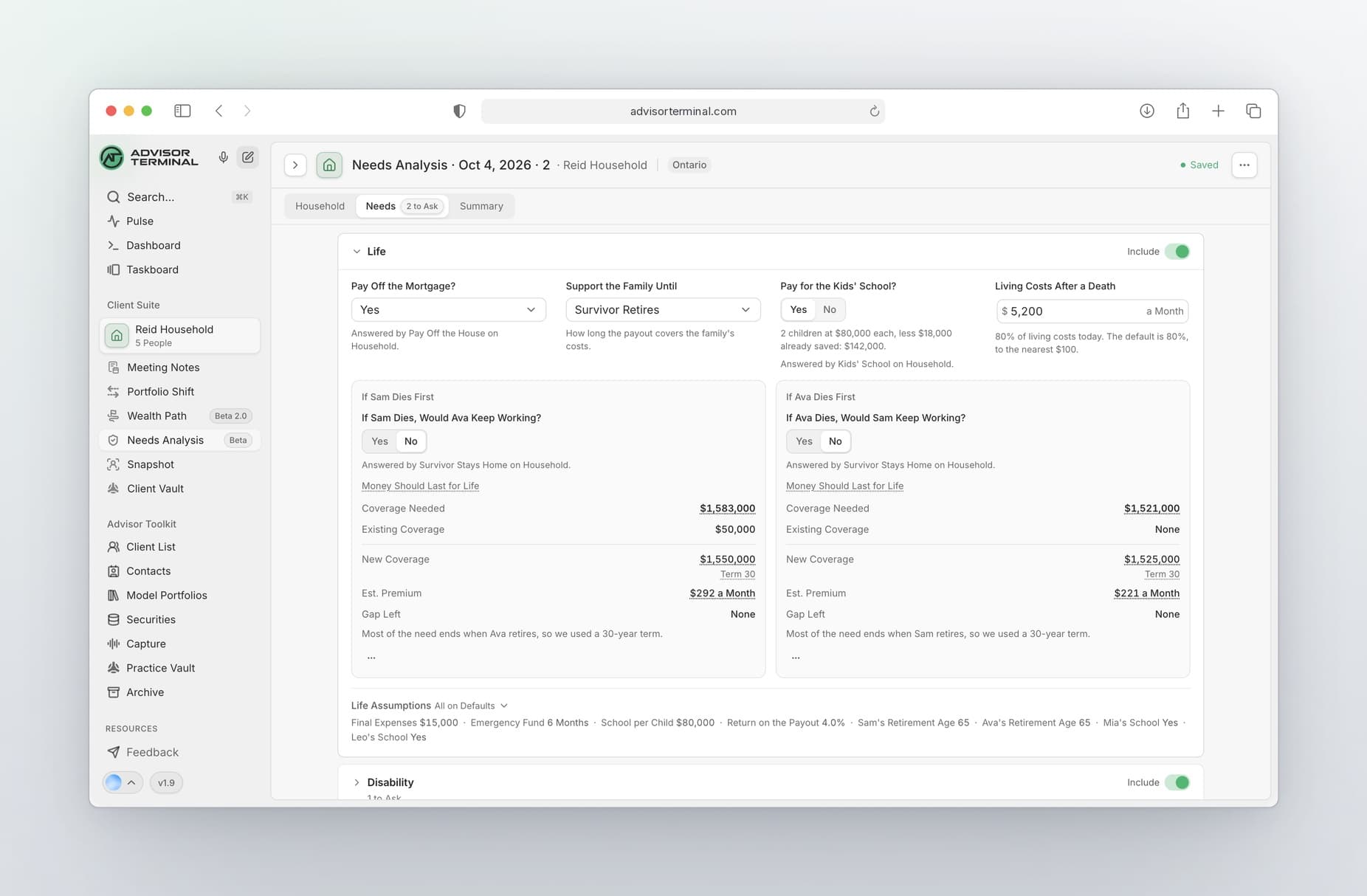
Needs Analysis is now in beta. Open it from the Advisor Suite, or from the Needs Analysis tab on any household, and work through three stages: Household, Needs and Summary.
- Start from what you know. Press Use All from Snapshot to bring in the household's figures, then add their group coverage from work and the policies they already hold.
- See every gap on one board. Each adult gets a column, with rows for Life, Disability and Critical Illness. Every card shows the coverage needed, what is already in place, what you propose and the gap left.
- See how each number is built. Click any card to see how it was sized. Change the amount or the product, or add a quote. Premiums show as estimates until you add one.
- Record what they decided. Mark each recommendation Accepted, Partly, Declined or Deciding Later, and create a follow-up task in one click.
- Keep a dated record. Save a version or download a PDF to share with your client.
Owners and admins set the practice defaults in Settings, under Needs Analysis.
Client Segmentation: Organize Your Clients with Custom Segments and Tags
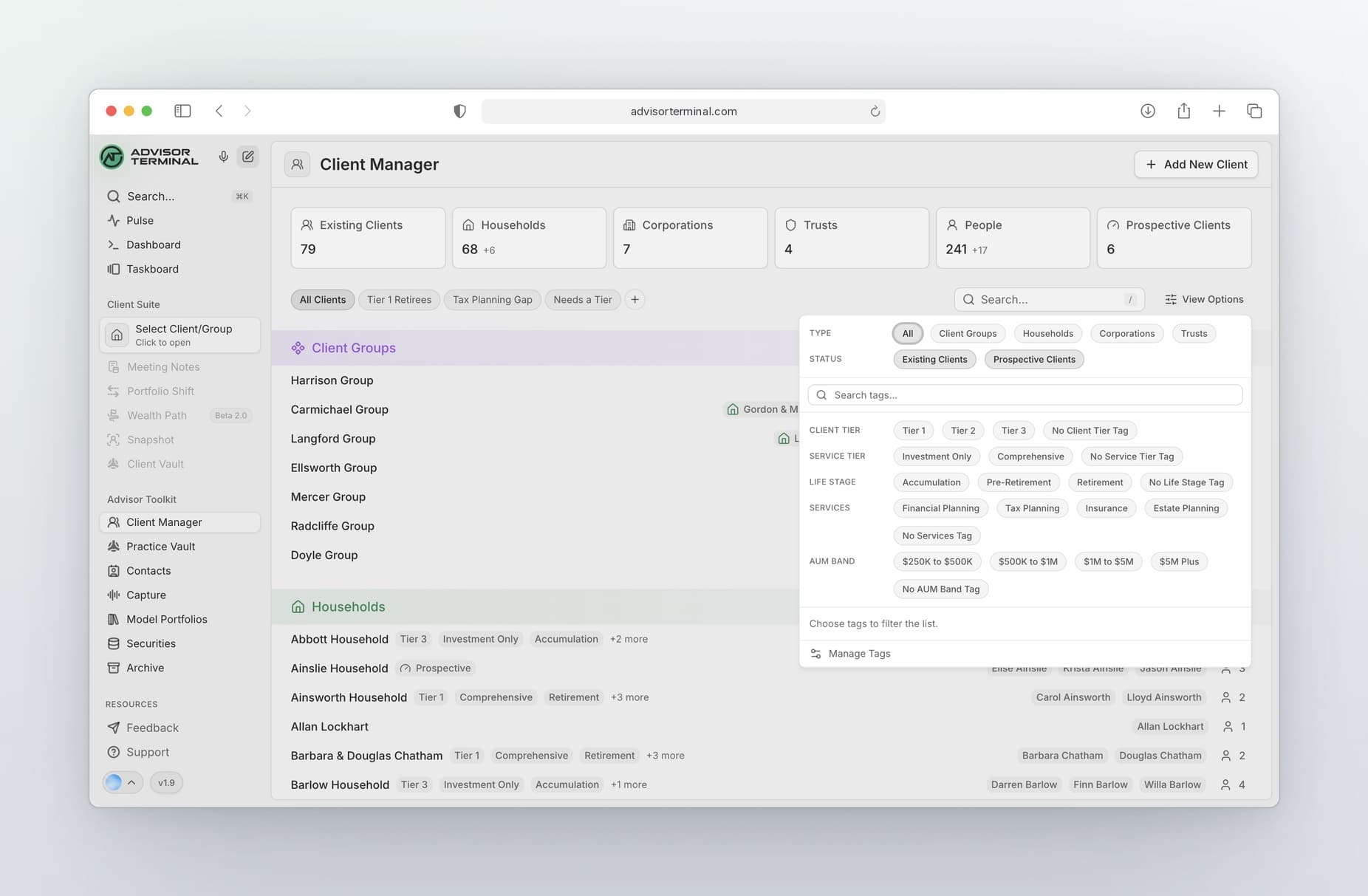
Your book is more than a list of names. Tags let you mark each client the way you already think about them, and segments bring any group back in one click.
- Set up your own tags. Owners and admins create categories like Client Tier or Life Stage in Settings, under Tags and Segments, and add the tags that fit your practice.
- Tag as you go. Choose tags when you add or edit a client. To tag many clients at once, open any tag in Settings and tick every client who should have it.
- Filter to exactly who you need. On the Client Manager, open View Options and include or exclude tags. For example, show every Comprehensive client who doesn't have Tax Planning.
- Save it as a segment. Save any mix of tags as a segment. It sits above the list for everyone in your practice and updates as clients are tagged.
The Client List is now called the Client Manager, and it leads the Advisor Toolkit.
Improvements
- Vault Files Keep Their Own Modified Date. Files you upload from the web now show the date they were last changed.
Fixes
- Vault Uploads Keep Going in Settings. An upload no longer stops when you open Settings.