
Notebook, Scratch Pad, Team Access, and Household Changes
1.13.0·
Version 1.13 is a big one, built around how your team works together. The Notebook is new: private pages for your own thinking, and a Practice Notebook your whole team writes in, live. Every client now has a Scratch Pad, one running page for anything worth remembering about them. Settings has a new Team page, where you invite people and choose exactly which clients each teammate can see. Households can now be merged and split, and an estate opened when a client passes away. A meeting note can belong to every client it is about. And Qira now turns a meeting's follow-ups into one task with a checklist.
Notebook: Think Privately, Then Work Together Live
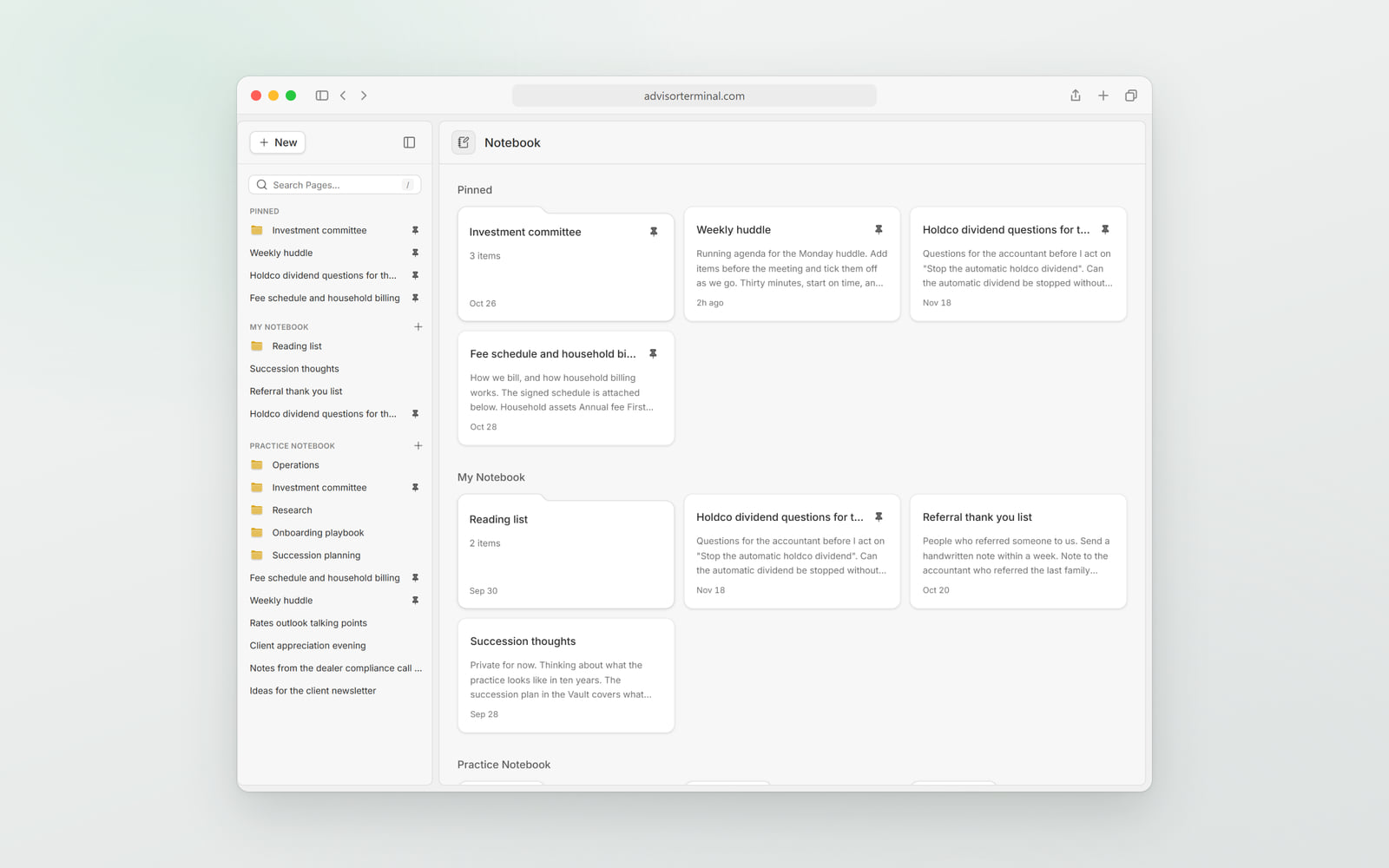
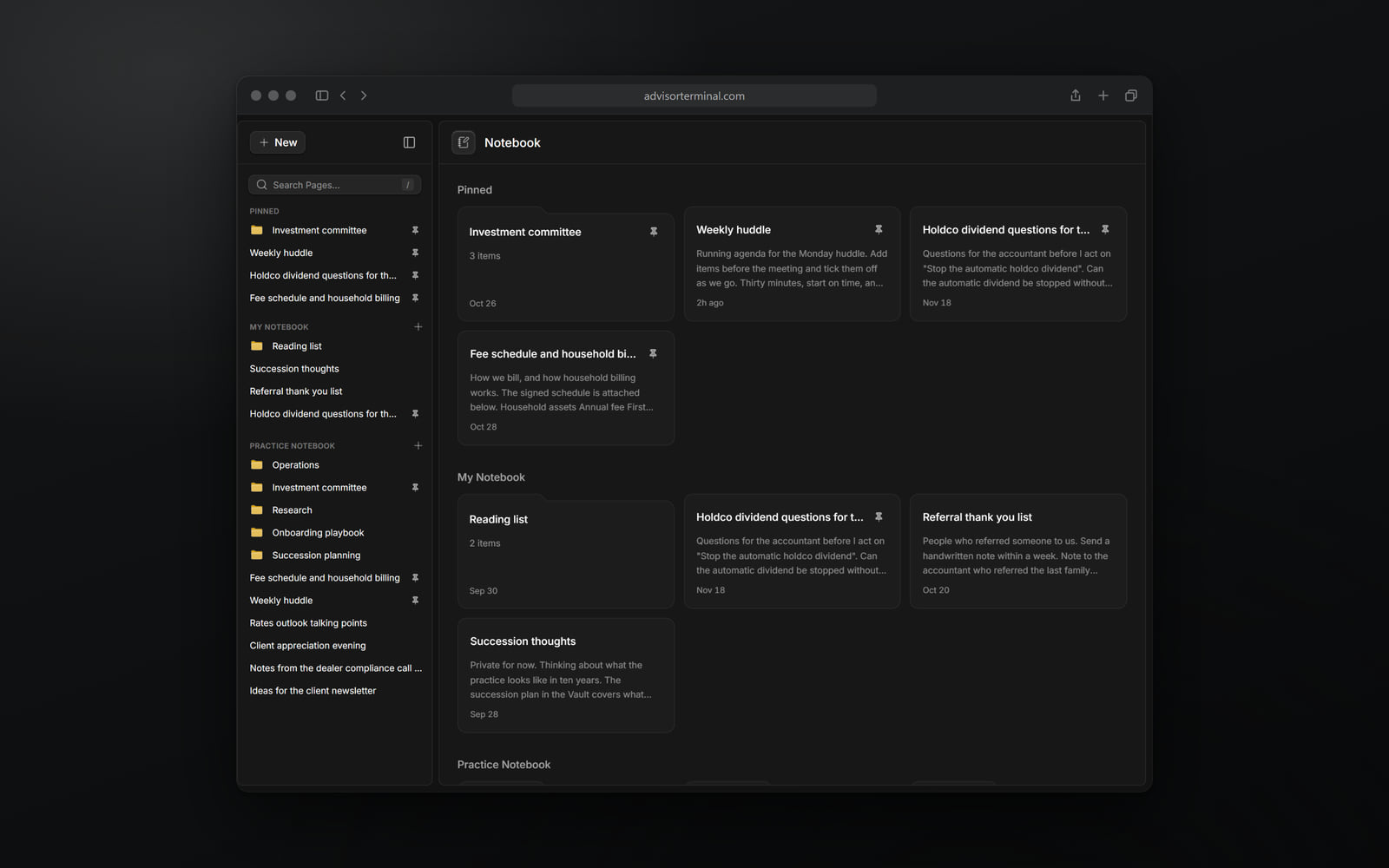
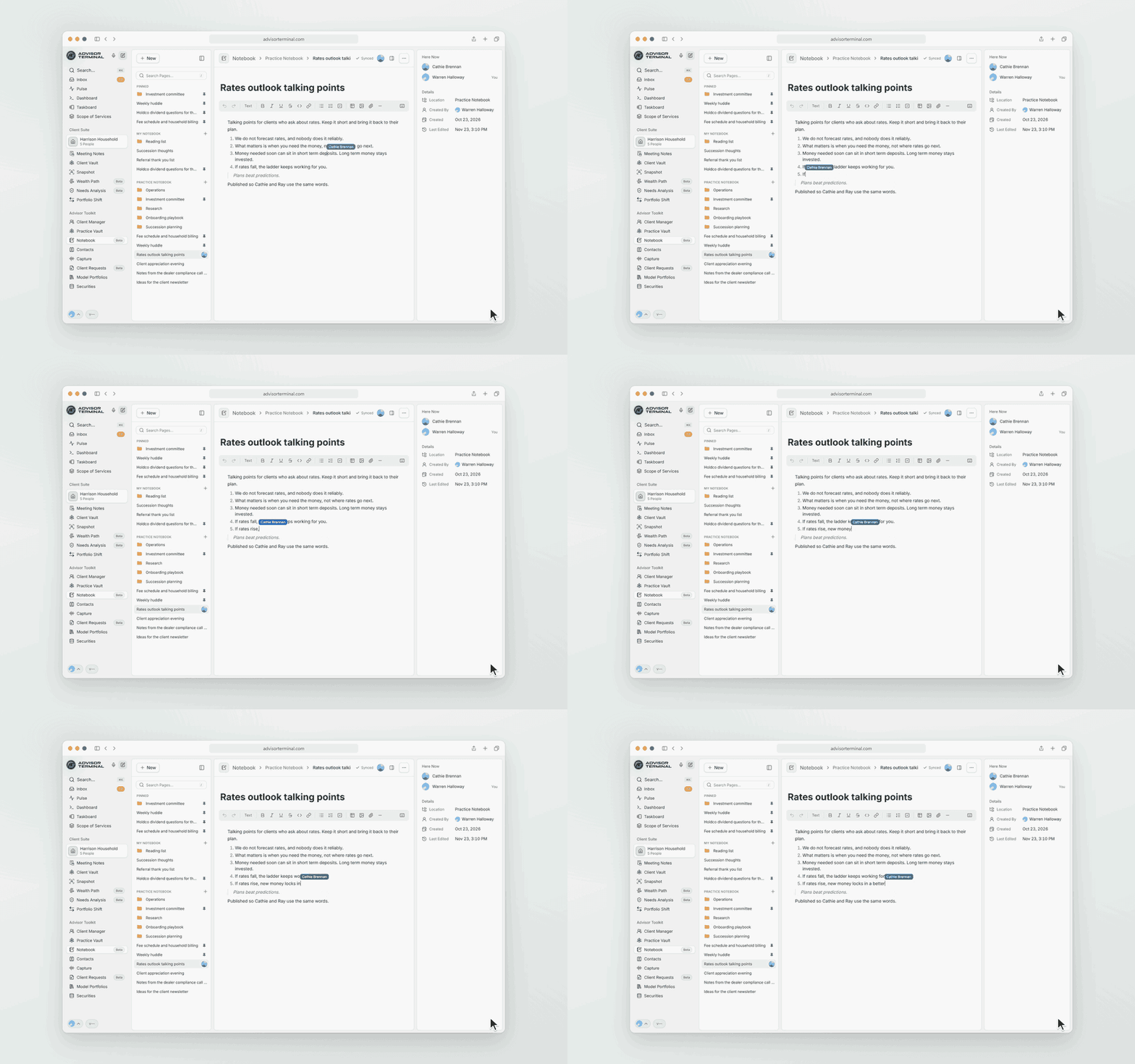
Not everything a practice writes down belongs to a client. Meeting prep, a process you are working out, research on a product, the plan for next quarter. The Notebook is new, it sits in the sidebar under Practice Vault, and it is where that thinking lives.
Two spaces, side by side.
- Start in private. Every page you create begins in My Notebook, where only you can see it.
- Share when it's ready. Drag a page into the Practice Notebook and everyone in your practice can read it.
- Organize it your way. Make folders, nest them as deep as you like, and pin the pages you open every day.
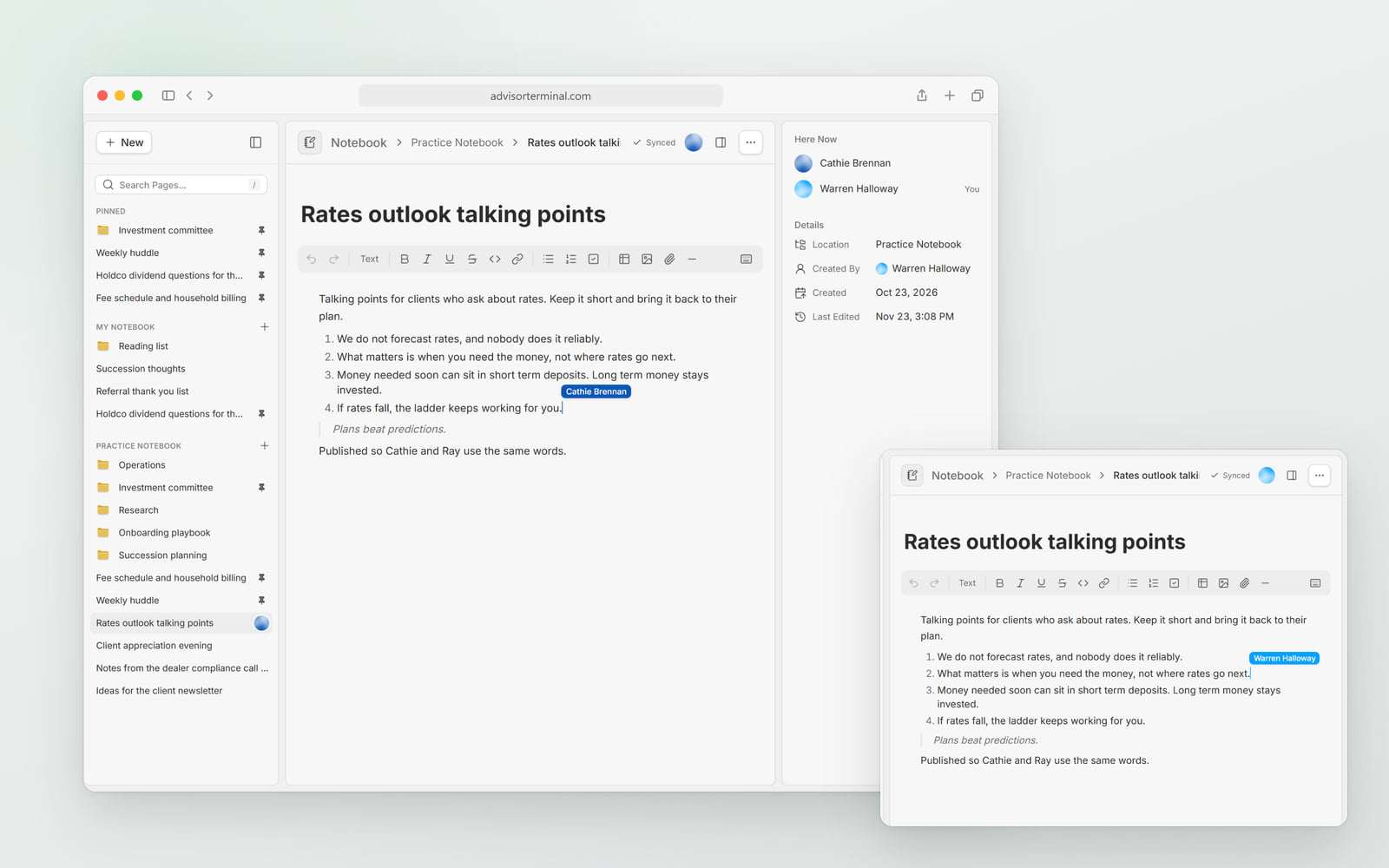
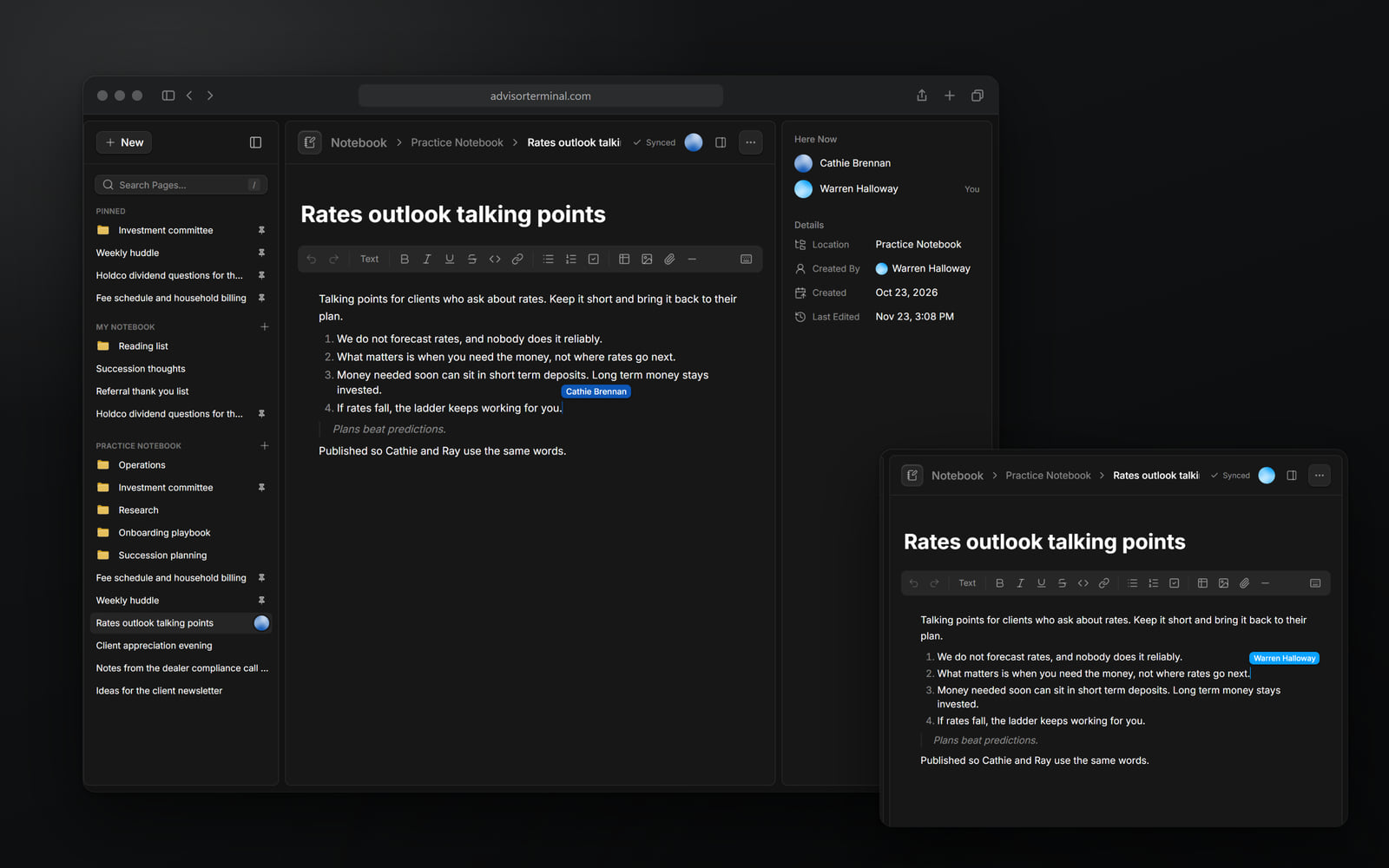
Write together, live.
- See each other work. Open a Practice Notebook page with a teammate and you see their cursor and their words as they type.
- Paste anything. Text from an email, a table from Excel, a screenshot or a PDF lands on the page the way it looked. Resize a picture right on the page, and open any attached file in the app's viewer.
- Change your mind. Deleted pages wait in Trash for 30 days before they are gone.
Scratch Pad: One Running Page for Every Client
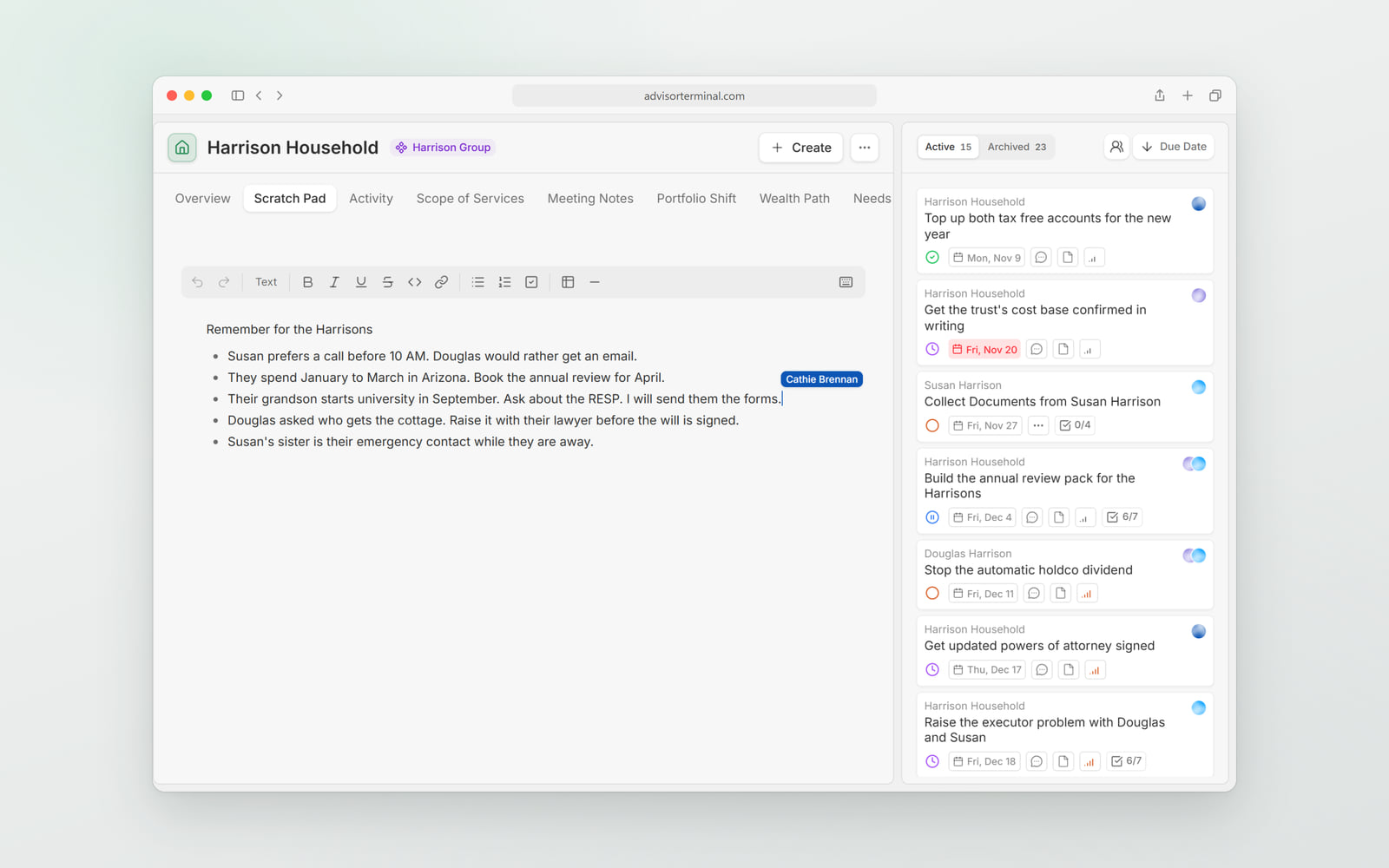
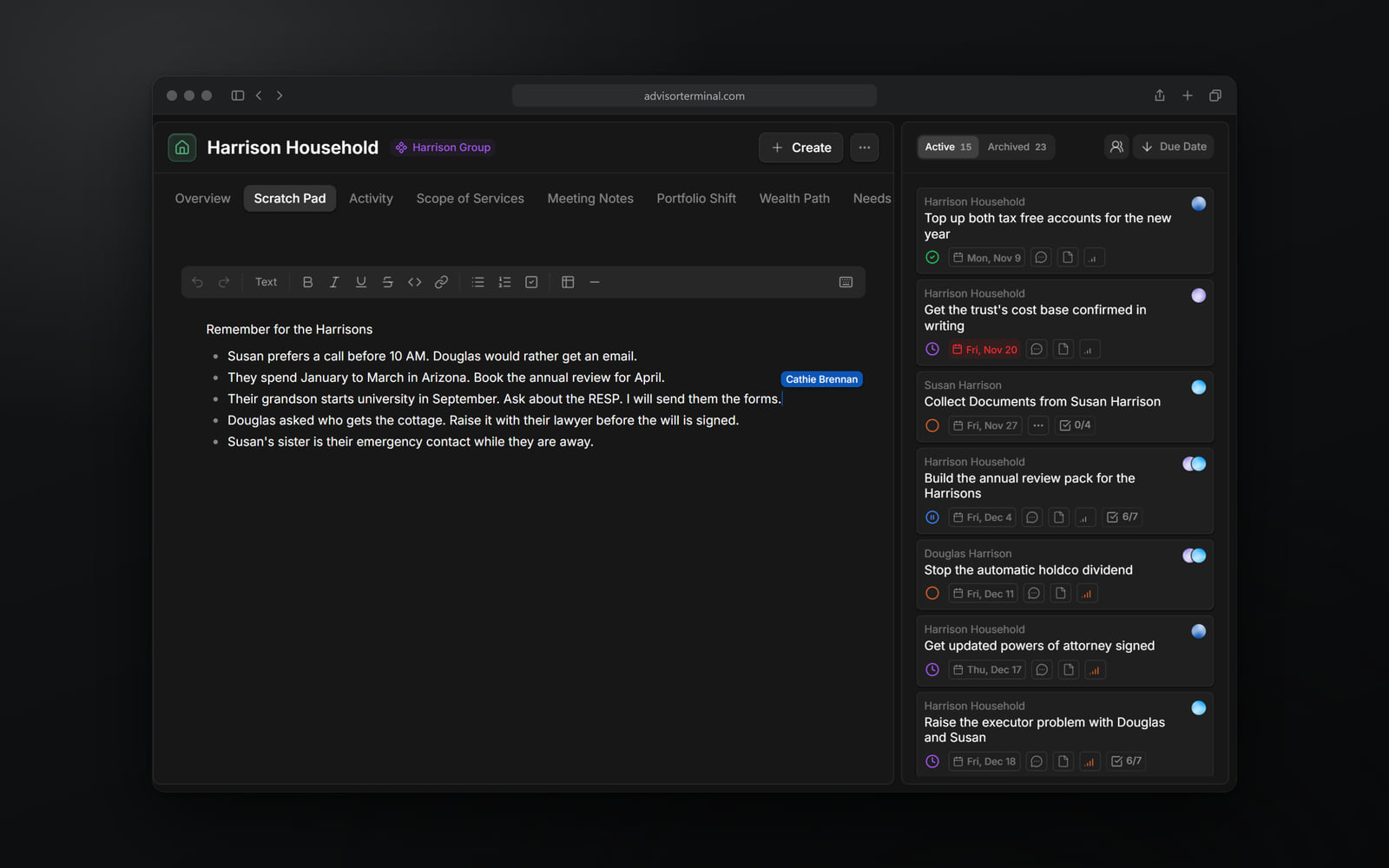
Some things about a client never fit a form. The name of their dog, the trip they are planning, the question they asked on the way out of the meeting. Every client now has a Scratch Pad for exactly that. It is the second tab on the client page, right after Overview.
- Write it down. One running page per client, no fields and no structure. Type the way you would in a notebook.
- Write it together. Two people can be in the same pad at once, and each sees the other's words appear as they type. Nothing either of you writes is lost.
- Private to the right people. A teammate sees a client's Scratch Pad only if they can see that client. Take their access away and the pad closes for them right away.
Team: Invite Your Team and Choose Who Sees Each Client
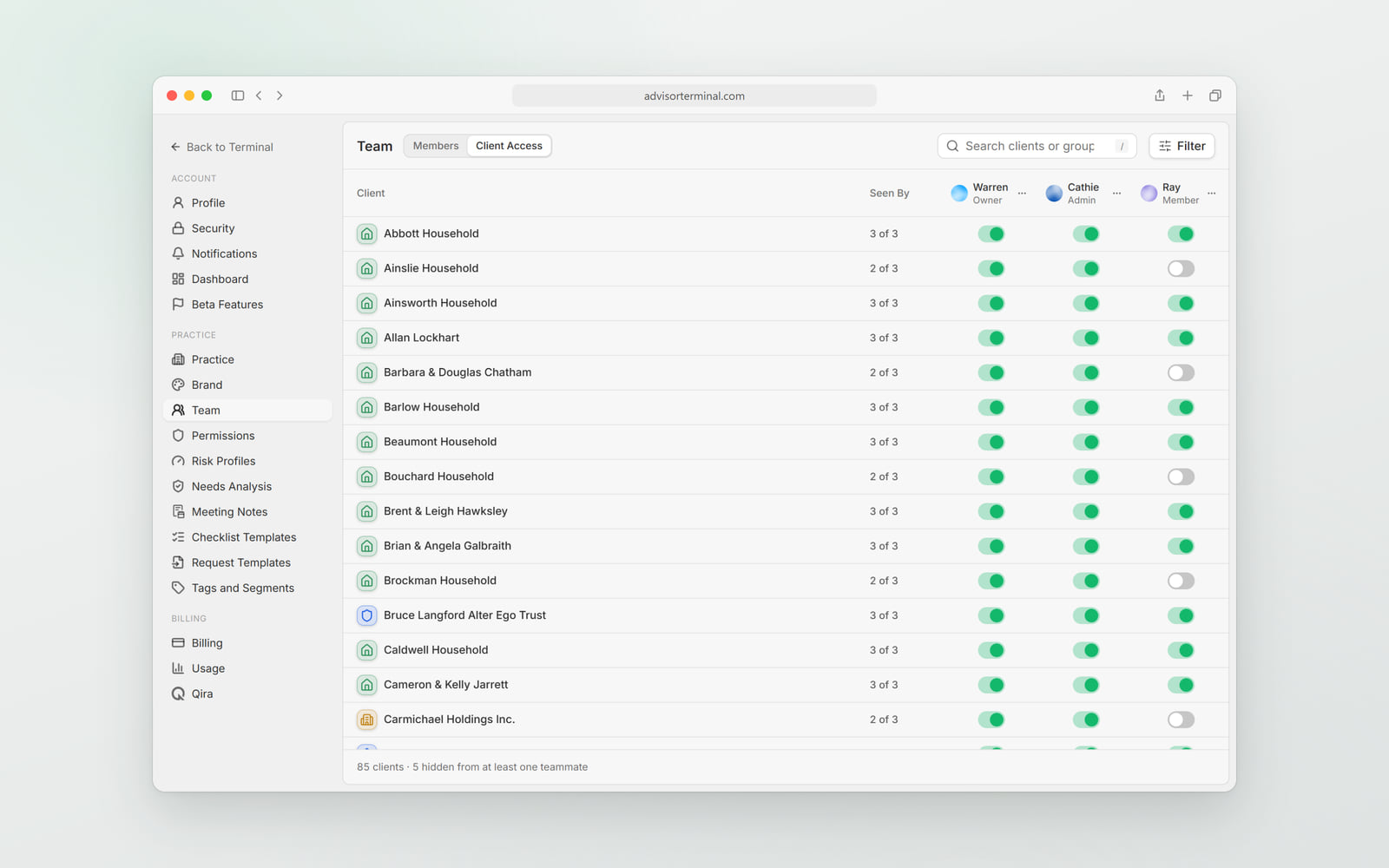
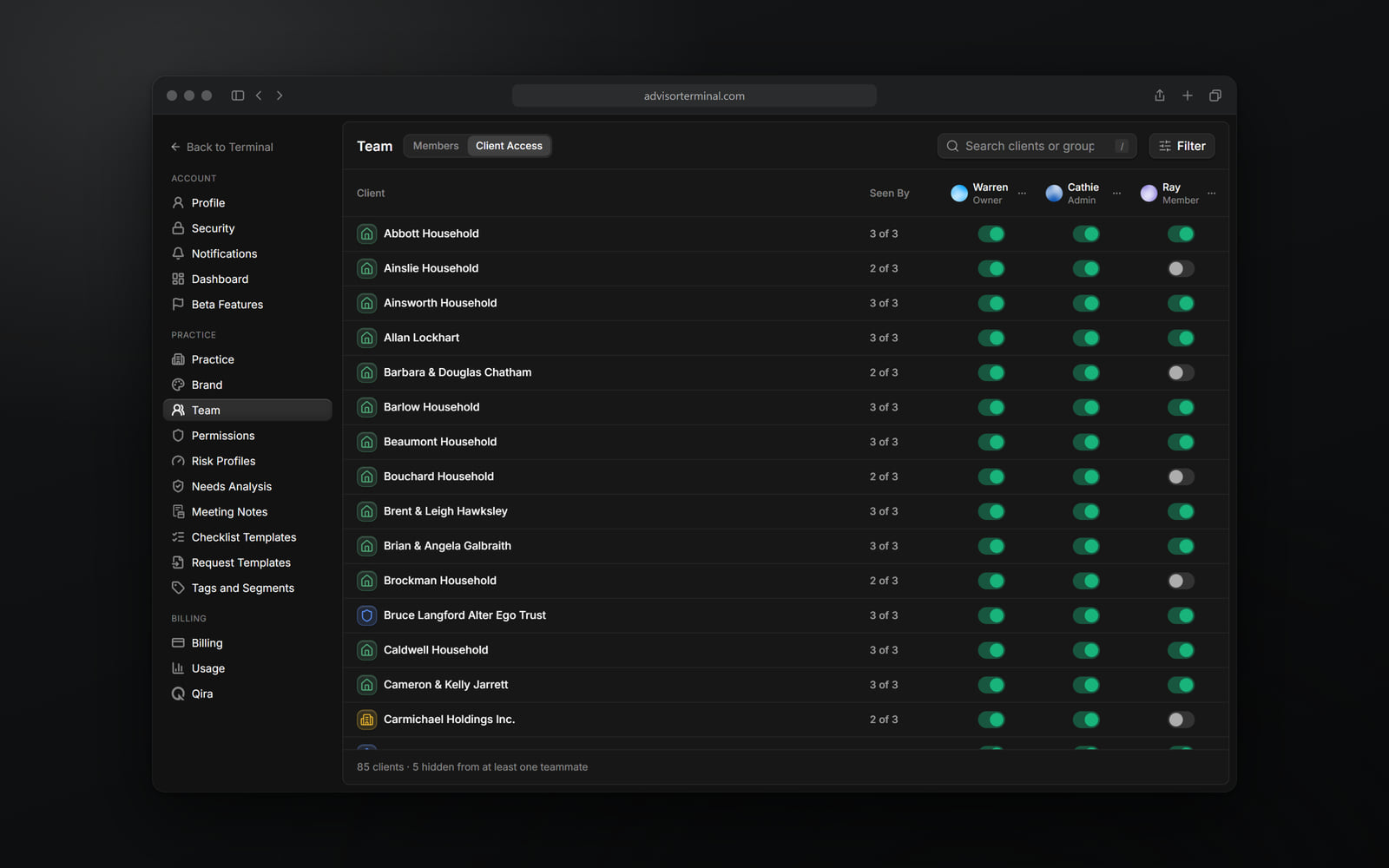
Members is now Team, and it does a lot more. Open Settings, then Team, to see everyone in your practice, invite someone new, and decide which clients each teammate can see.
See your whole team at a glance.
- Everyone in one list. Each teammate, their role and their pending invitations, in one place.
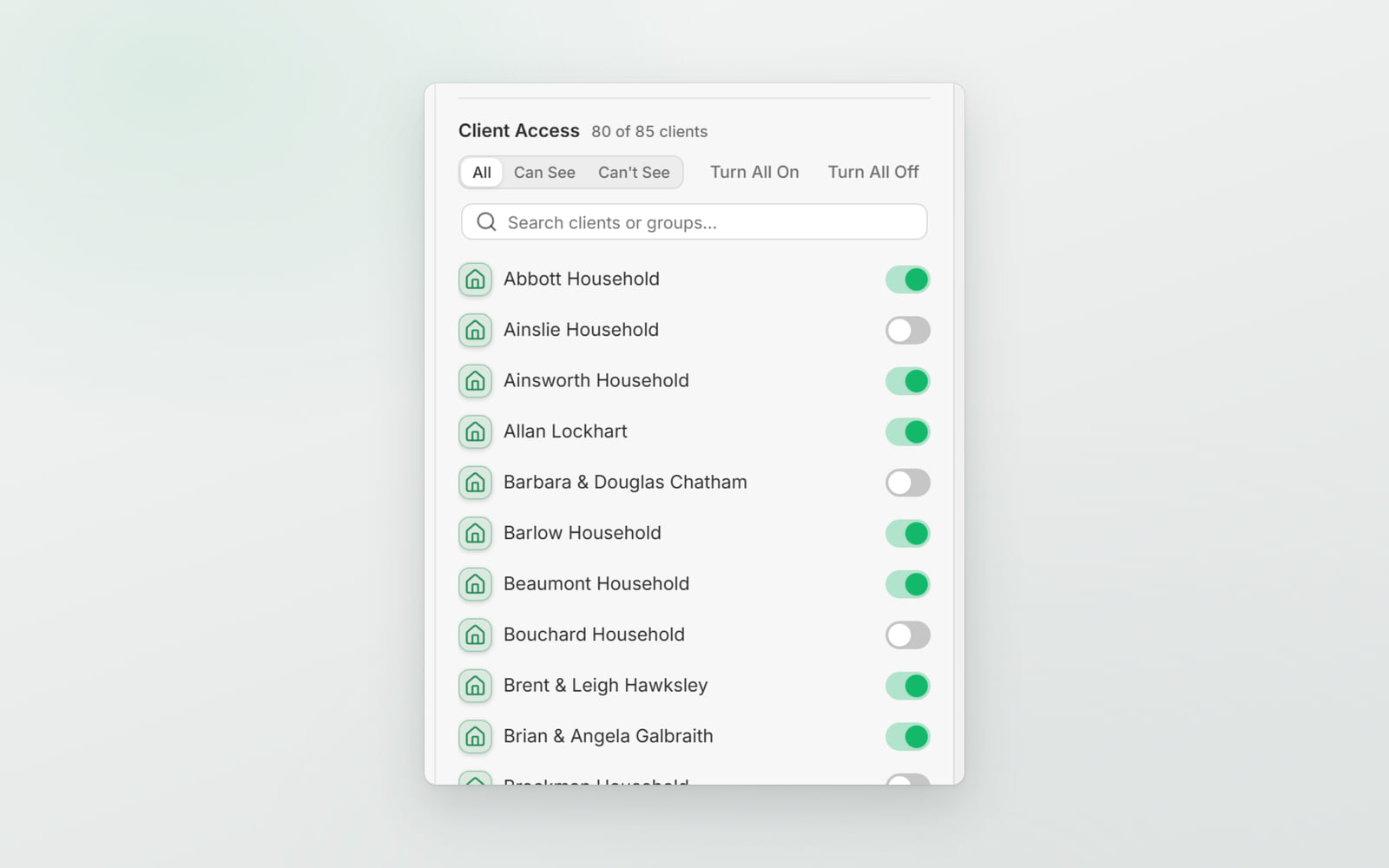
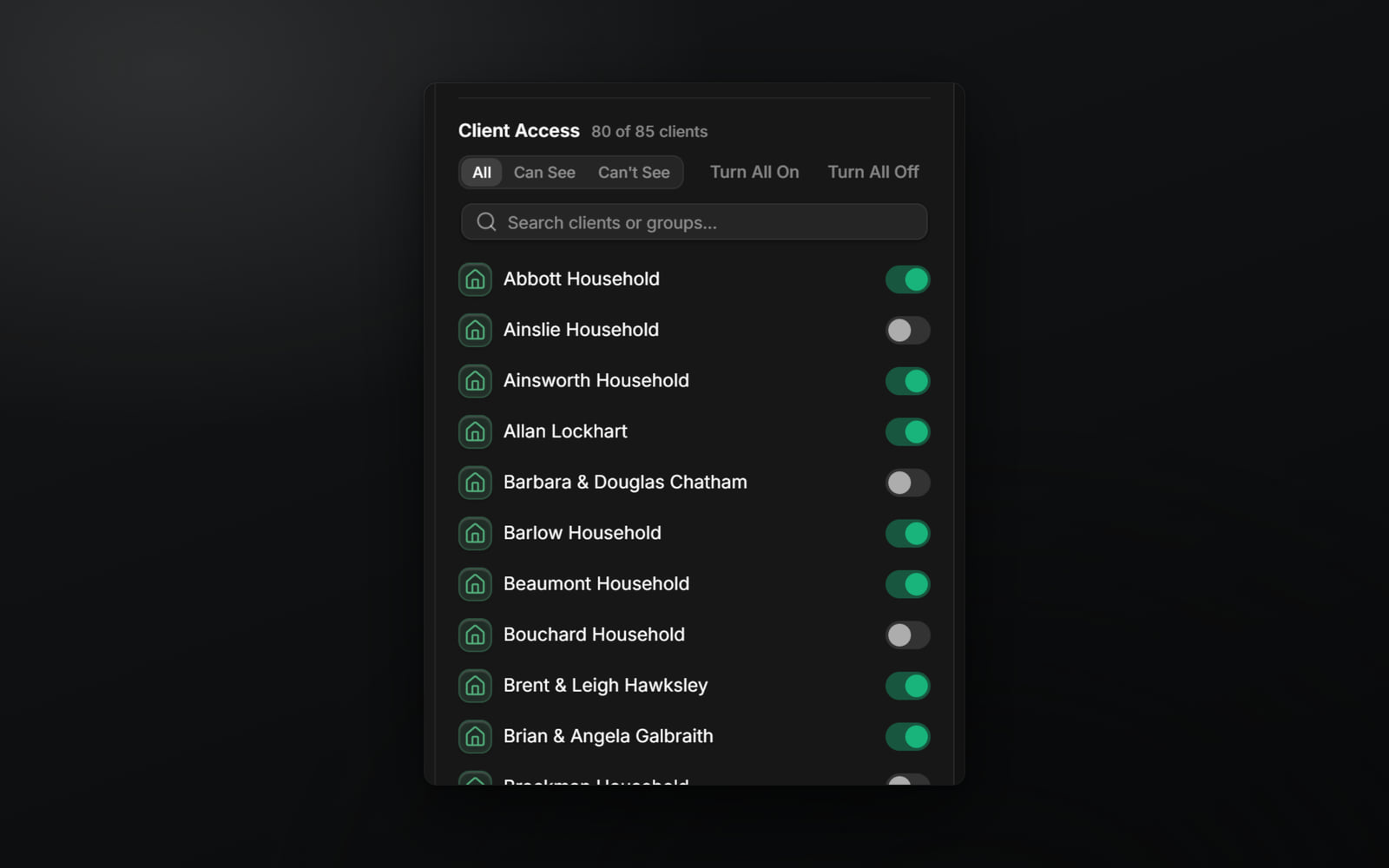
- Every client by every teammate. Switch to Client Access for a grid of clients down the side and teammates across the top. Turn access on or off in one click, or a whole column at once.
Set up someone new in one pass.
- Choose their clients once. Open a new teammate's card, pick the clients they should see, and confirm. Their clients appear for them right away, with no reload.
- No more nagging. The reminder at the top of the app tells you when someone is waiting for access, and goes away for good once they are set up.
- Owners stay in charge. Owners always see every client, and only an Owner can make someone an Admin.
Household Changes: Merge, Split, and Plan for an Estate
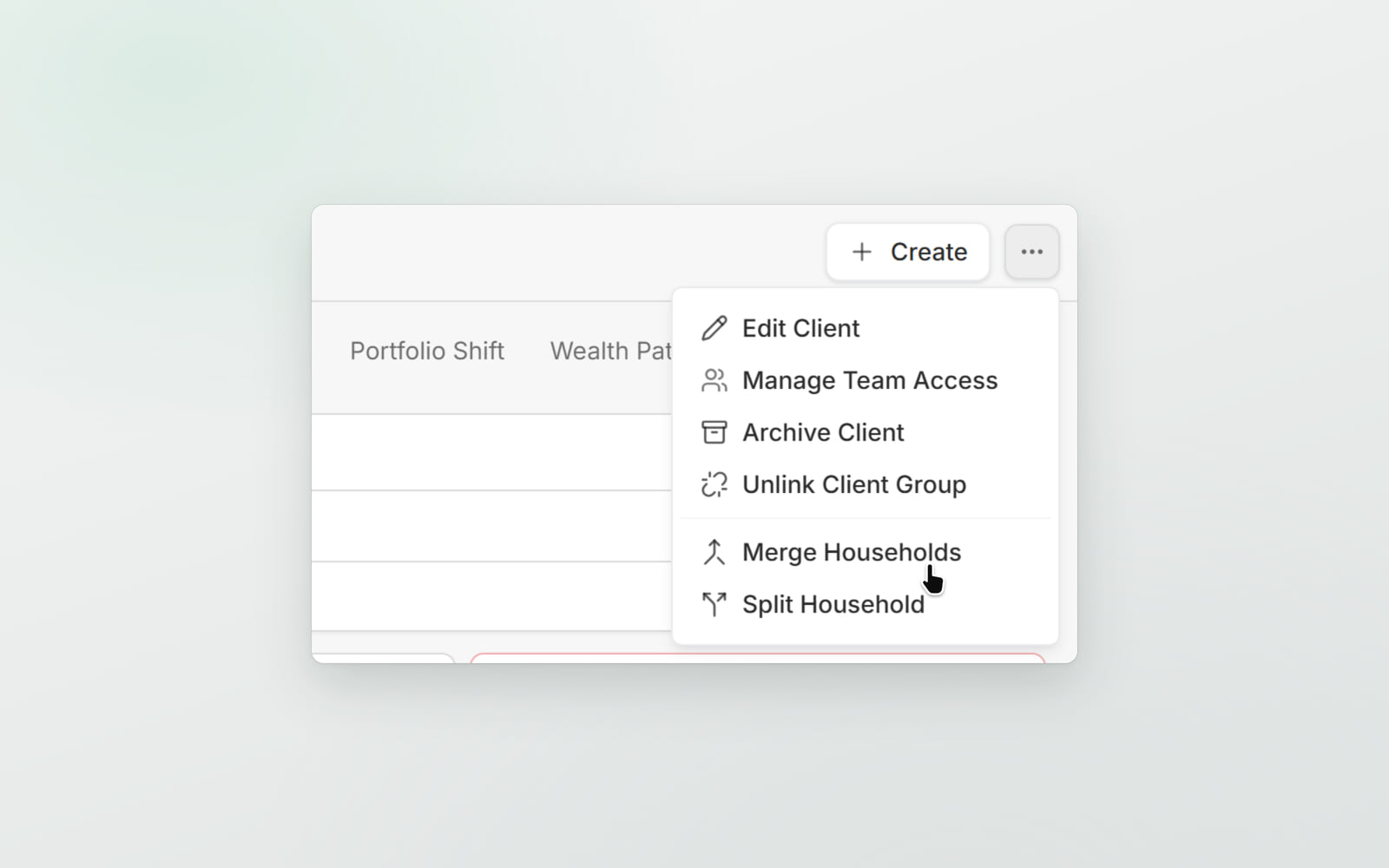
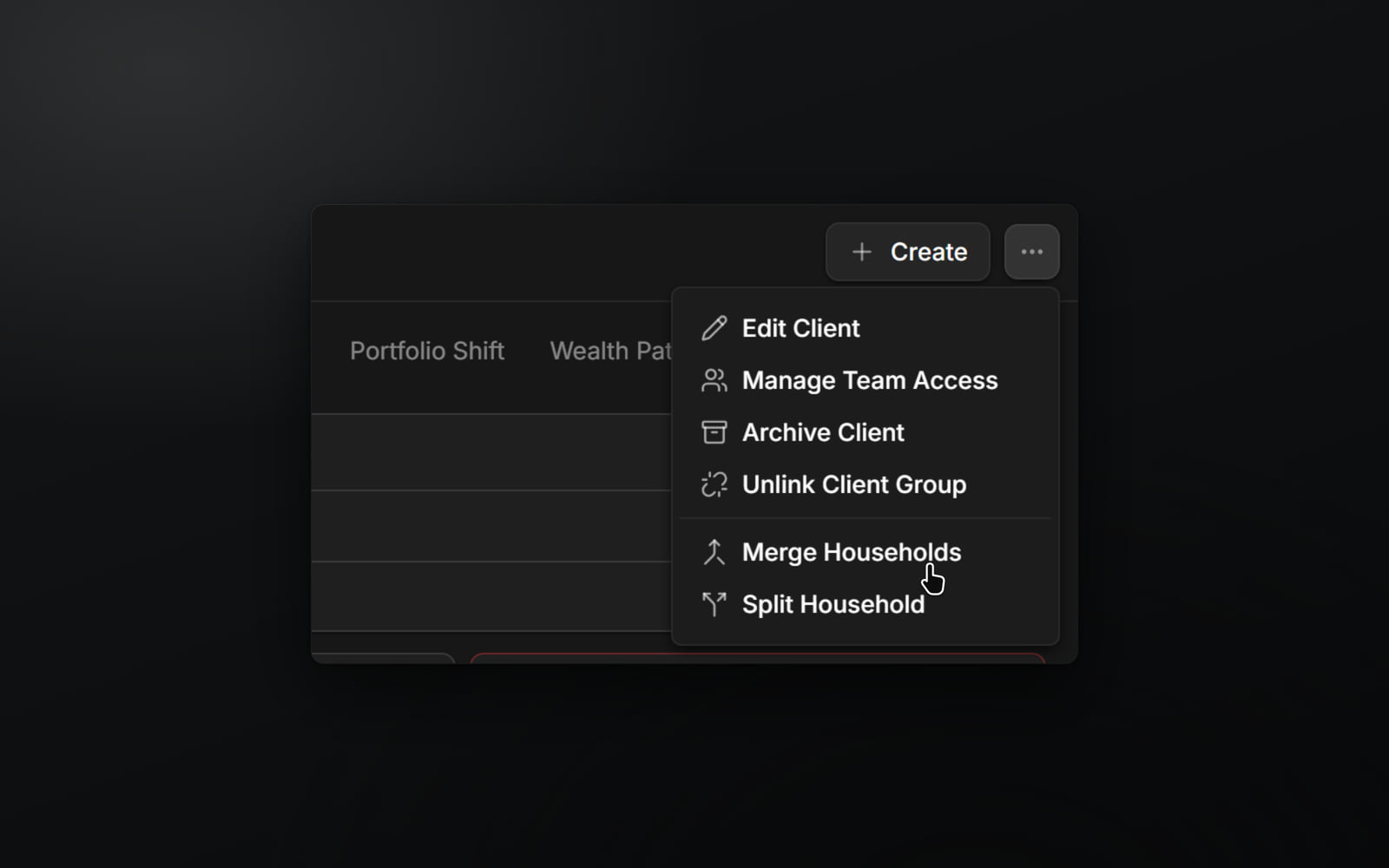
Families change. Couples marry, separate and divorce, kids grow up and move out, and a client passes away. Each of these now has its own step in the client header menu, so your book always matches the family in front of you.
Bring two households together.
- Merge Households. Pick the household that continues, see exactly what moves before you confirm, and the other one is archived with its history intact.
Take one apart.
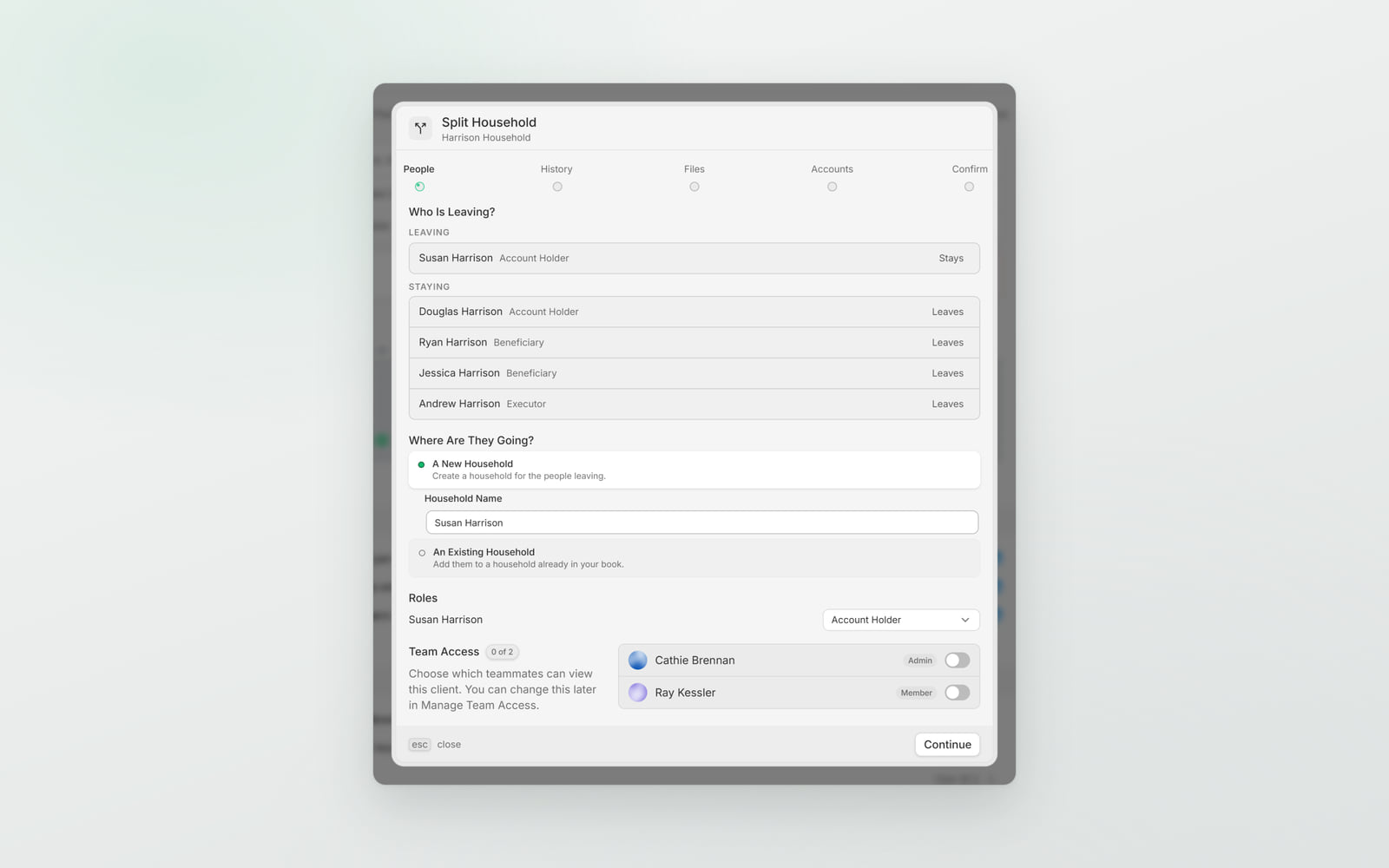
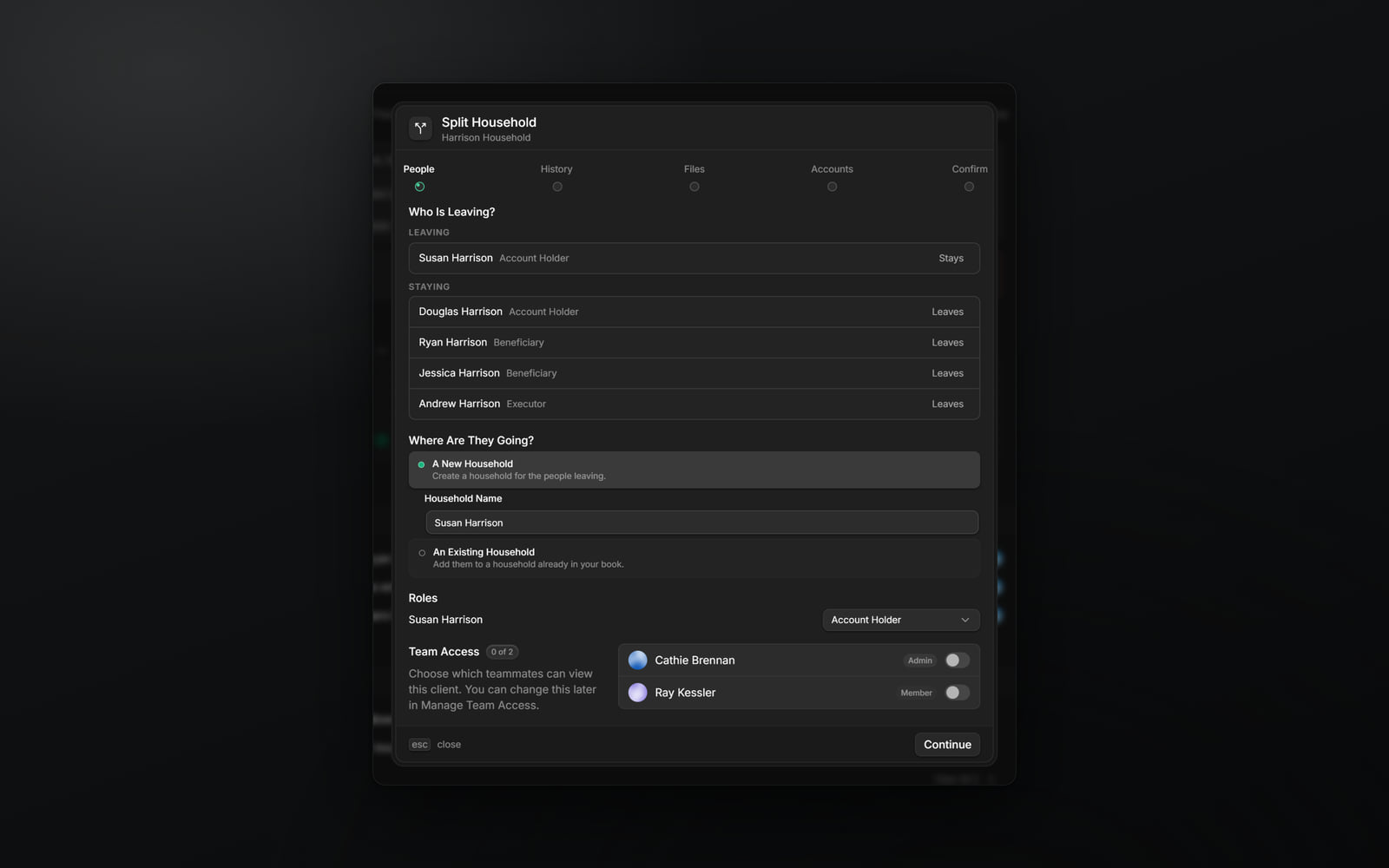
- Split Household. Choose who is leaving and whether they start a new household or join one already in your book. You decide which meeting notes go with them, which files are copied to both, and who keeps each joint account.
- Start their Snapshot for you. After a split, the new household gets a Snapshot draft built from what you already know, ready for you to review and publish.
- Move to Another Client. Move one person, like a child who has moved out, onto another client in a couple of clicks.
When someone passes away.
- Create Estate Trust. Open an estate for a household member who has passed. It is linked back to the household, so the history stays in one place.
- Create Successor. When a company or a trust is replaced by a new one, link the new client to the old so its history carries forward.
Change your mind. A merge or a split can be undone for 30 days.
Shared Notes: File a Meeting Note to Every Client It Belongs To
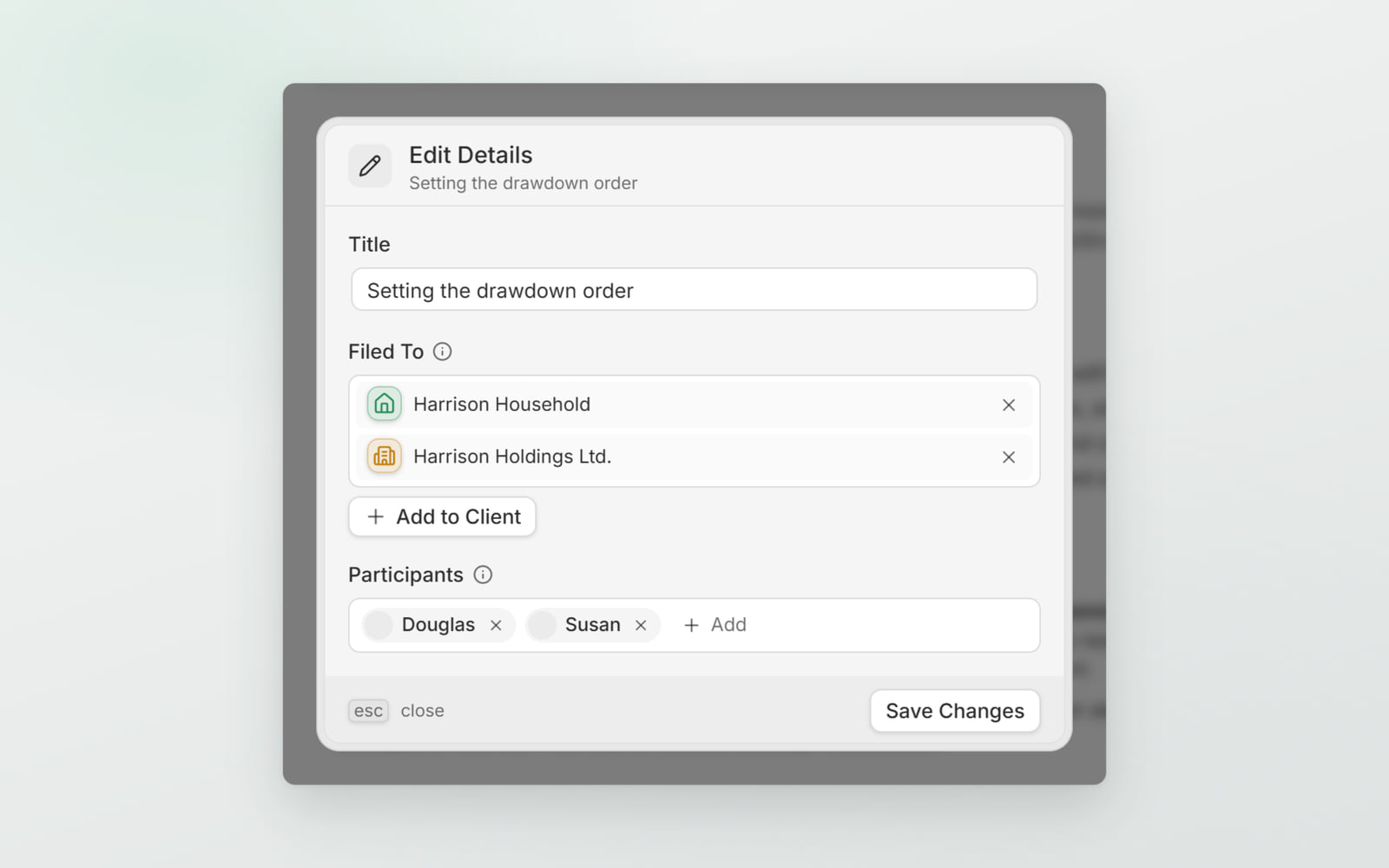
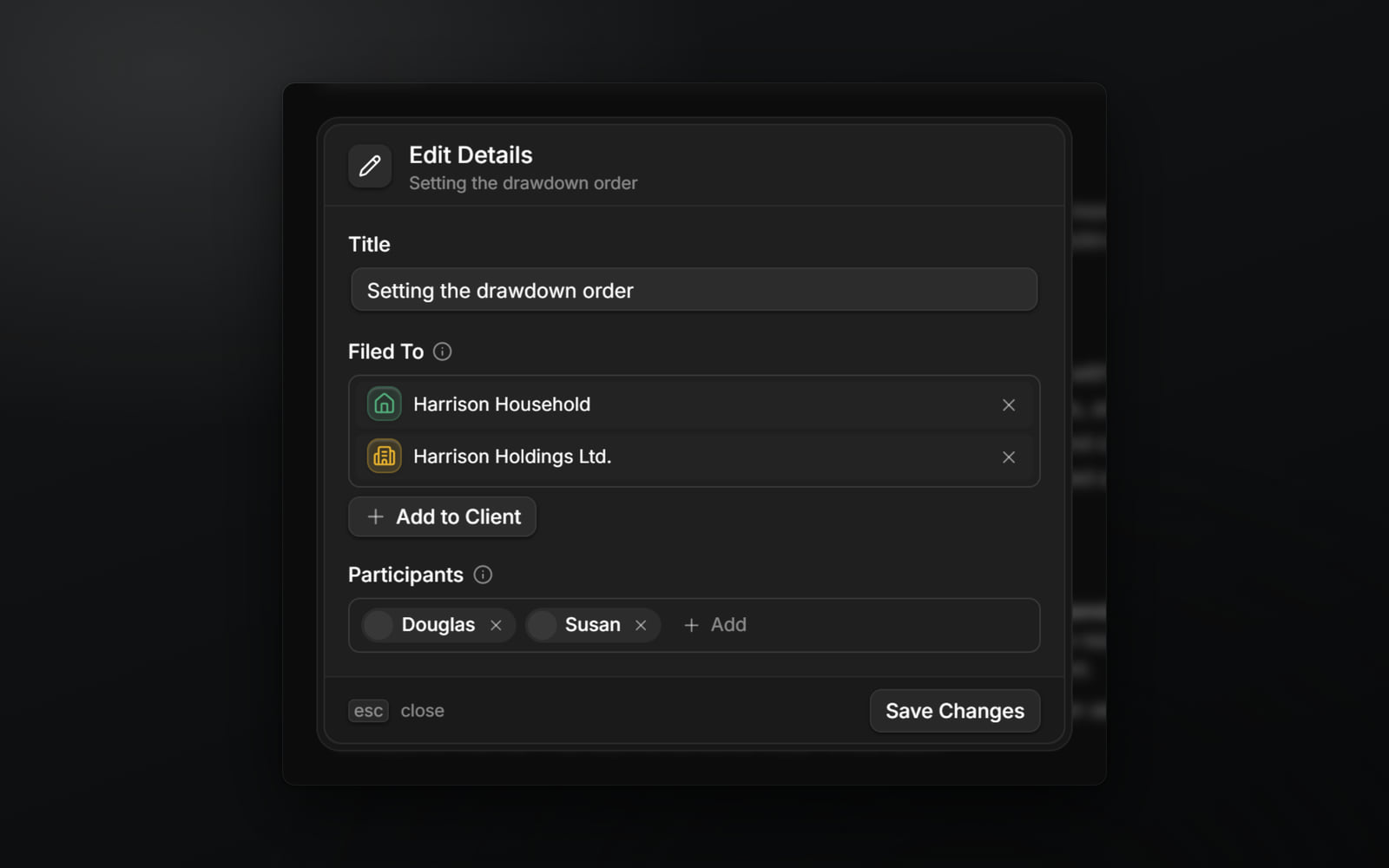
When you meet with two related clients, like a couple and their holding company, the meeting note belongs to both of them. Now it can. A meeting note, Portfolio Shift or Wealth Path can be filed to more than one client from Edit Details, and it shows up on each of them.
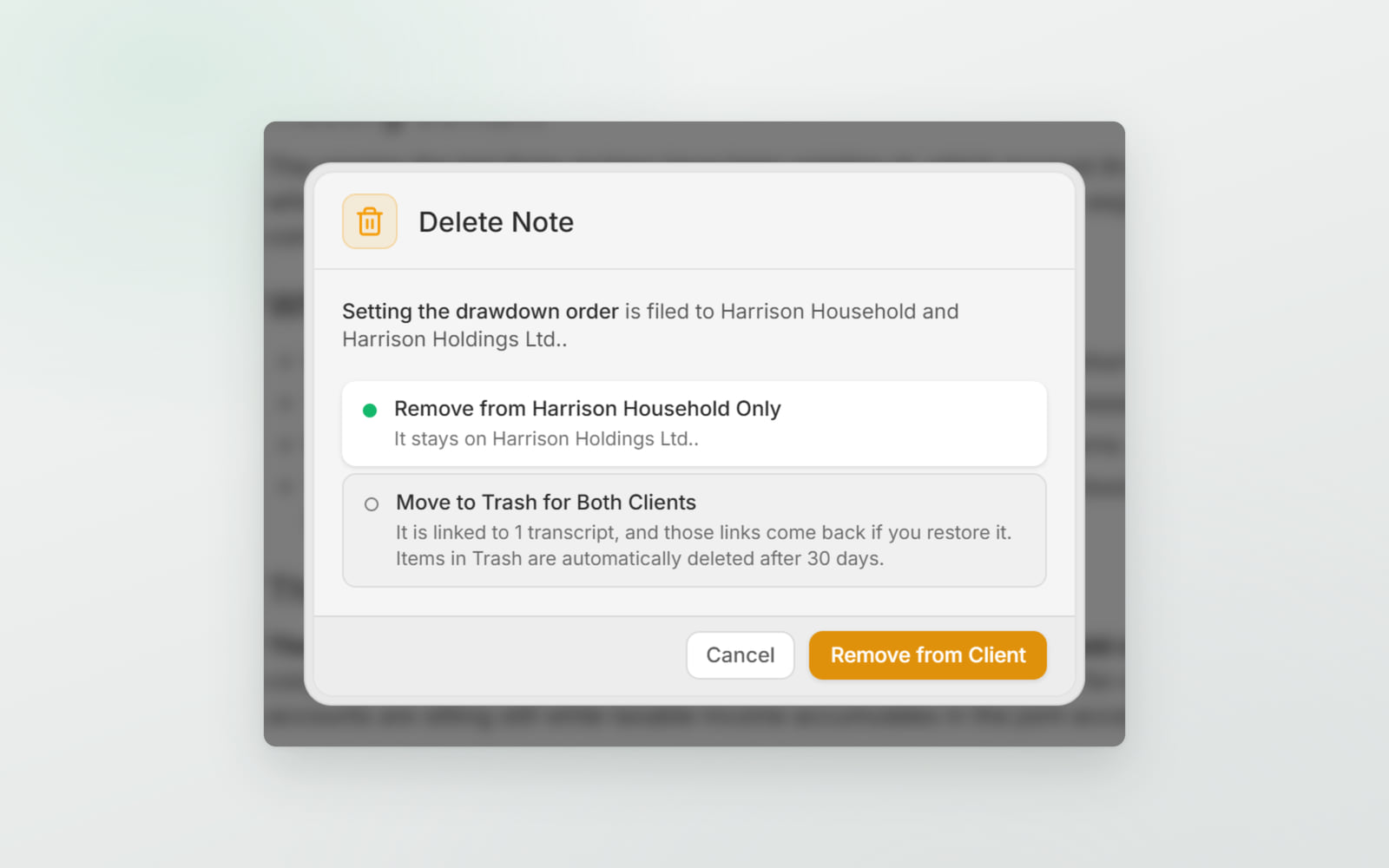
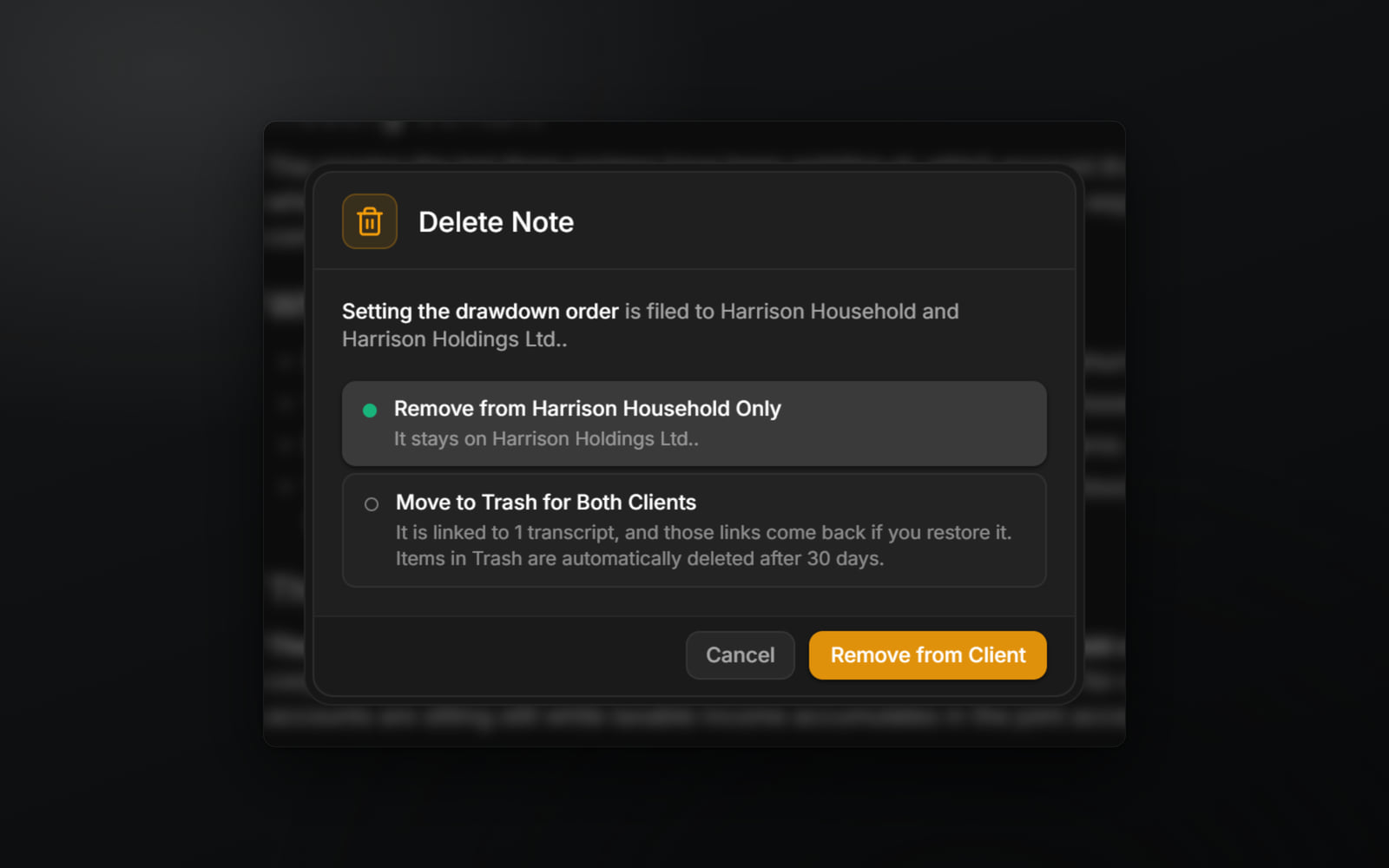
- Remove it from one client only. Deleting a shared note asks whether to remove it from that client only, or move it to Trash for everyone. Removing it from one keeps it on the others.
- Find it in Trash. Trash now has a Documents section, and a shared note there names every client it was filed to.
- One person, every client. A person who belongs to more than one client keeps one name and birthday everywhere, and a change on one client shows on all of them.
Qira Tasks: One Task with a Checklist, Not Fifteen
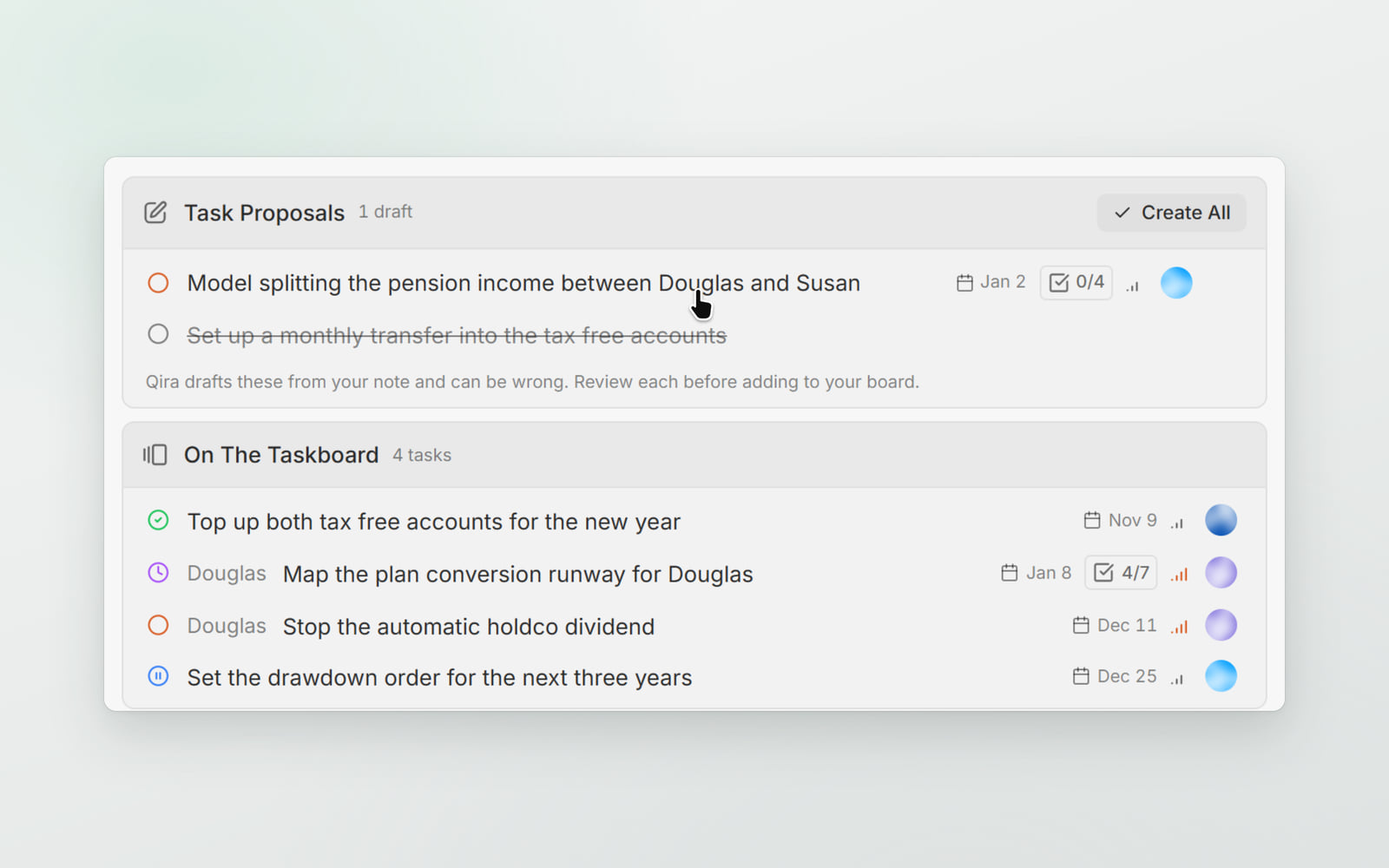
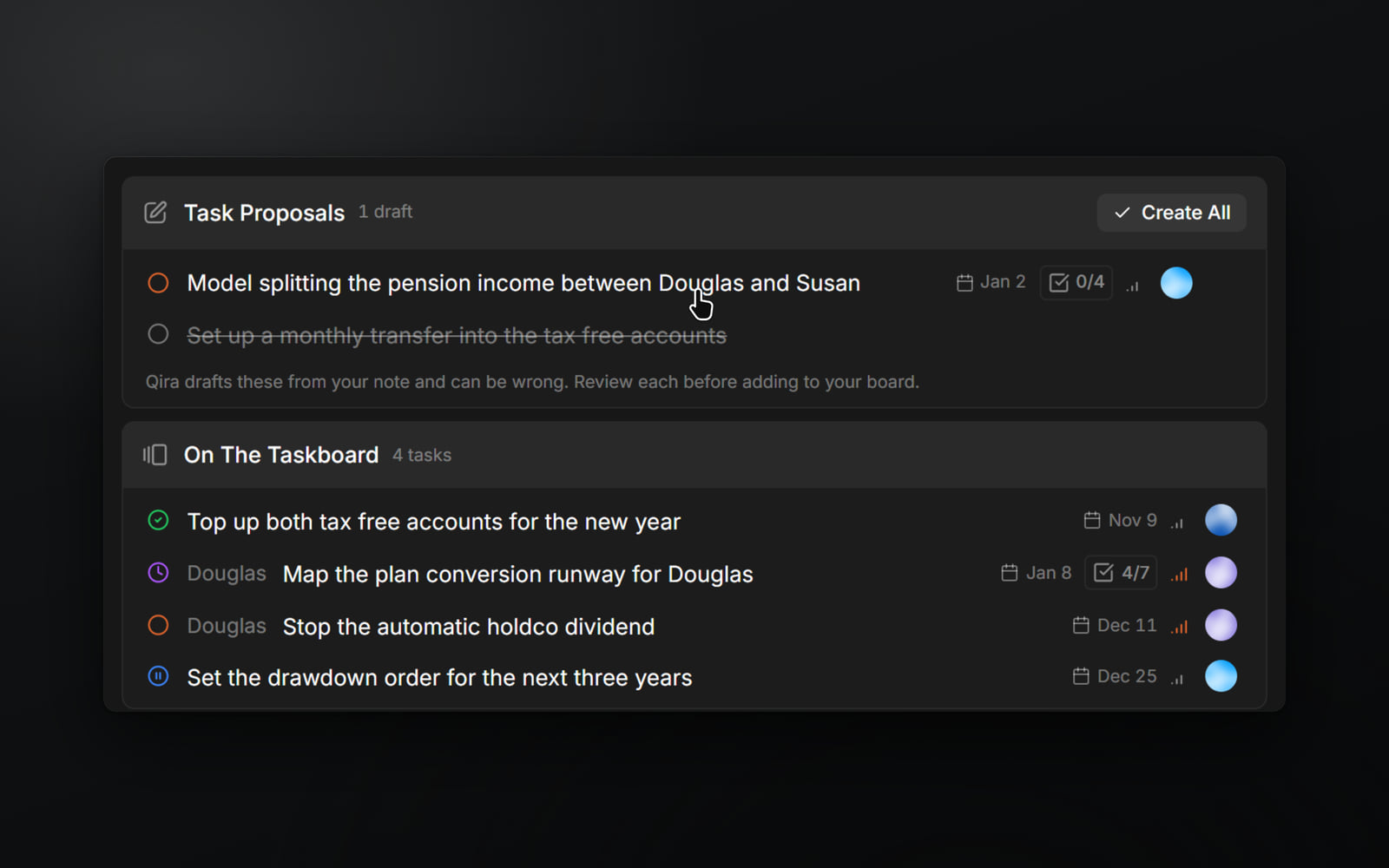
A single meeting can produce a dozen small follow-ups. Before, Qira suggested each one as its own task, and your board filled up fast. Now it groups the ones that belong together.
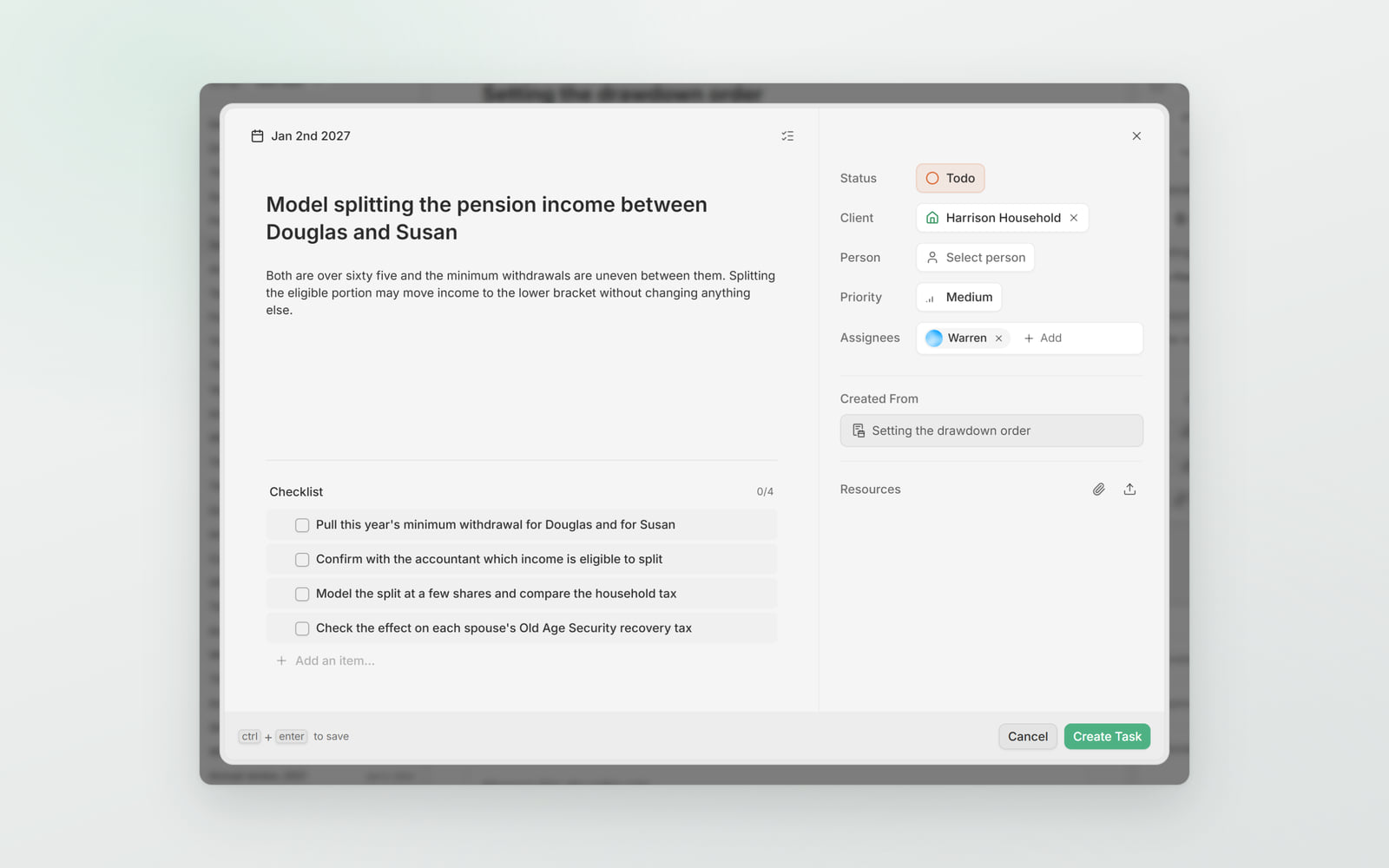
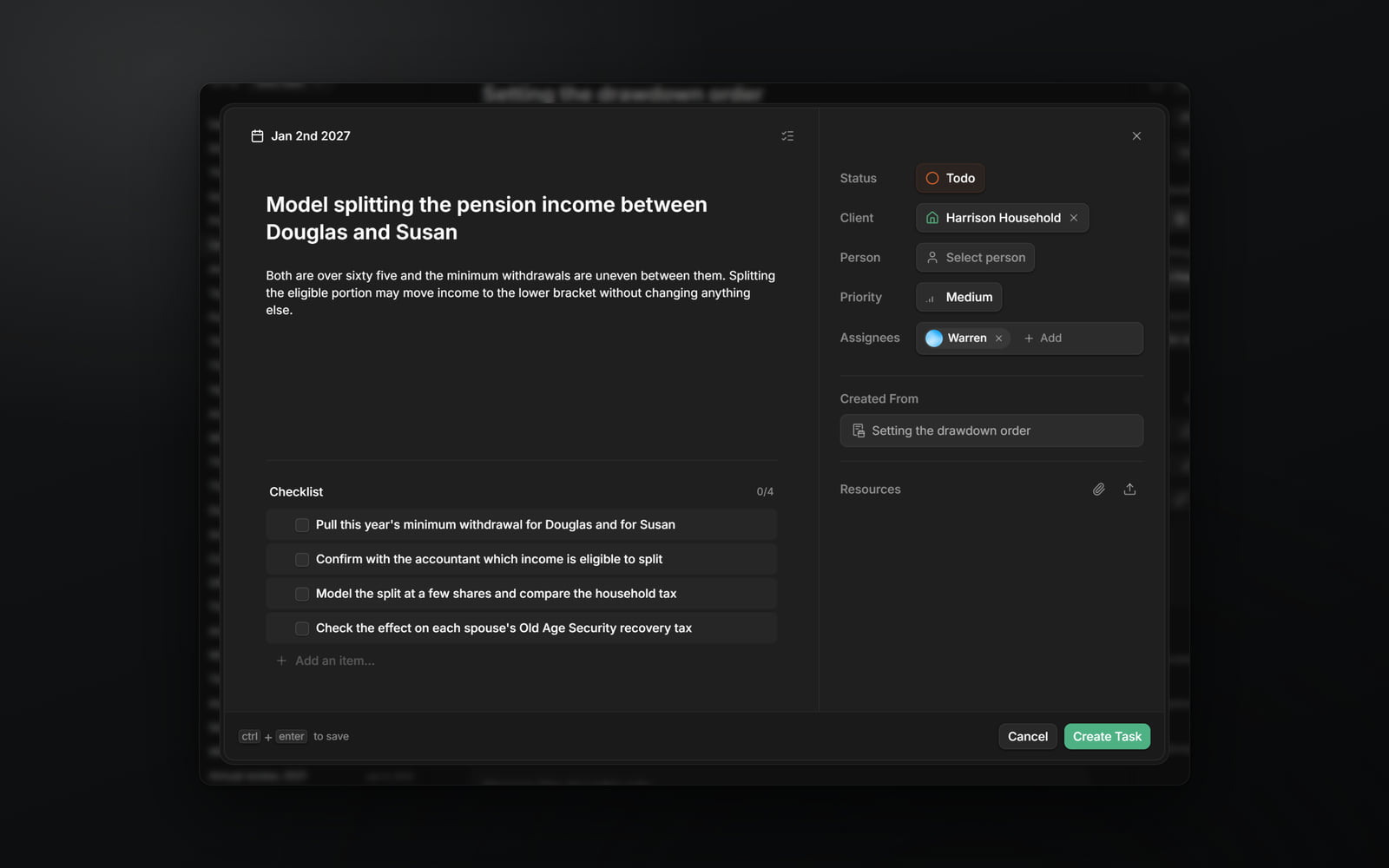
- One task, many steps. Related follow-ups arrive as one task, and each step becomes an item on its checklist.
- Edit before you add. Change the title, the steps, the due date or the owner before the task is created.
- Ready to assign. Every task Qira suggests comes with a due date and an owner already filled in.
Improvements
- Task windows work from the keyboard. Tab moves between fields, Enter opens a picker, and Escape closes only the picker.
- Default assignees for new tasks. Choose them once in Settings, then Tasks, and every new task opens with them.
- A comment you are typing is never lost. Closing a task window or switching cards asks before it throws away your draft.
- Net to gross on more income lines. Enter what your client takes home and the Snapshot works out the gross from the amount held back.
- Click to copy any figure in a Snapshot window. Click a figure, or press Enter on it, to copy its exact value.
- History and Review show every change. Each changed field appears in form order with its exact amount.
- Live progress on Stress Tests. Wealth Path shows each scenario as it finishes, and you can stop a run part way.
- Wealth Path updates after every edit. Change an input and the plan runs again right away.
- Joint items editable from the Overview. Joint accounts, liabilities and real estate in Wealth Path now carry an edit button on the Overview.
- Recent Uploads open the right folder. A file on the Dashboard opens its client's vault at the folder it sits in.
- The Template Builder holds still. Editing a template no longer moves the page, and Apply to Clients stays pinned.
Fixes
- Notification Inbox stays in place. Opening a task no longer pushes the page up, so its header and Status stay in view.
- View Only Snapshots for seats without edit access. Write controls are hidden, and a save that loses access says so instead of retrying.
- Missing Info follows edit access. Only seats that can edit and create can act on Missing Info items.
- Cash Flow figures always match. The card and its breakdown now come from the same numbers.
- Custody starts at Select. A new account's Custody reads Select until you choose one.
- Debts and property list once after the first death. A spouse's own mortgage or property no longer shows twice in Wealth Path.
- Real estate gains and losses read correctly. A rental shows its gain or loss, and a cottage sold below its book value is taxed at zero.
- A task that fails to create says so. The window stays open and tells you the task was not created.
- Lists that fail to load recover on their own. A list that could not load retries and fills in without a reload.
- One icon for Client Requests. Every Client Requests button now uses the same icon.
- The Downside tab and Total Estate open with the answer. Each leads with its one-line answer before the detail.